
This guide walks you through the essentials of managing credit card transactions — from adding a card to processing payments, and handling voids or refunds. By following these steps, you’ll streamline payment tasks, reduce errors, and save time in day-to-day financial operations.
1. Add a Credit Card to Patient Profile
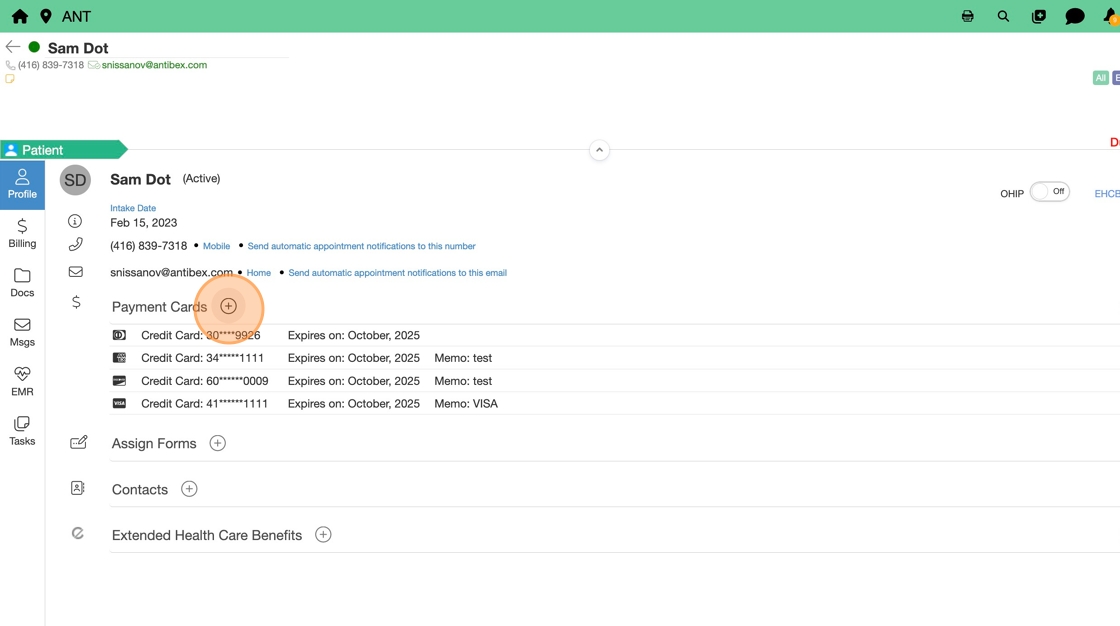
1. – Open the Patient Profile.
- Click + Add Payment Card.

2. Enter the required details:
- Name on credit card
- Card Number
- Expiry Date (MM/YY)
- CVV
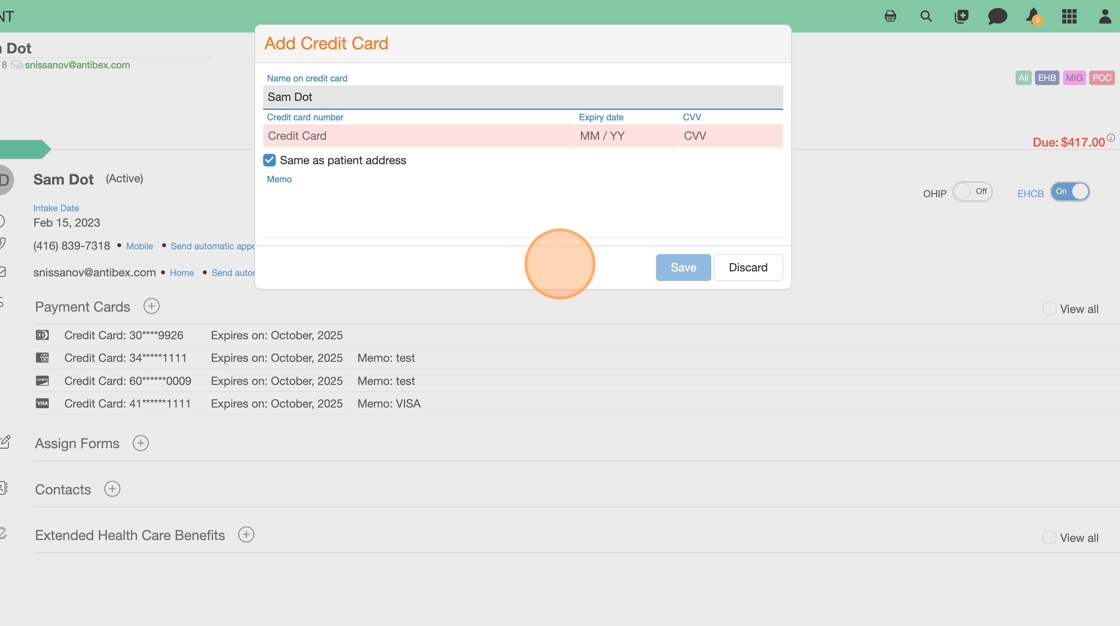
3. Click “Save “

2. Process a Payment

4. In the Billing section, select Payments.
5. Click Pay.
- Choose the payment method:
- Select Pay to use a saved credit card
- Or choose Terminal Pay if processing via a POS terminal
Paying Using A Saved Credit Card
6. Click Pay.
- From the payment method dropdown, select the saved card.
- Enter the payment amount.
- Select the outstanding invoice(s) the payment should be applied to.

7. Click Save to process the payment.
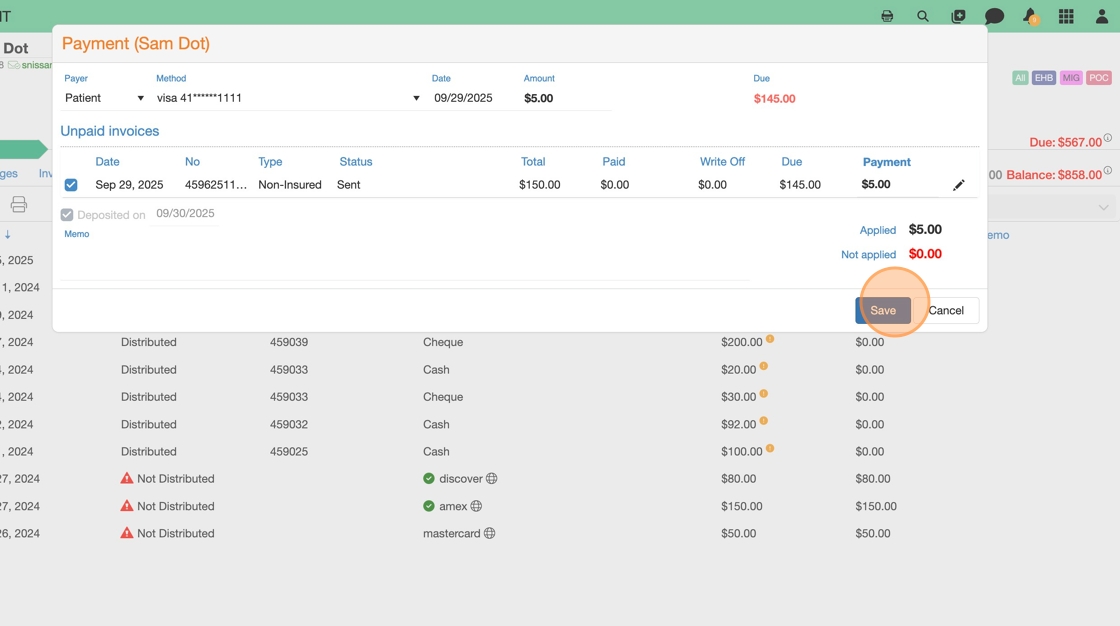
Pay Using POS Terminal

8. Click Terminal Pay.
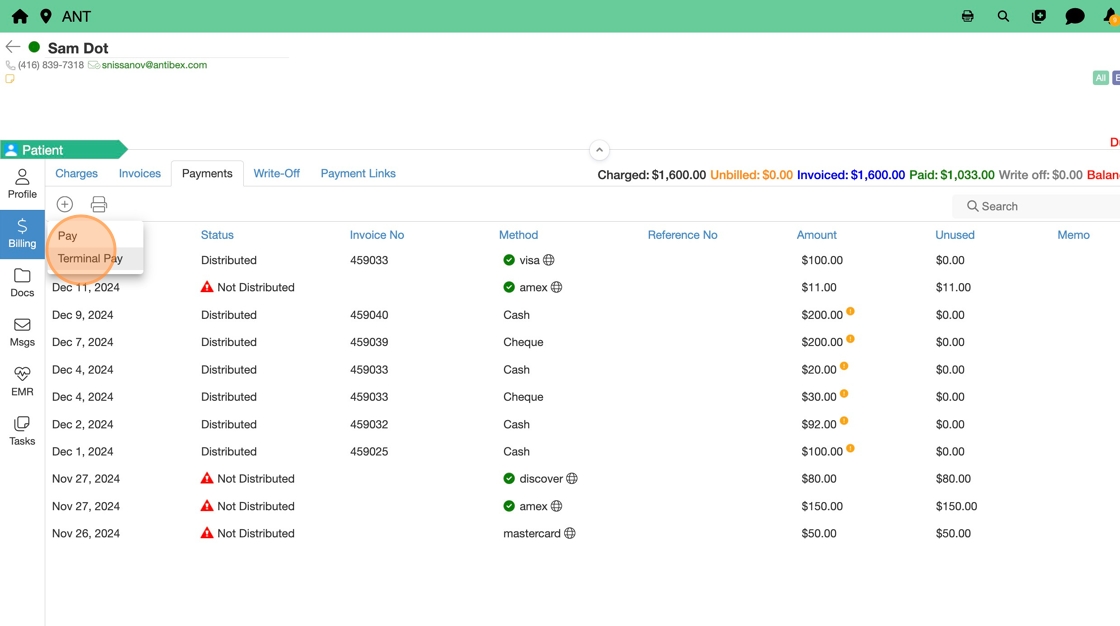
9. Enter the payment amount.
- Select the outstanding invoice(s) the payment should be applied to.
- Click Process Payment
Void or Refund a Payment
10. In the Payments list, locate the payment entry.
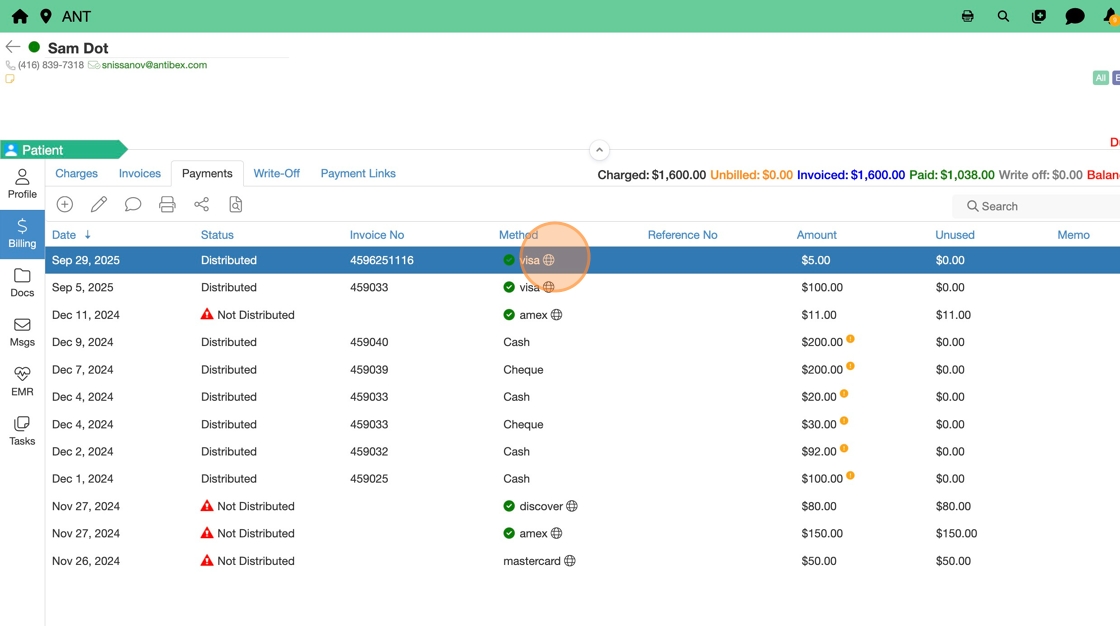
11. Right-click the payment (e.g., Mastercard).
- Select Void Payment.
- Confirm by clicking Yes.