
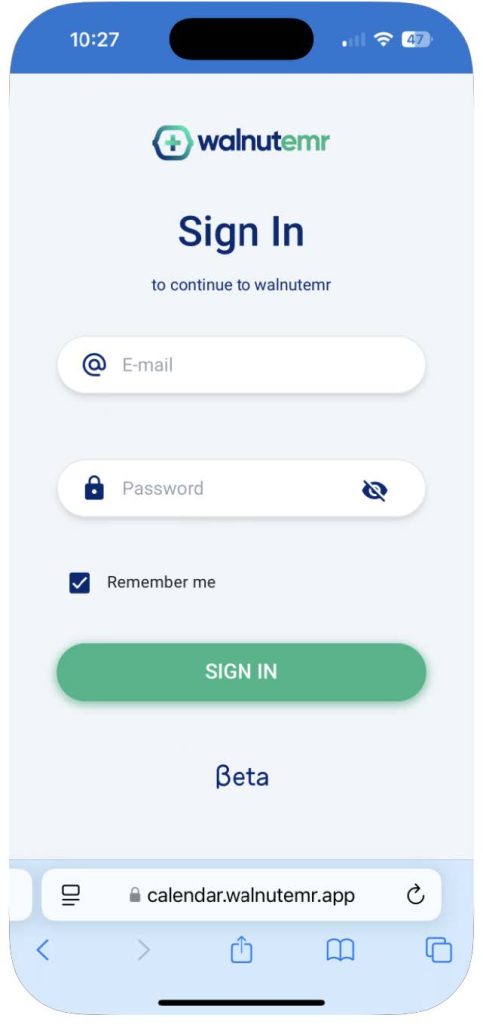
Logging In
To access the WalnutEMR mobile calendar app, go to calendar.walnutemr.app on your mobile device. Use your WalnutEMR login credentials to sign in.
Navigating the Calendar
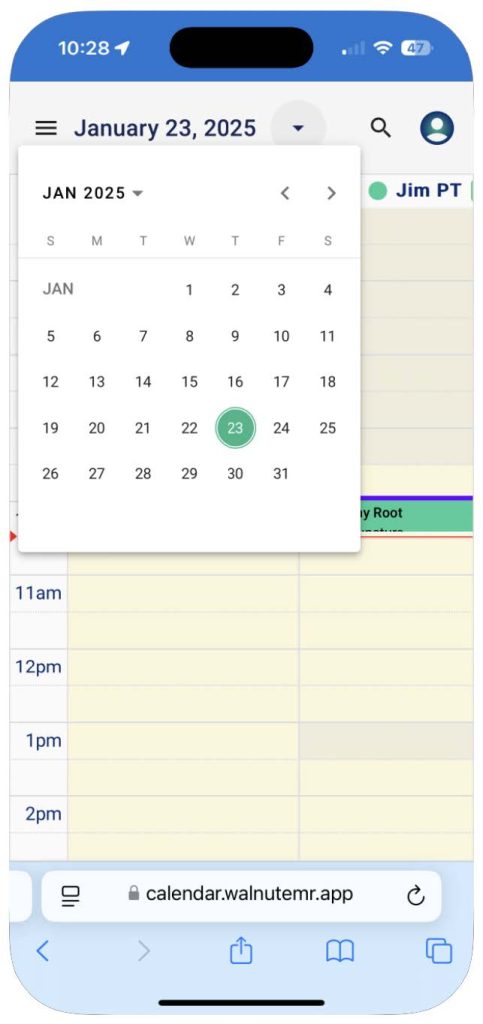
- The default view displays Today’s schedule upon logging in.
- You will see all calendars shared with you.
- Click the current date at the top to open a mini-calendar for easy navigation.
Calendar Settings
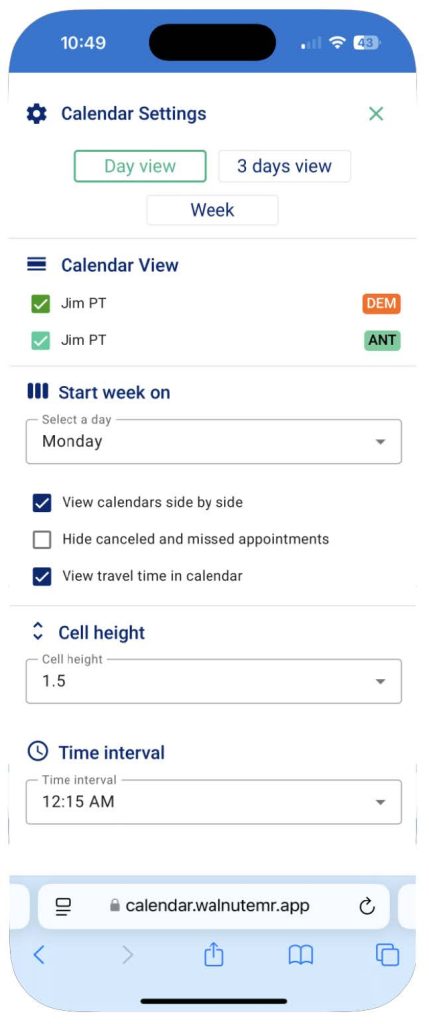
To access and customize settings:
- Tap the
 menu icon (top right corner).
 - Customize the following:
- Default views: Day, 3-Day, or Week View.
- Displayed calendars: Show/hide calendars by selecting checkboxes.
- Default week start: Set the first day of the week.
- Calendar display mode: Choose side-by-side or grouped view.
- Canceled and missed appointments: Show/hide these using the checkbox.
- Cell height: Adjust for better appointment visibility.
- Time intervals: Set your preferred start time.
Viewing the Calendar
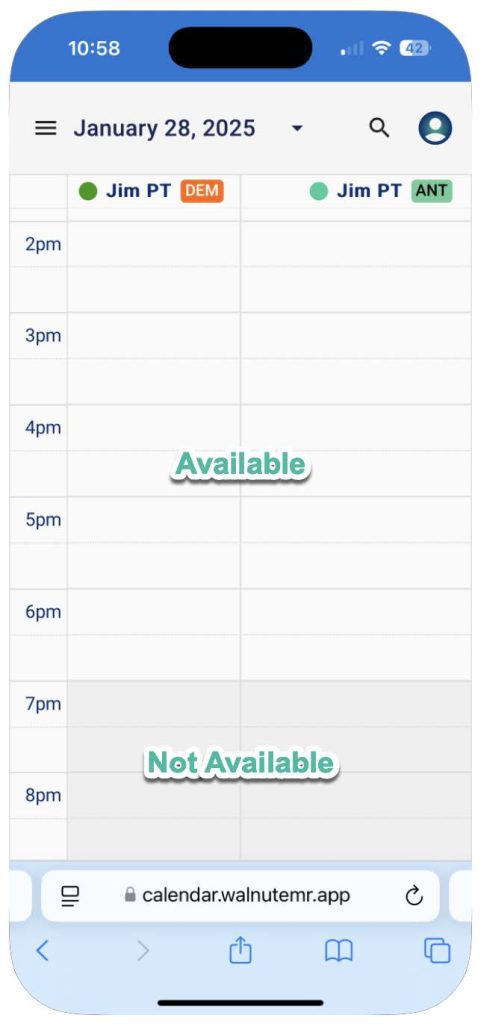
- Available time slots: Displayed in white.
- Unavailable slots: Displayed in dark gray.
- Each calendar is labeled with branch information, including branch name and acronym icon.
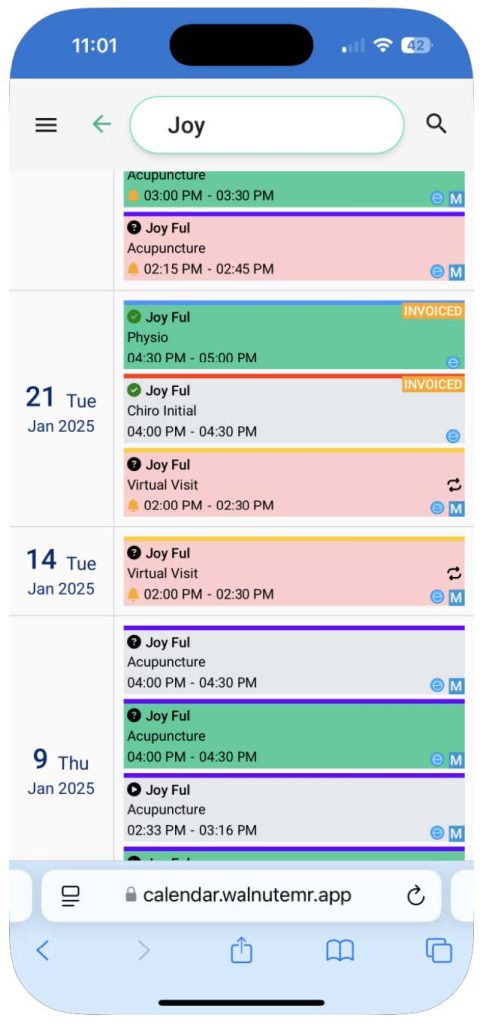
Searching for Appointments
- Tap the
 search icon (top right, next to “My Account” icon).
 - Enter any appointment-related text to quickly locate details.
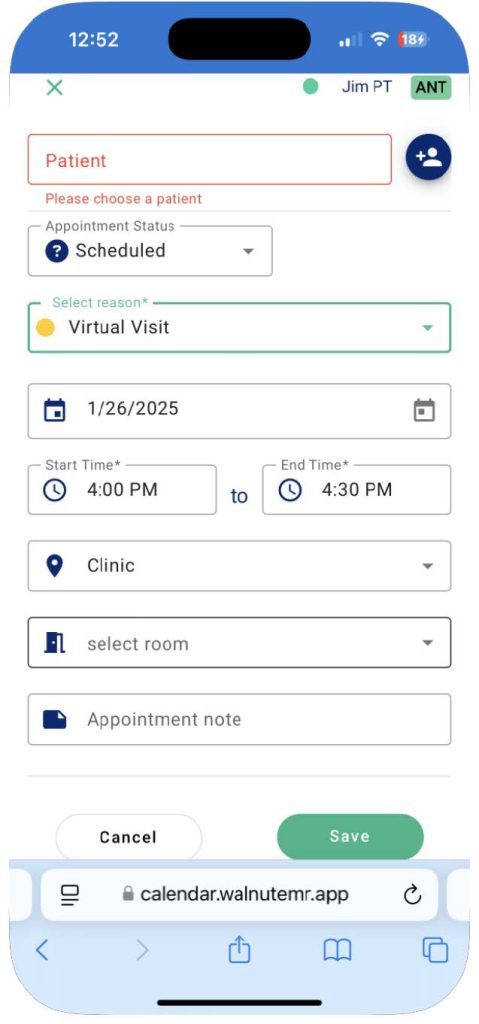
Creating a New Appointment
- Tap on an available time slot in the calendar.
- Fill in or modify the appointment details as needed.
- Add a note, if required, to provide additional context for the appointment.
- Tap Save to confirm and schedule the appointment.
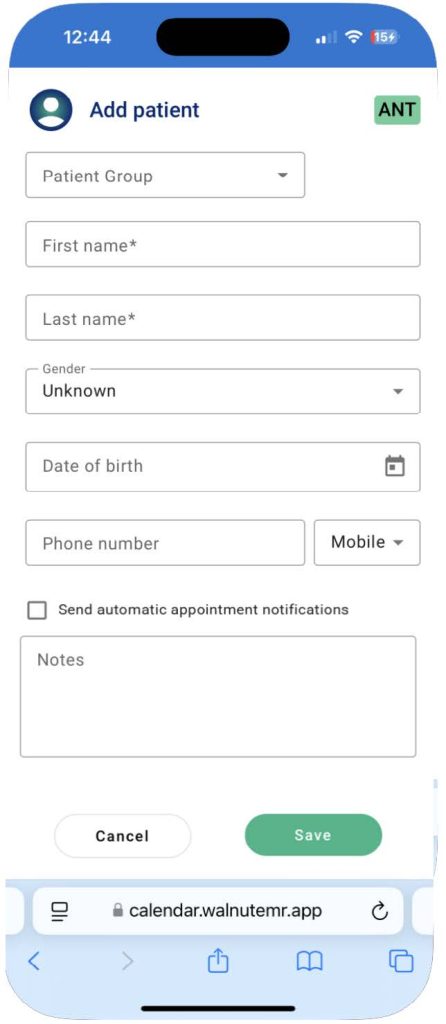
Creating a New Patient Appointment
- Tap on an available time slot in the calendar.
- On the appointment screen, tap the

 New Patient button located next to the patient field.
 - Enter the new patient’s details and complete the required fields.
- Tap Save to schedule the appointment for the new patient.
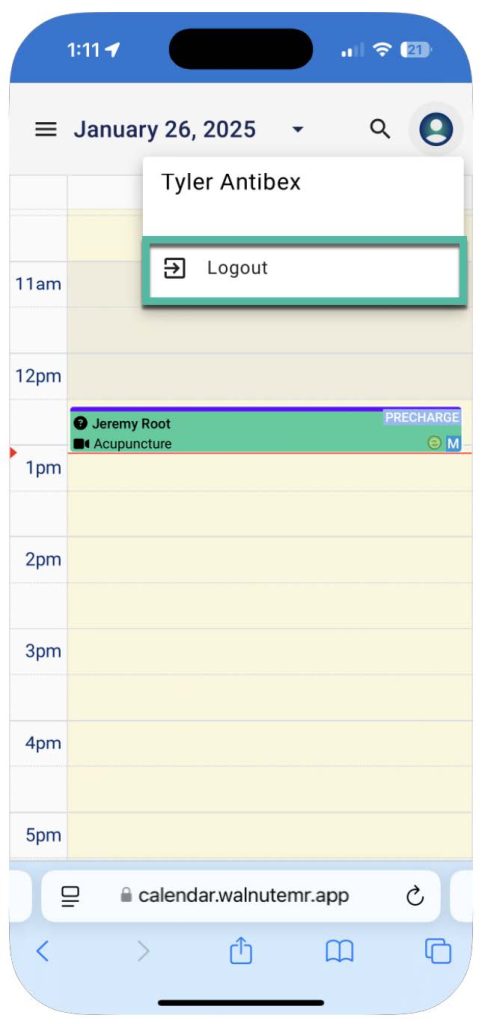
Logging Out
- Tap the
 account button (top right).
 - Select Log Out.
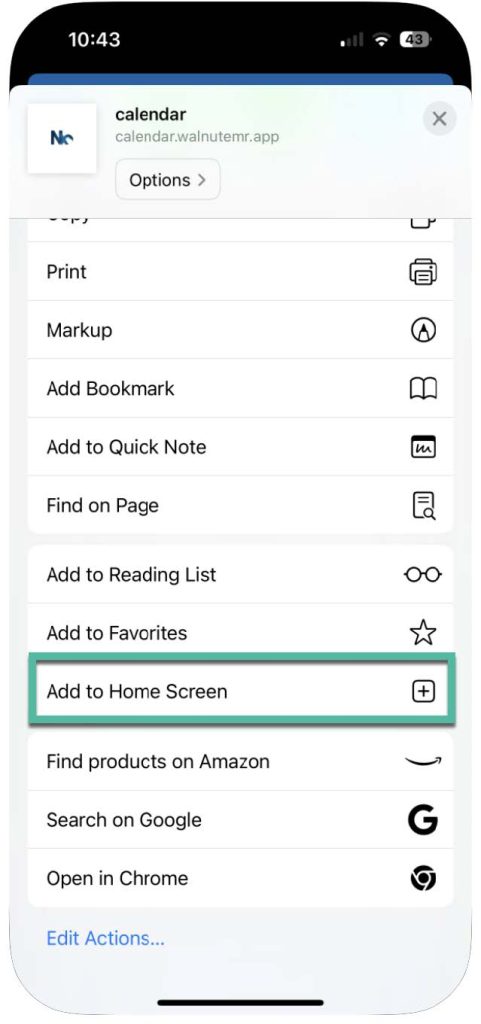
How to Add WalnutEMR Calendar App to Your Phone’s Home Screen
For iPhone (Safari):
- Open Safari on your iPhone.
- Navigate to calendar.walnutemr.com.
- Tap the
 Share icon (square with an arrow pointing up) at the bottom of the screen.
 - Select Add to Home Screen.
- Edit the name if desired (e.g., “WalnutEMR Calendar”) and tap Add.
- The app icon will now appear on your home screen.
For a step-by-step video guide, click here.
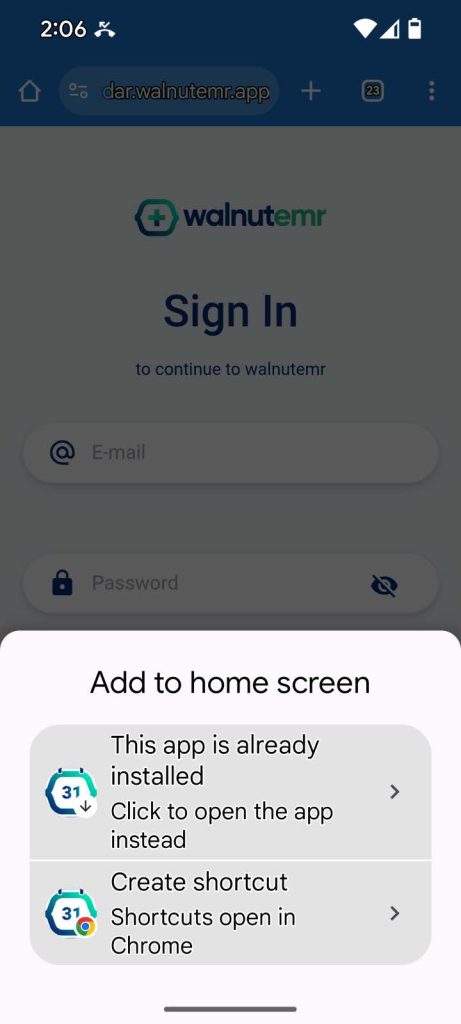
For Android (Chrome):
- Open Chrome on your Android device.
- Navigate to calendar.walnutemr.com.
- Tap the Share icon (square with an arrow pointing up) at the top right corner of the screen in the url address
- Select Add to Home Screen.
- Edit the name if desired (e.g., “WalnutEMR Calendar”) and tap Add.
- The app icon will now appear on your home screen.
For a step-by-step video guide, click here.
Conclusion
How to Add WalnutEMR Calendar App to Your iPhone
How to Add WalnutEMR Calendar App to Your Android