
Follow these steps to successfully set up and manage your HumbleFax account within WalnutEMR.
Step 1: Create a HumbleFax Account and Generate API Keys
- Visit app.humblefax.com and create an account if you don’t already have one.
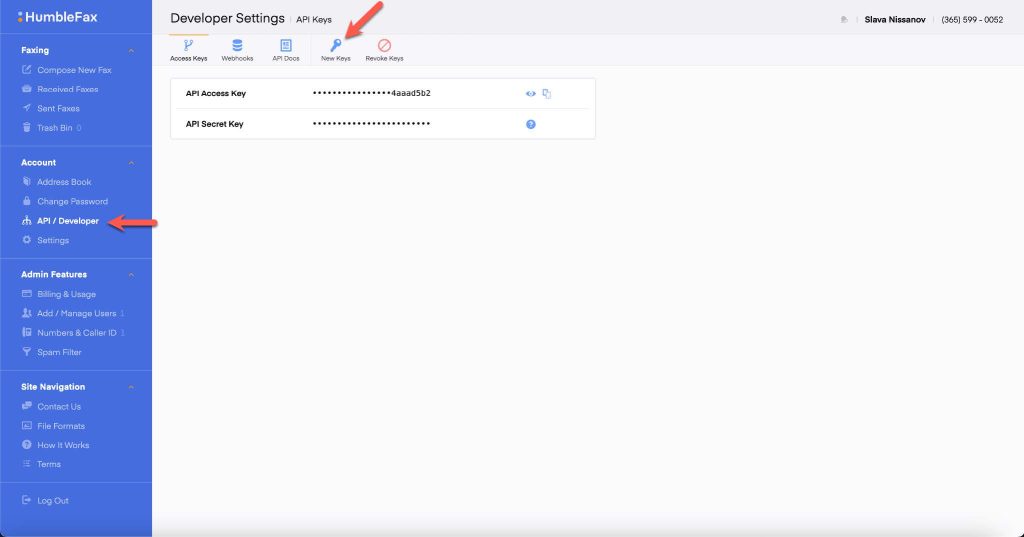
- Once logged in, navigate to the API/Developer section from the menu.
- Generate a new API key. When prompted, a Secret Key will appear in a popup.
Step 2: Configure HumbleFax in WalnutEMR
- In a new browser tab, log in to your WalnutEMR account.
- Navigate to the Branch App section, then select eAccounts.
- Under Fax Account, click Setup Fax Account to open the setup window.
- Configure your HumbleFax settings with the following details:
- Fax Type: Select HumbleFax.
- API Access Key: Paste the API Access Key from HumbleFax.
- API Secret Key: Paste the Secret Key you saved in Step 1.
- Fax Number: Enter the fax number associated with your HumbleFax account (this can be found in the API/Developer section of HumbleFax).
- If you’d like to receive email notifications for successful or failed fax transmissions, check the notification box and enter a valid email address.
- Once all fields are completed, click Save to finalize the setup.

Additional Resources
For a visual guide, refer to our HumbleFax Setup Tutorial, which provides a step-by-step walkthrough of the setup process.
Important Considerations for Using HumbleFax
When using HumbleFax with WalnutEMR, keep the following in mind: