
Here’s a step-by-step guide to integrating your Doxy.me telemedicine room into WalnutEMR’s calendar for smooth virtual appointments, complete with automated reminders.
1. Register and Set Up Doxy.me
- Each therapist needs to register on Doxy.me to create their individual telemedicine room.
- After registration, copy your unique Doxy.me room link.
2. Add the Doxy.me Room Link in WalnutEMR Calendar Settings
- Go to the Calendar app in WalnutEMR.
- Open Calendar Settings by:
- Clicking on the three-dot button in the calendar app, or
- Going to Branch App > Calendars > Calendars, selecting the specific calendar, and opening it.
- In the Telemedicine section, paste your Doxy.me room link under the label for telemedicine.
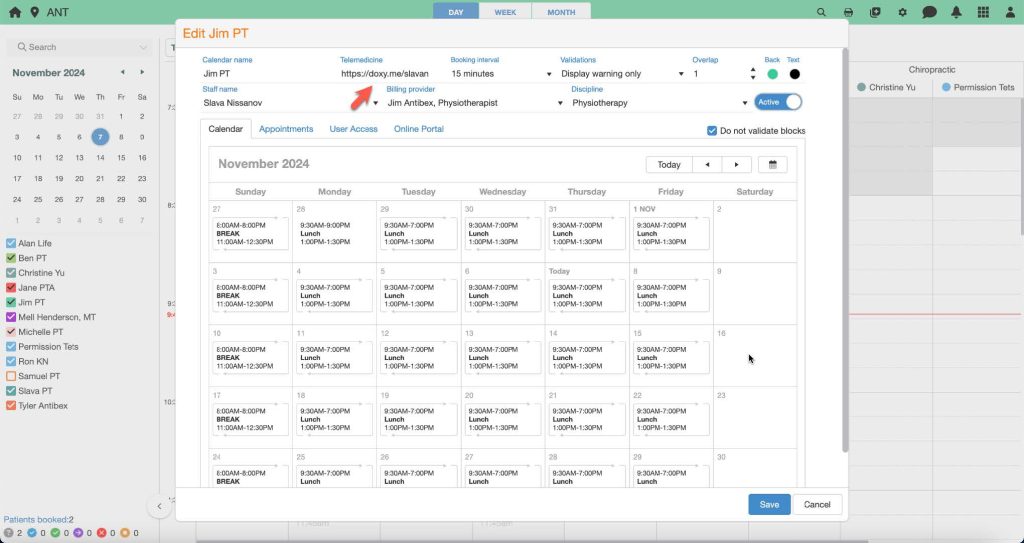
3. Enable Virtual Appointment Option
- Go to Branch > Calendars > Appointments in WalnutEMR.
- Check the Virtual Appointment box to ensure virtual options are available for client bookings.
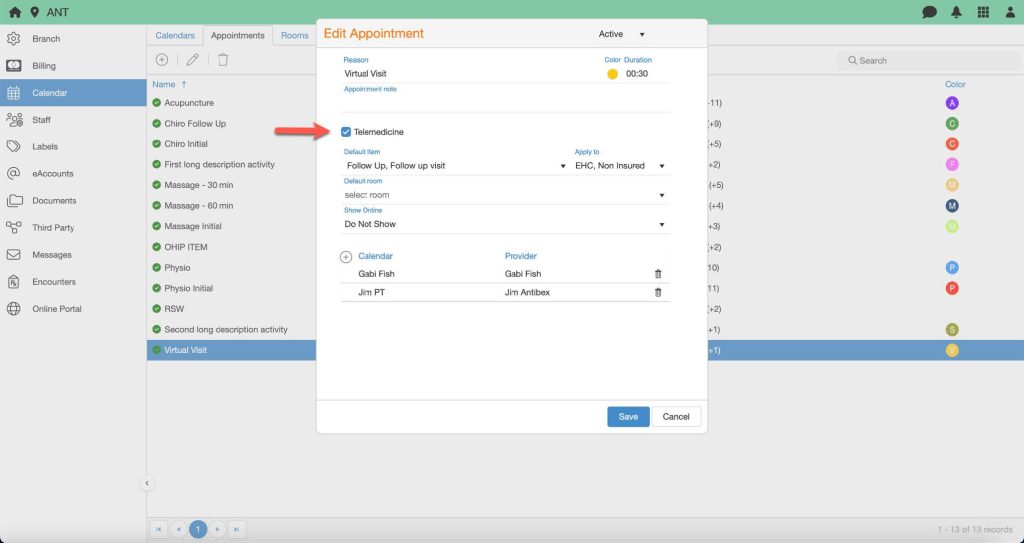
4. Activate Telemedicine Reminders
- In the Branch App, go to Calendars > Reminders.
- Enable telemedicine reminders by checking Send telemedicine reminders when an appointment is scheduled.
- Choose how long before the virtual appointment the reminder should be sent (e.g., 30 minutes, 1 hour before the session).

5. Joining the Telemedicine Appointment
- When it’s time for the appointment, the provider can access the virtual meeting by:
- Clicking on the appointment in the calendar, then selecting Go to Telemedicine Room.
 next to them, making them easy to identify.