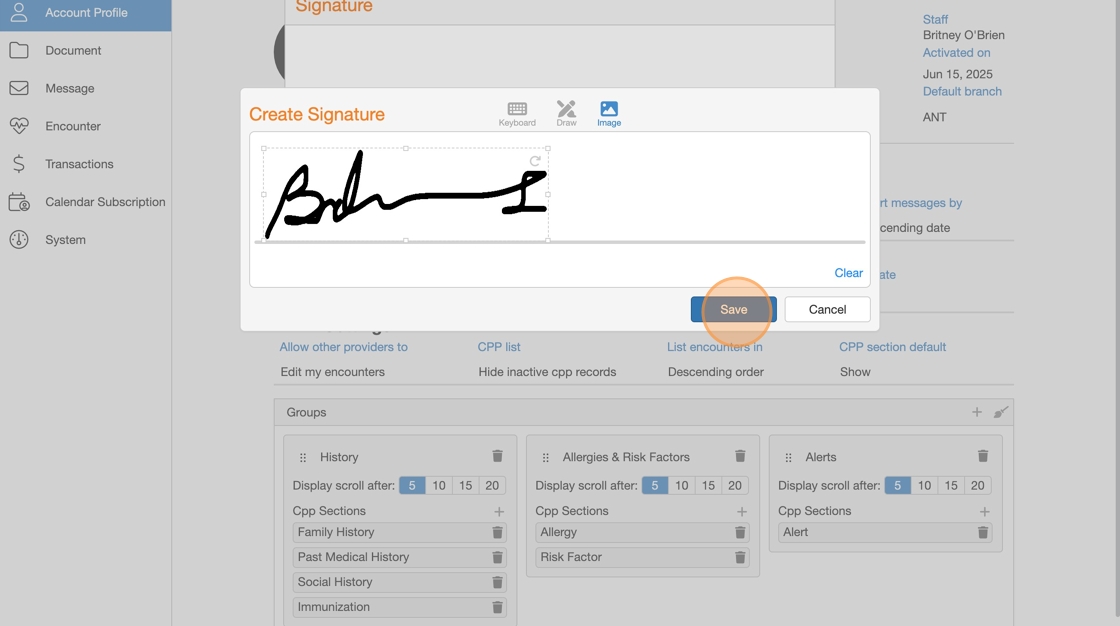
This guide explains how to add a digital signature to your account so you can sign documents electronically. Each staff member can create and save their own signature by accessing their account and following the steps below.

Step 1: Go To My Account

1. Go to My Account.
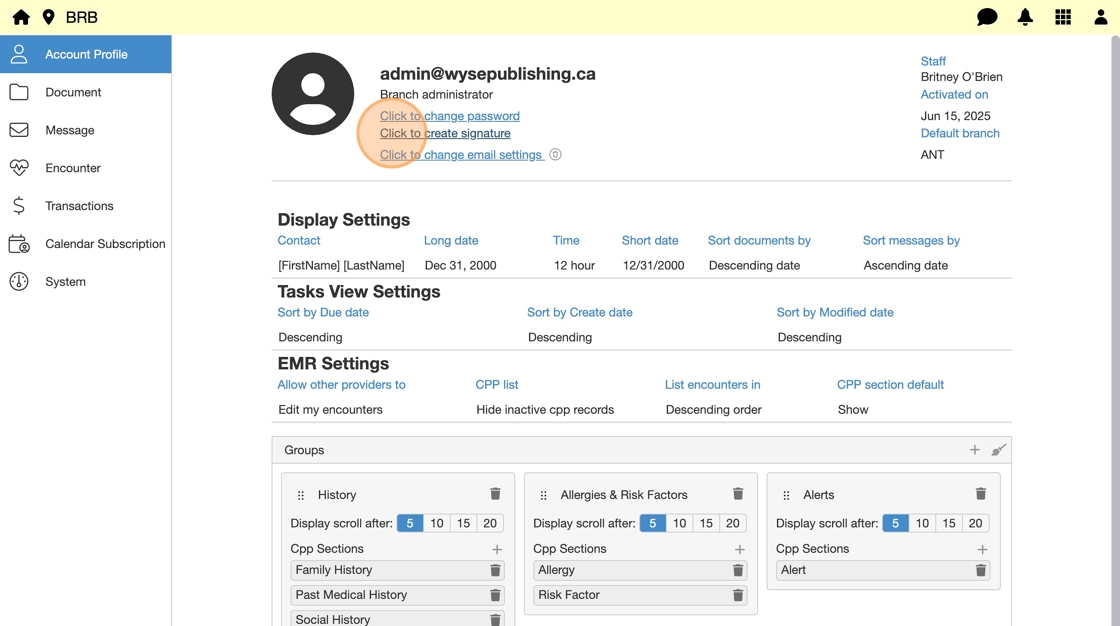

2. Click to Create Signature.

3. Click Signature Field and choose how to add signature:
- Keyboard
- Draw
- Image
Option 1: Add Signature Using Keyboard

4. Click Keyboard, then click text field and type your signature.
5. Use Change Style to select preferred text style.


6. Click Save to apply to your account.
Step 2: Create or Upload Signature
7. Click Draw.
8. Use mouse or touchpad to sign your name.


9. Use Clear to redo signature if needed.

10. Click Save to apply to your account.
Option 3: Add Signature Using Image
11. Click Image.
12. Upload png or jpeg image.
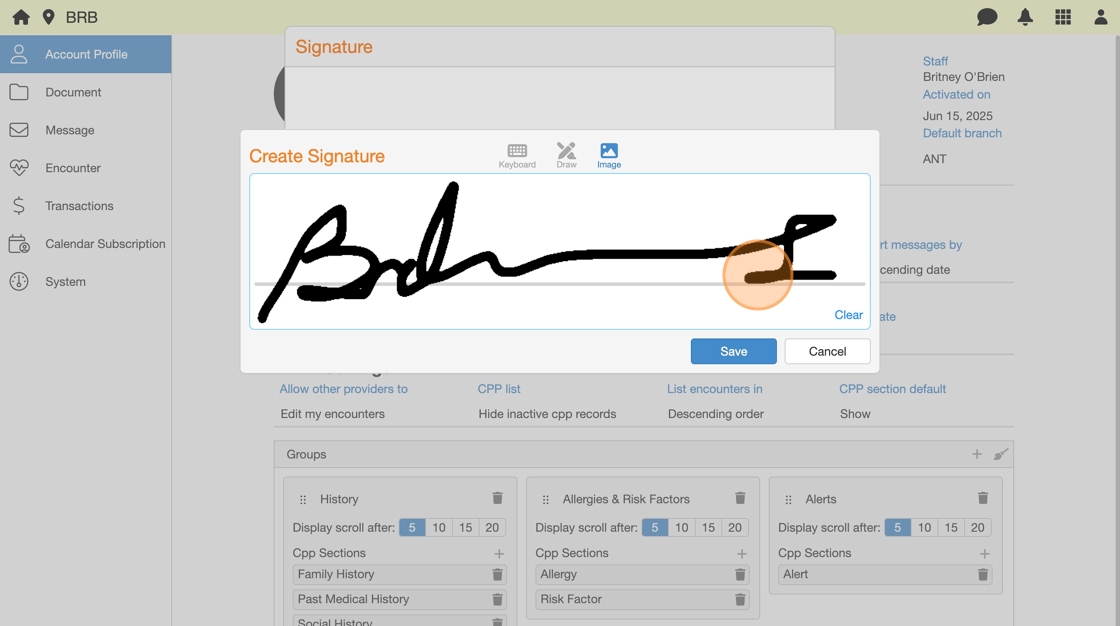
13. Resize or straighten image using resize and rotation handles.
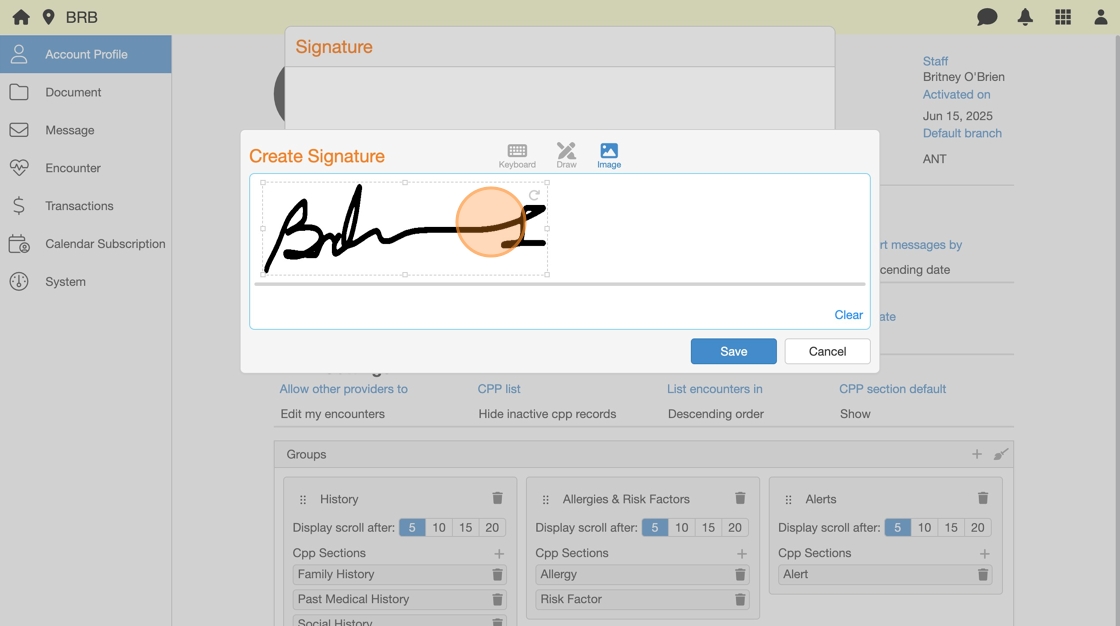
14. Click Save to apply to your account.