1. Home
  2. Knowledge Base
  3. Settings
  4. How to Add a New Staff Member to Another Branch and Send and Invitation

How to Add a New Staff Member to Another Branch and Send and Invitation

WalnutEMR allows you to connect multiple clinics under a shared URL and assign staff across locations. Staff maintain a single login and can be granted permission based access to additional branches.

Note: If the staff member is also a provider, please refer to the Provider Invite Guide as their setup involves additional details.

Step 1: Import an Existing Staff Member

1. Go to Branch App.

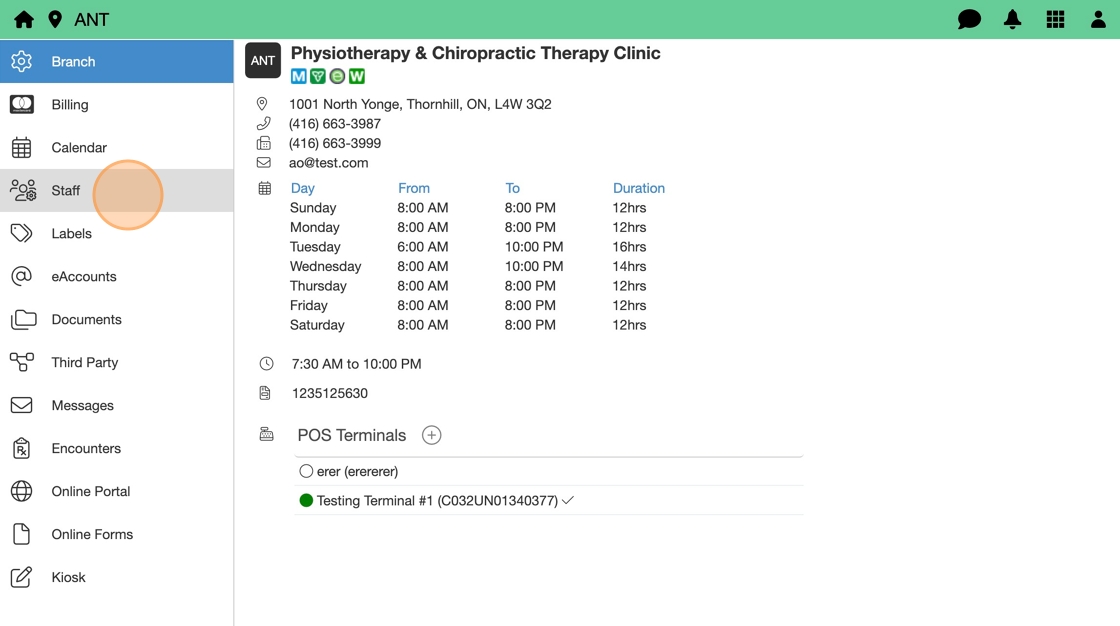
2. Select Staff tab.
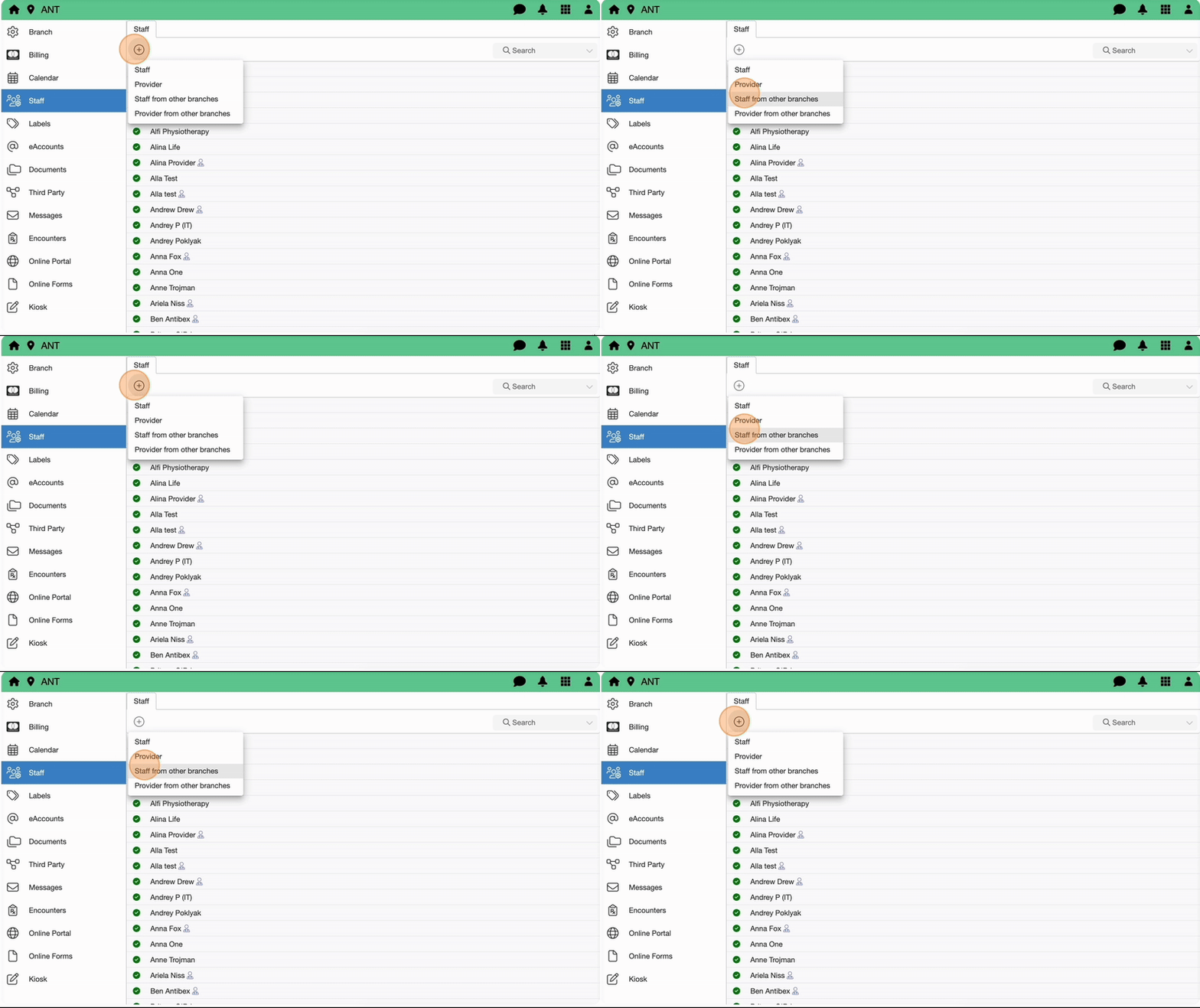
3. Click Add (+) and select Staff from other branches.
4. Choose staff member from dropdown menu, then hit Next.

5. Staff demographic information will auto-fill.

You must add branch specific information manually.

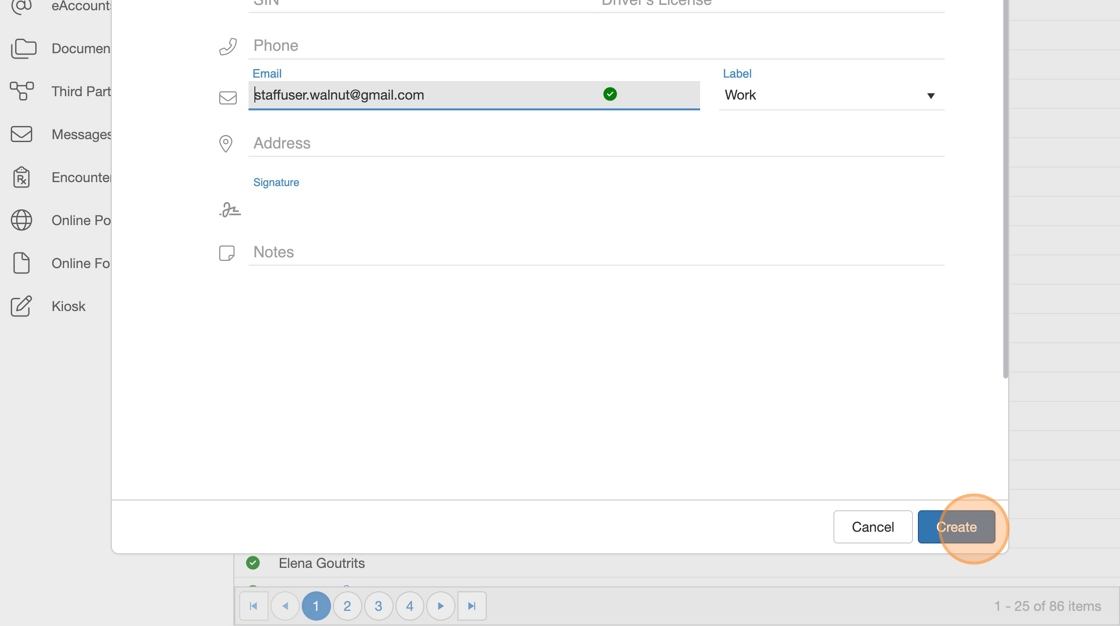
6. Update Staff information, then hit Create.
Step 2: Invite the Staff Member


7. Go to Users App.

8. Click Add (+) and select Staff member.

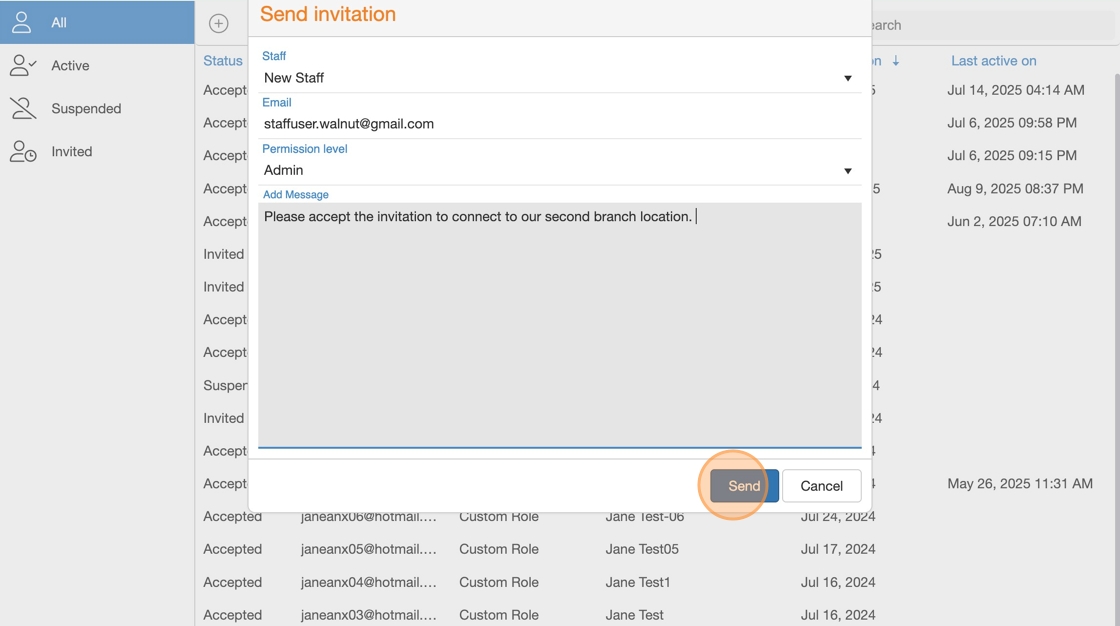
Verify email is correct before proceeding.

9. Select a Permission Level (e.g., Branch AdminReception, etc.).

10. Add a message to invitation email, then hit Send.
Accessing Multiple Clinics

– The staff member uses one login for all shared branches.
– They can switch between locations using the location dropdown.
– Their permissions are specific to each clinic and determine what they can see and do.

Was this article helpful?

Related Articles

Scroll to Top