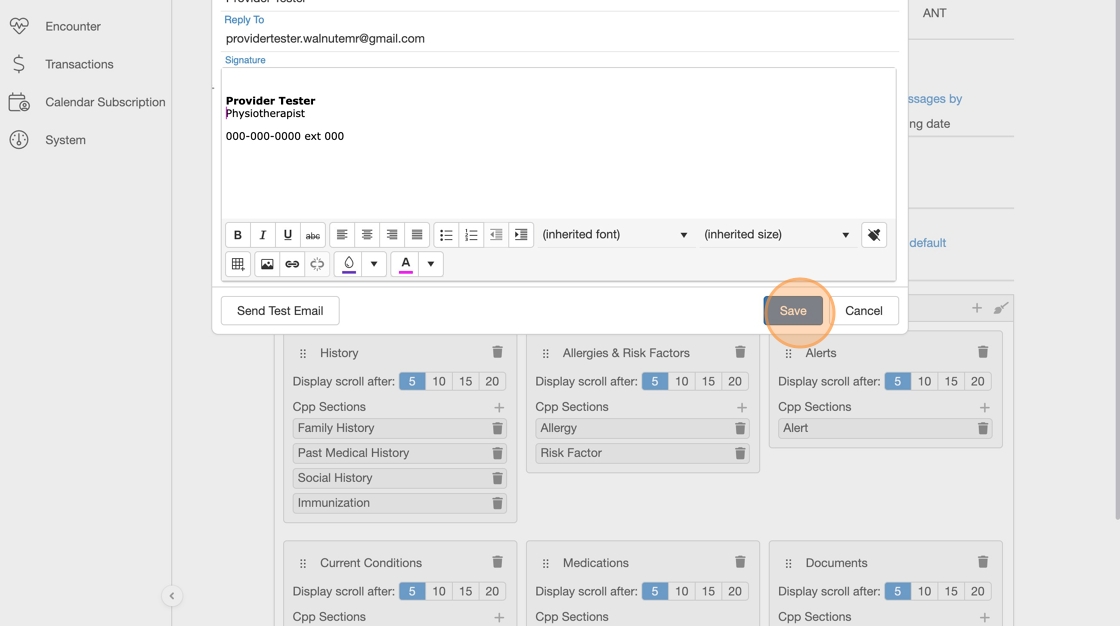
This guide provides instructions on how to connect an individual staff member’s email account and create personalized email signatures within the program.
Step 1: Connect Staff Email Address
1. Go to My Account.

2. Select Click to setup email account.
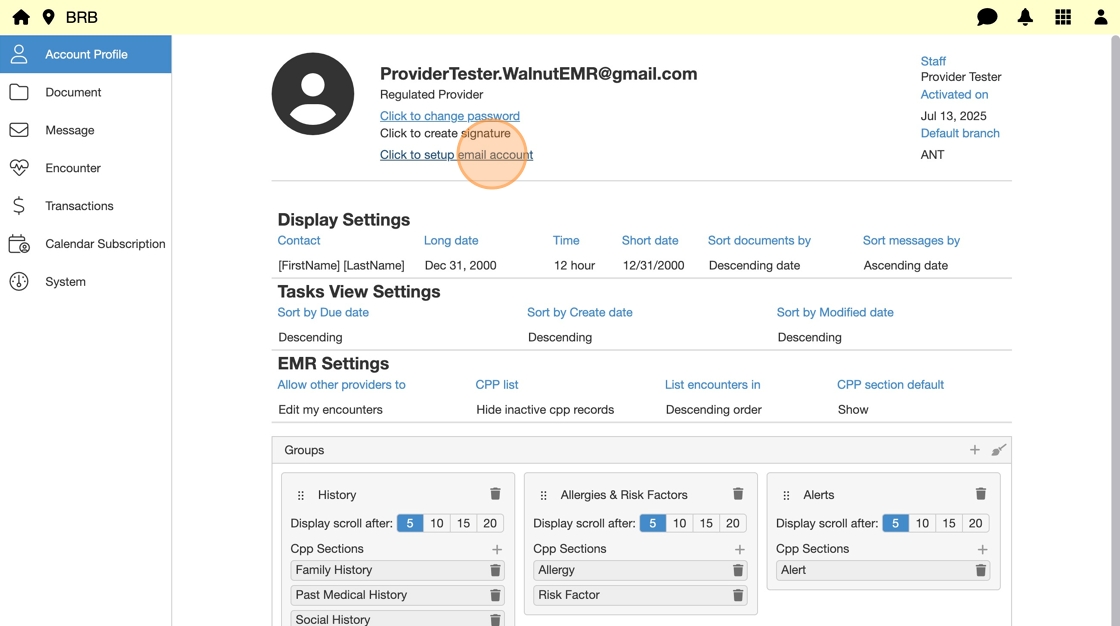
3. Add your staff email to Reply to field.
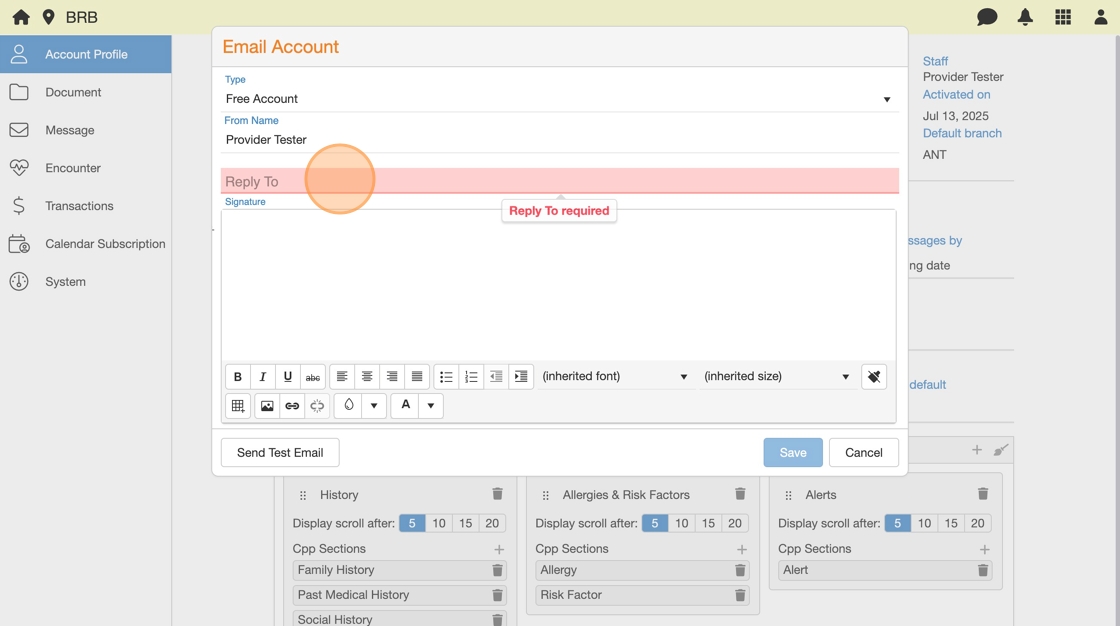
4. Send Test email, and click Ok.

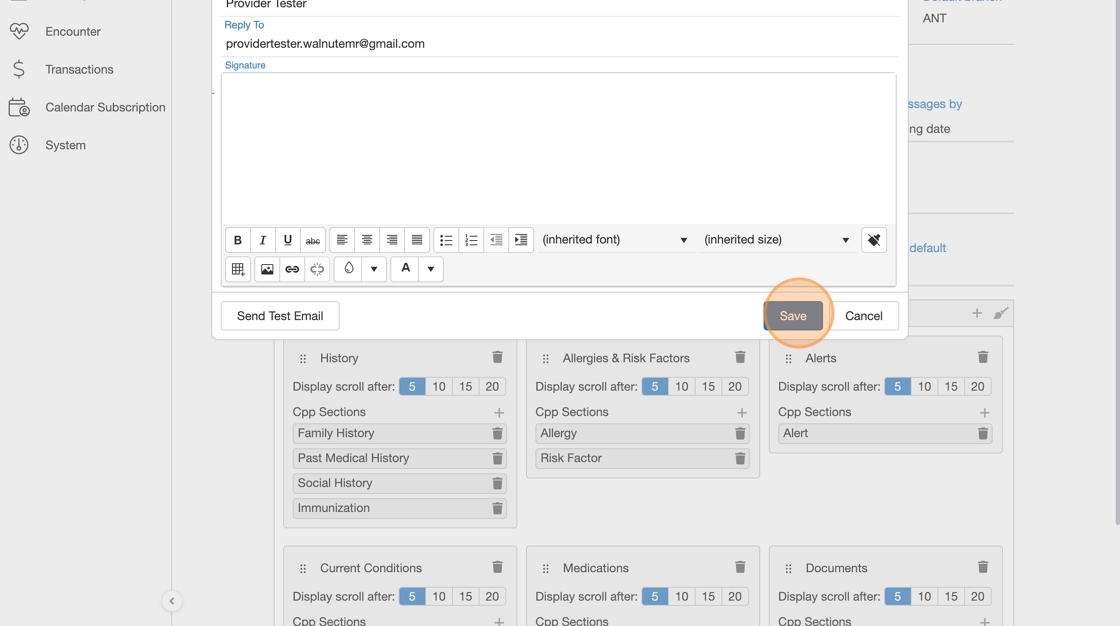
5. Click Save, and verify your email was received.
Step 2: Customize Email Signature
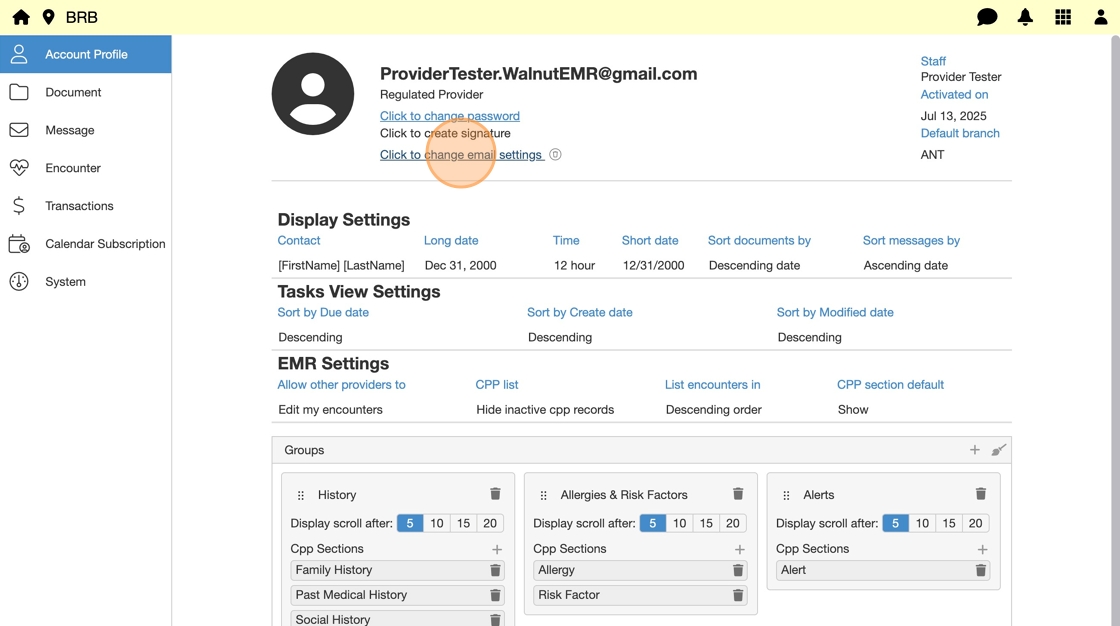
6. Select Click to change email settings.
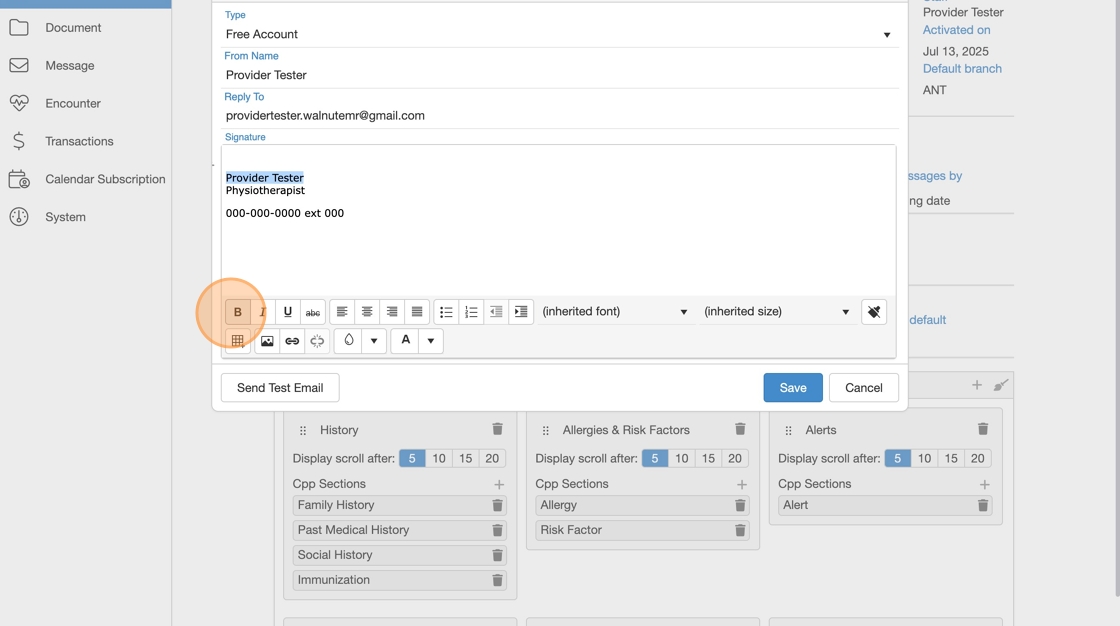
7. Copy your existing signature or create a new email signature.

8. Modify or customize signature:
- Format text
- Change justification
- Change font type
- Add images
- Add links
- Customize colour
Step 3: Test Email Signature
9. Click Send Test Email, click Ok and check signature’s appearance.

10. Modify signature if needed, then click Save.