
This guide walks you through the process of adding a new staff member using the Branch App, and then inviting them to your branch through the Users App.
Step 1: Create a Staff Member
1. Go to Branch App.

2. Select Staff tab.
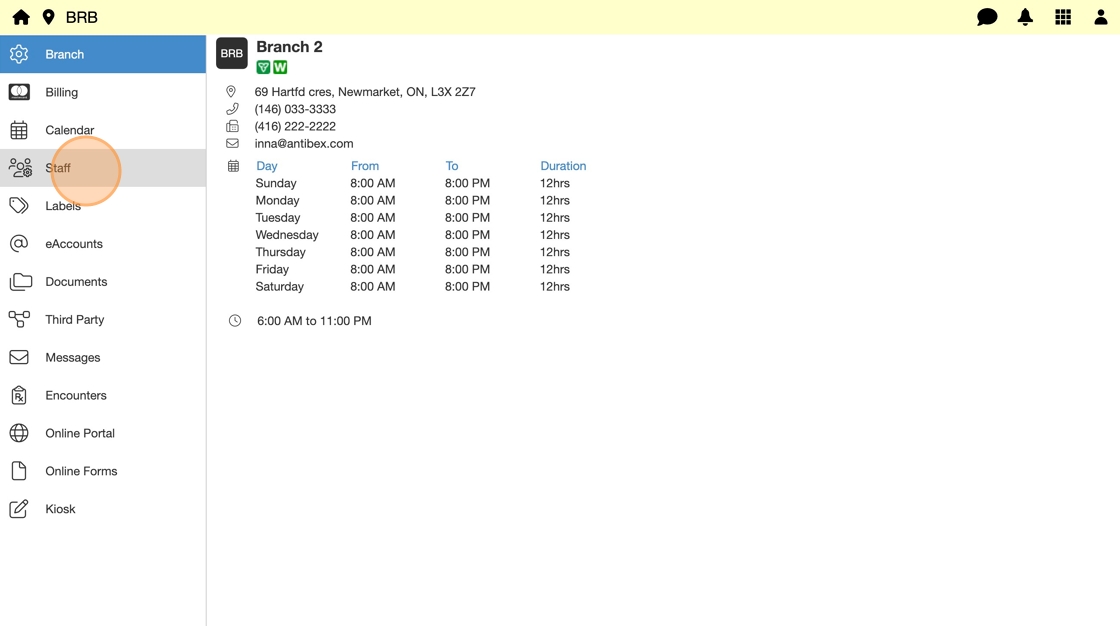
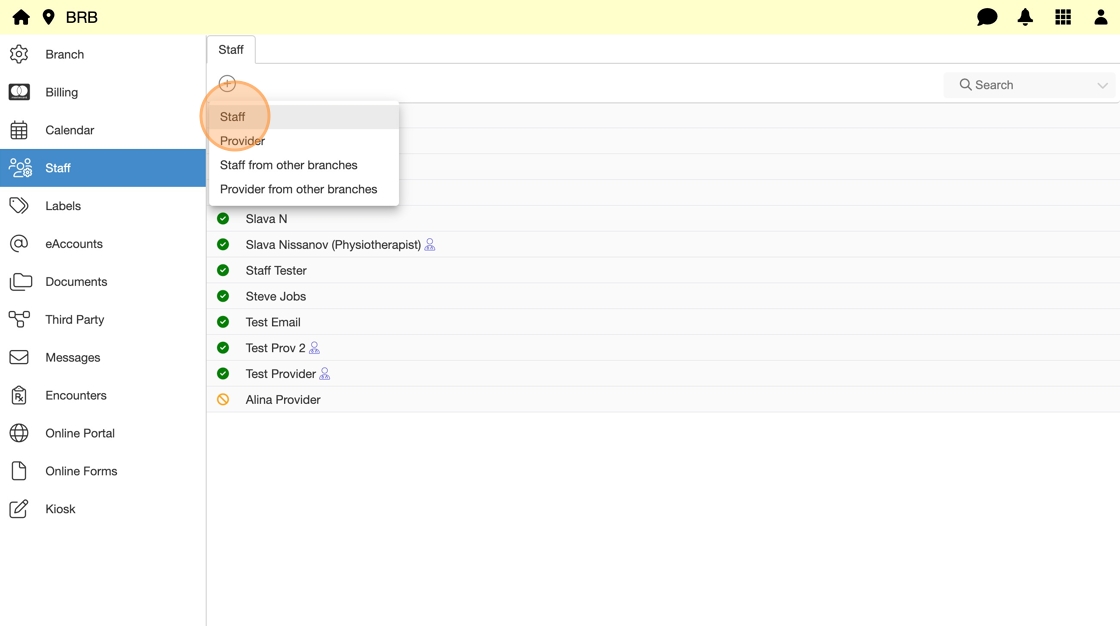
3. Click Add (+) and select Staff.
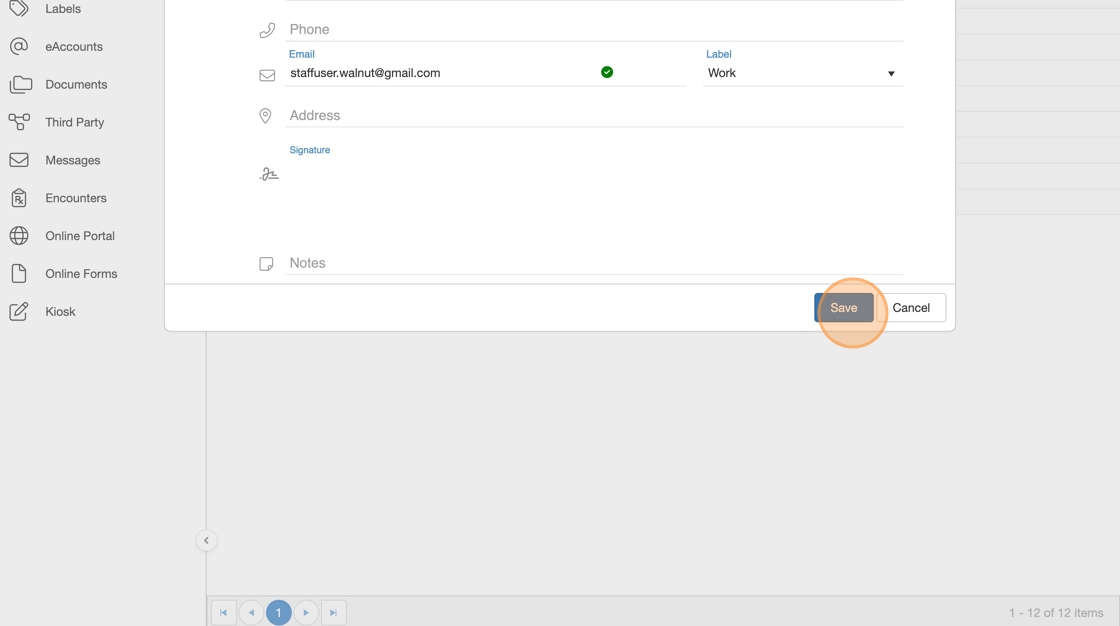
4. Complete required information:
- First Name
- Last Name
- Email Address
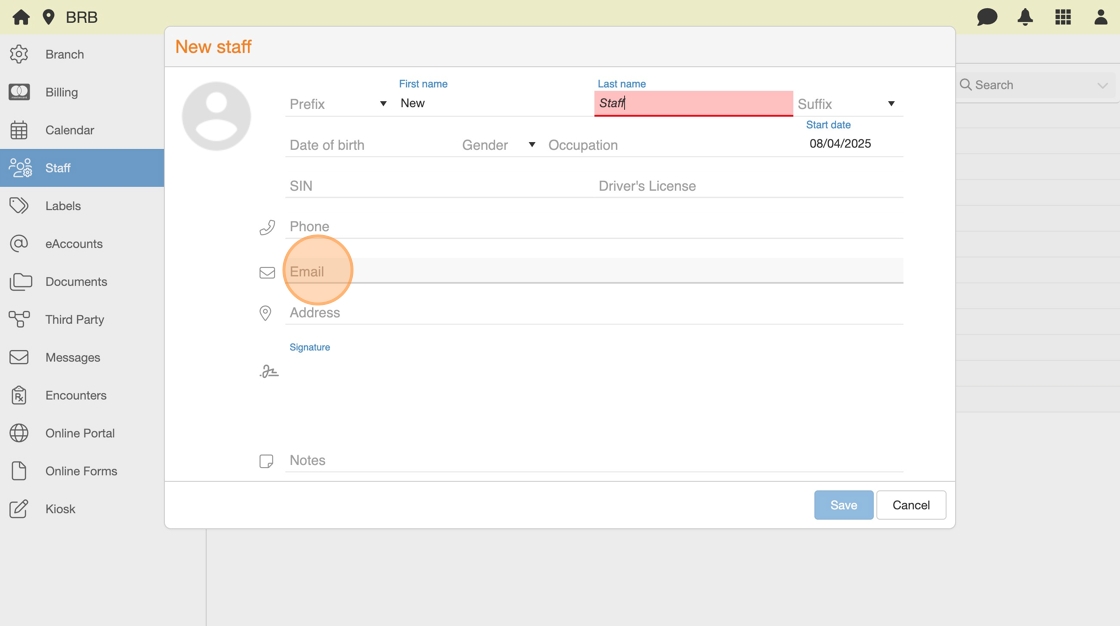
5. Click Save.
Step 2: Invite the Staff Member
6. Go to Users App.

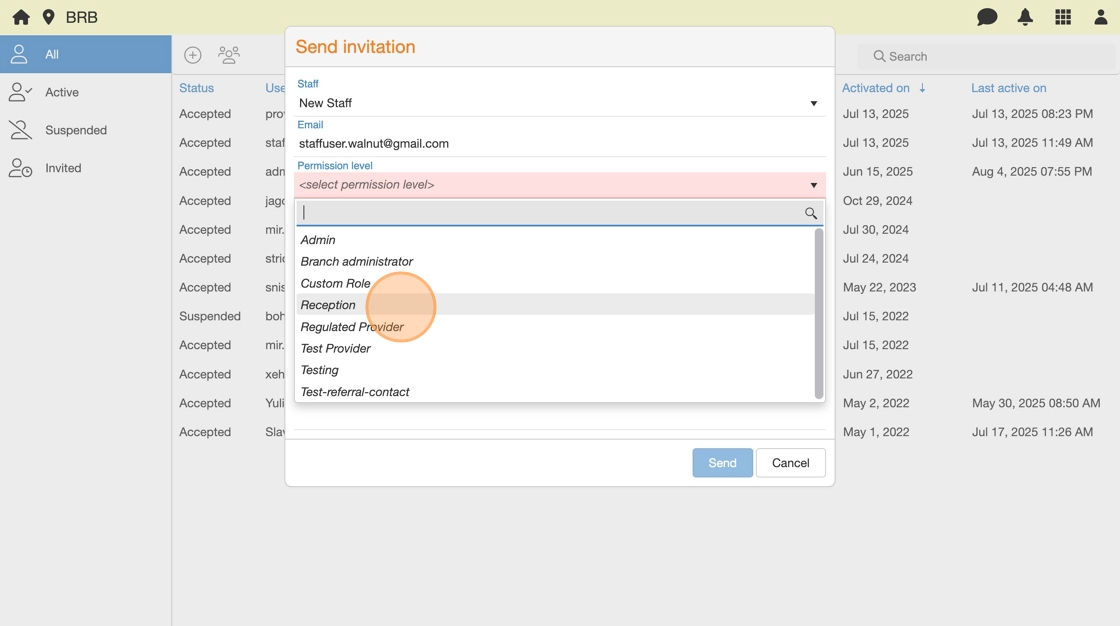
7. Click Add (+) and select Staff member.

8. Verify email address is entered correctly.
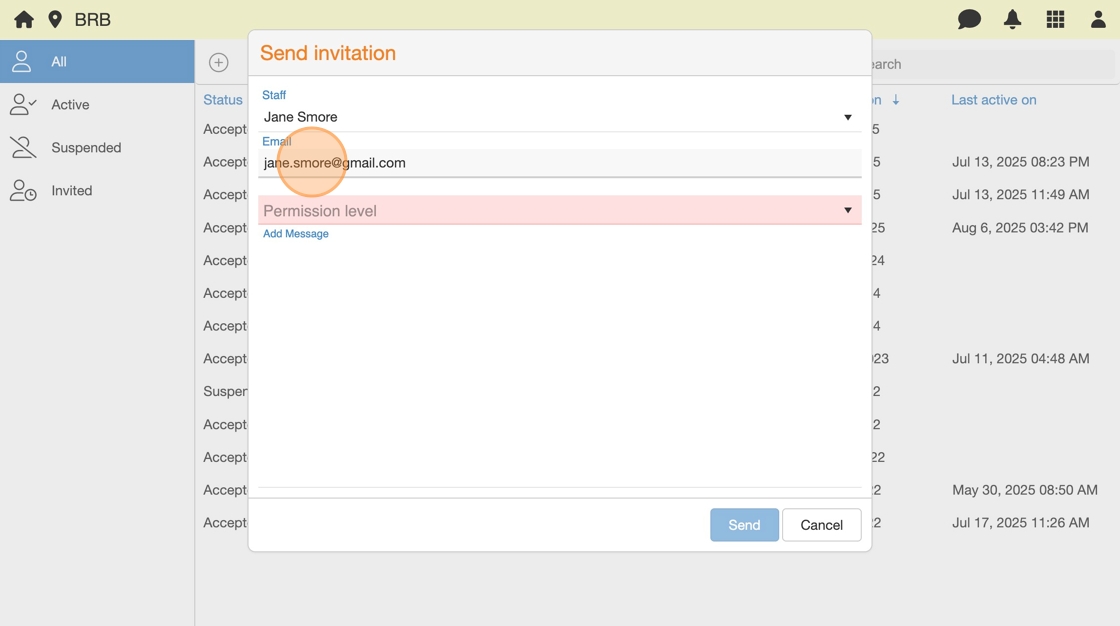
9. Select a Permission Level (e.g., Branch Admin, Reception, etc.).
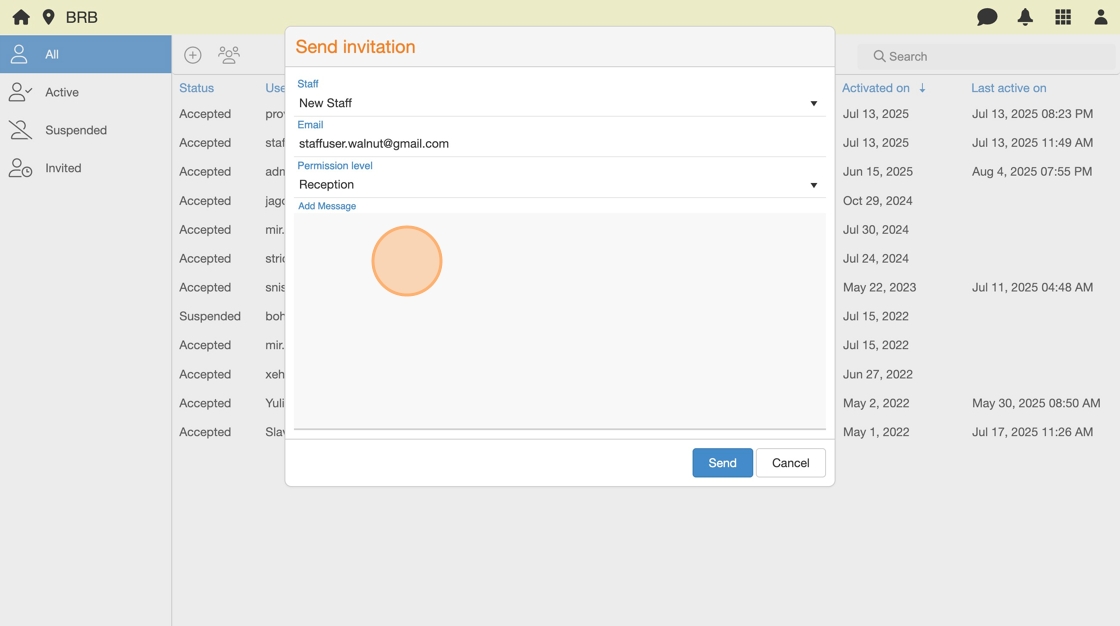
10. (Optional) Add a message to invitation email.
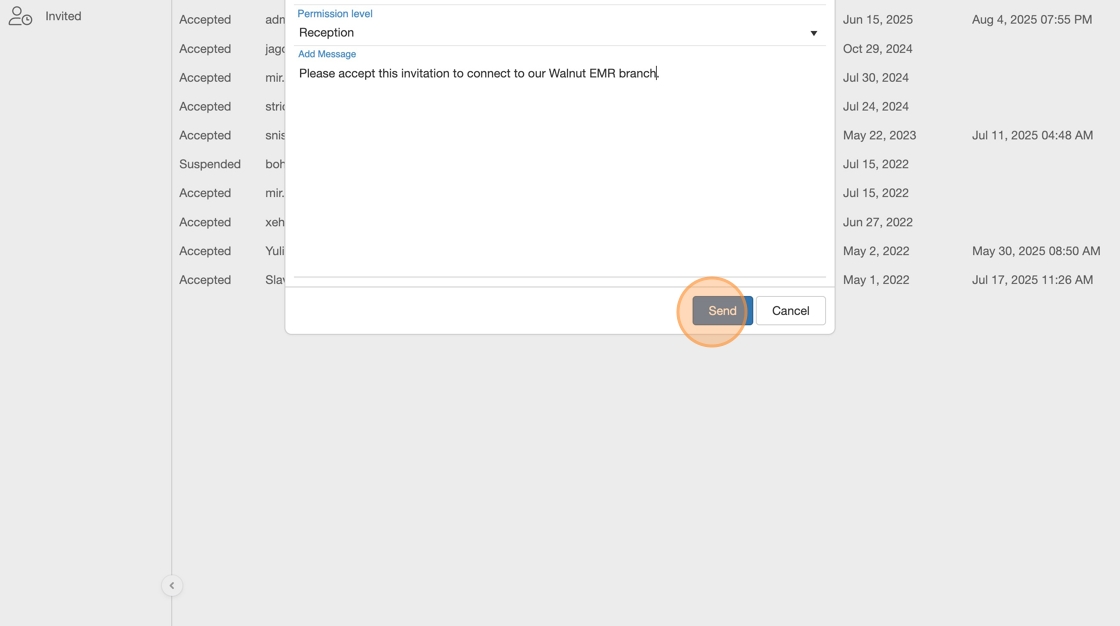
11. Click Send.
What Happens Next
Tip: – The staff member will receive an email invitation.
- Upon accepting the invitation, they will be prompted to create a password.
- Their email address will serve as their username.
- Once setup is complete, they can log in and access the branch with the permissions assigned during the invitation process.