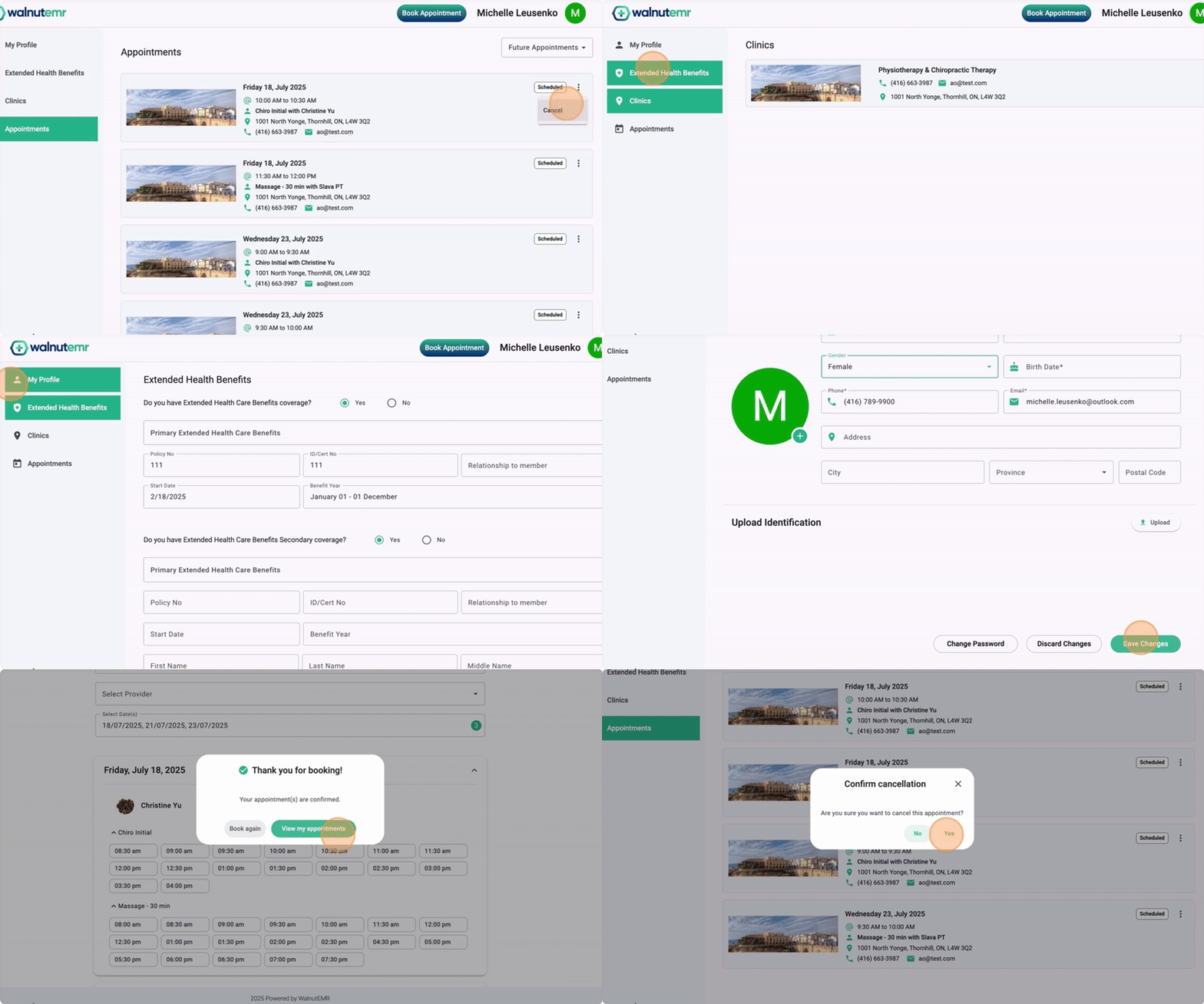
This guide walks you through how to enable and configure the online booking portal in WalnutEMR—from setting up business information to managing appointment and calendar availability.
Step 1: Enable Online Booking Portal
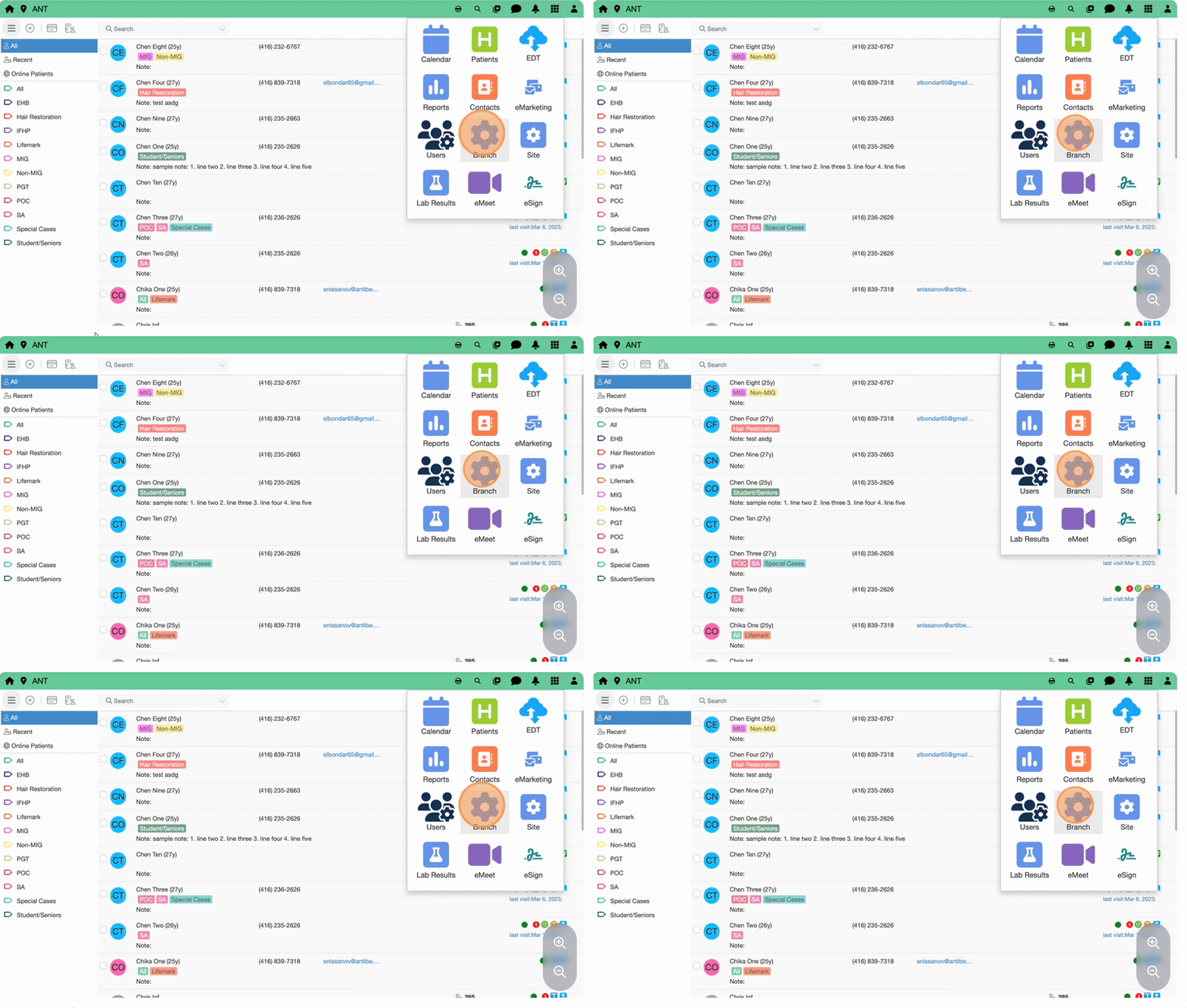
1. Go to Branch App
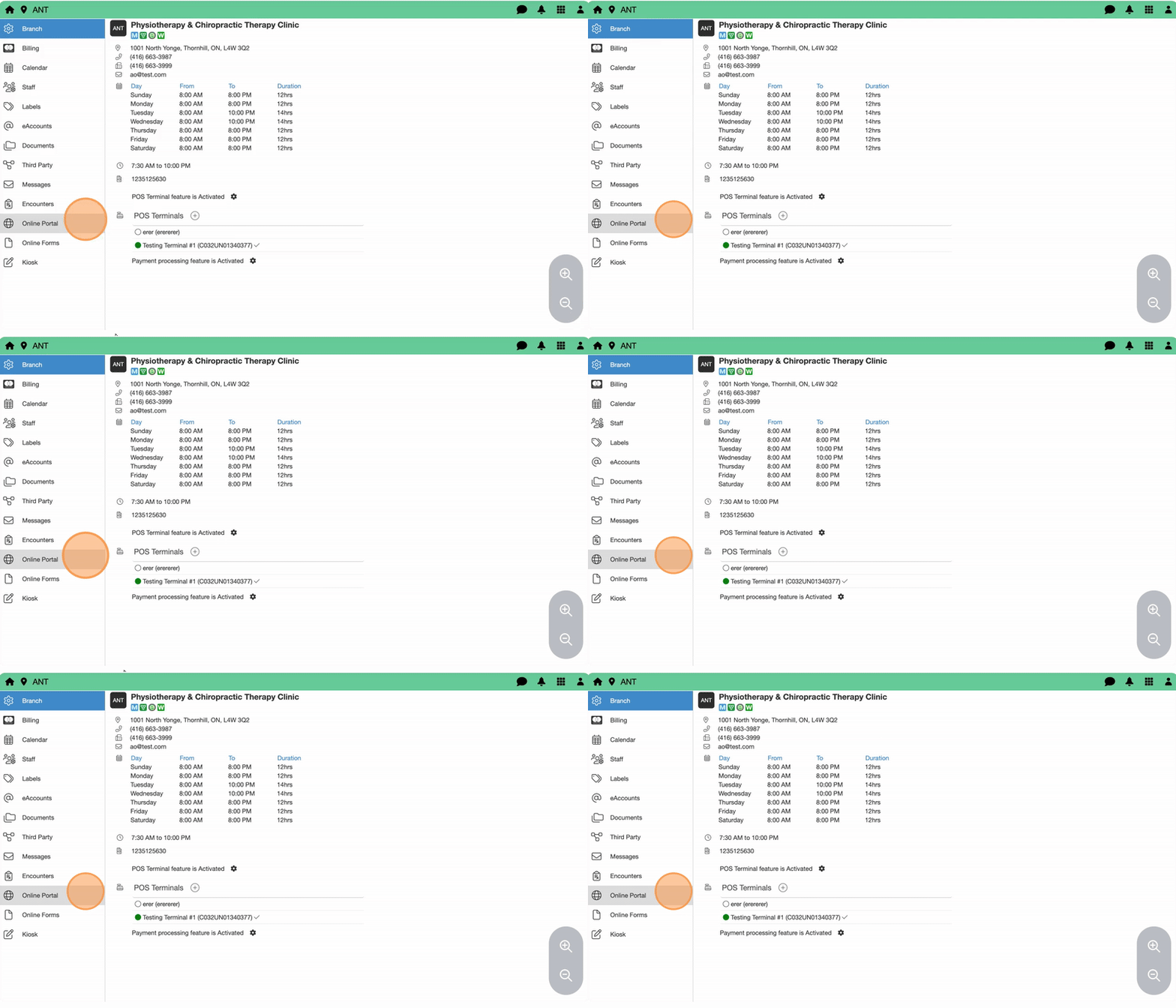
2. Select Online Portal
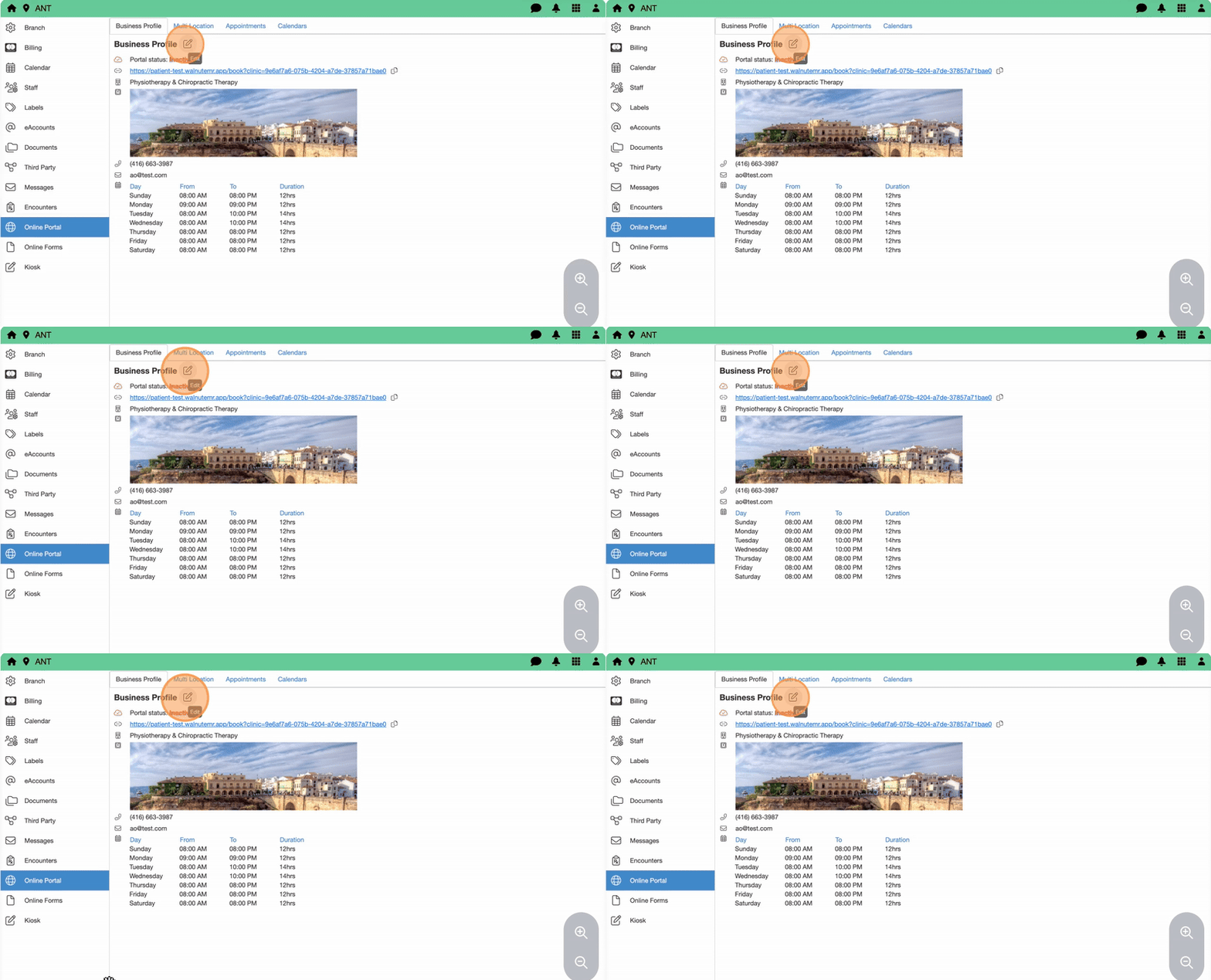
3. Click the Edit icon next to Busin
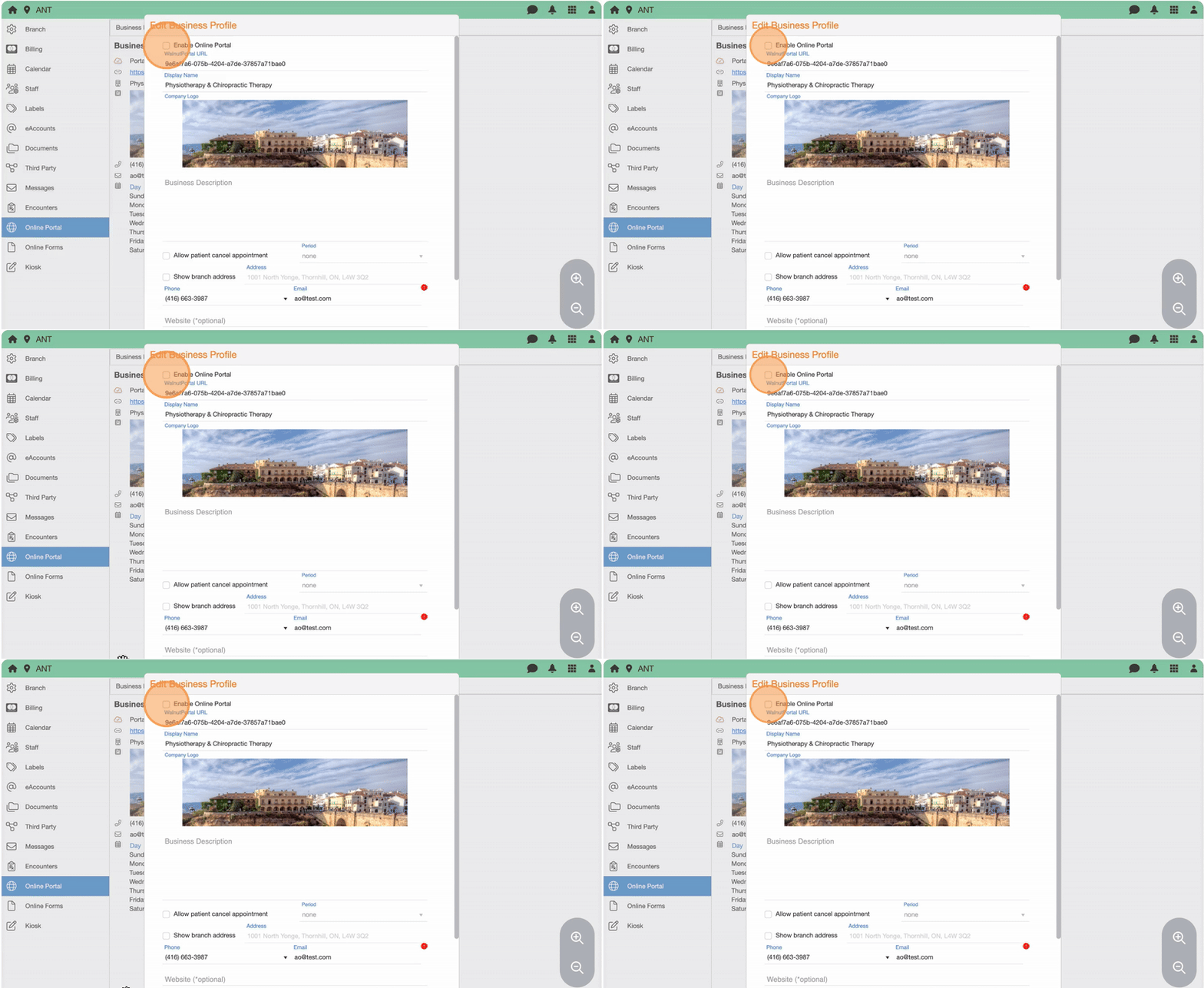
4. Check Enable Online Portal
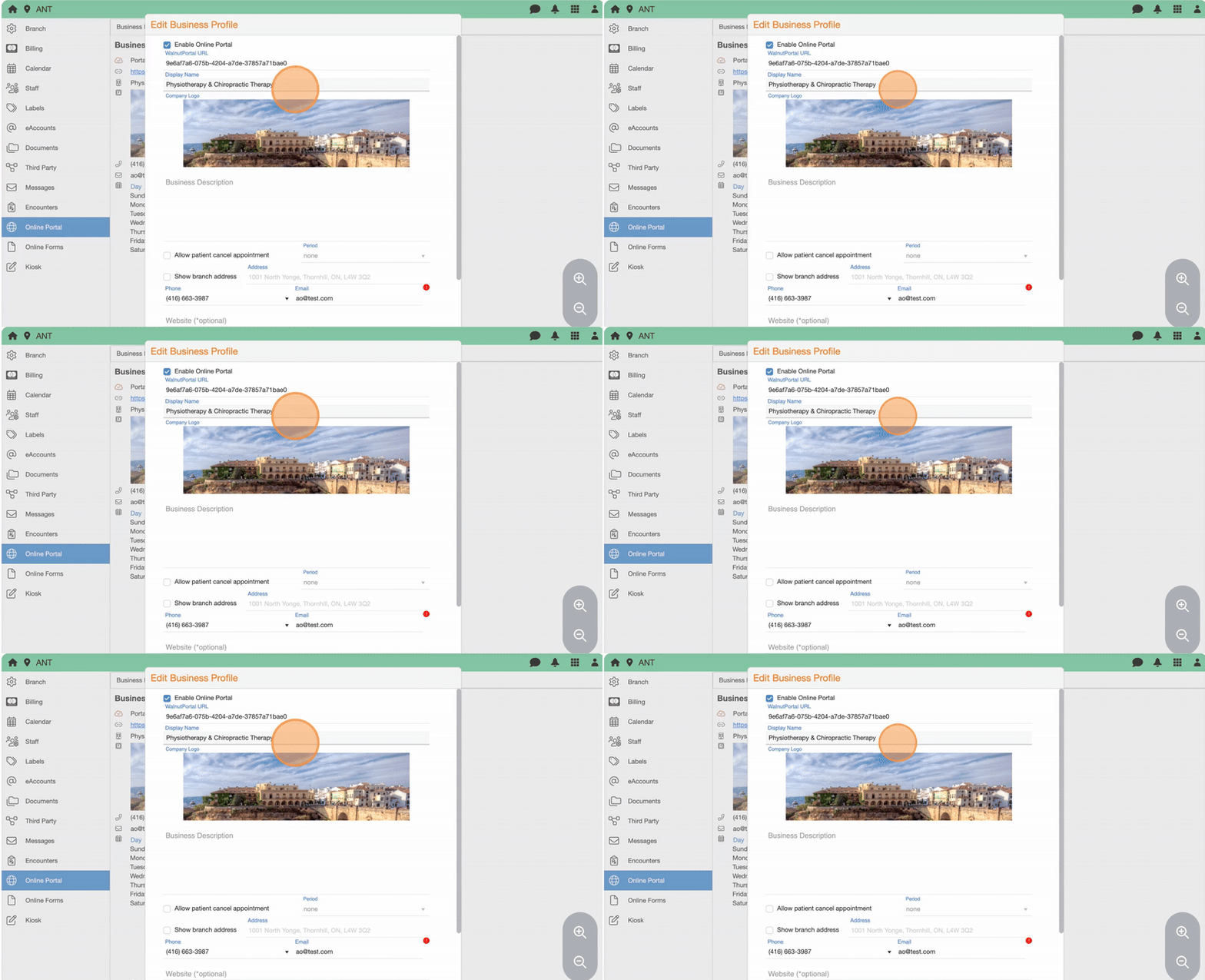
5. (Optional) Enter a Display Name (what patients will see)
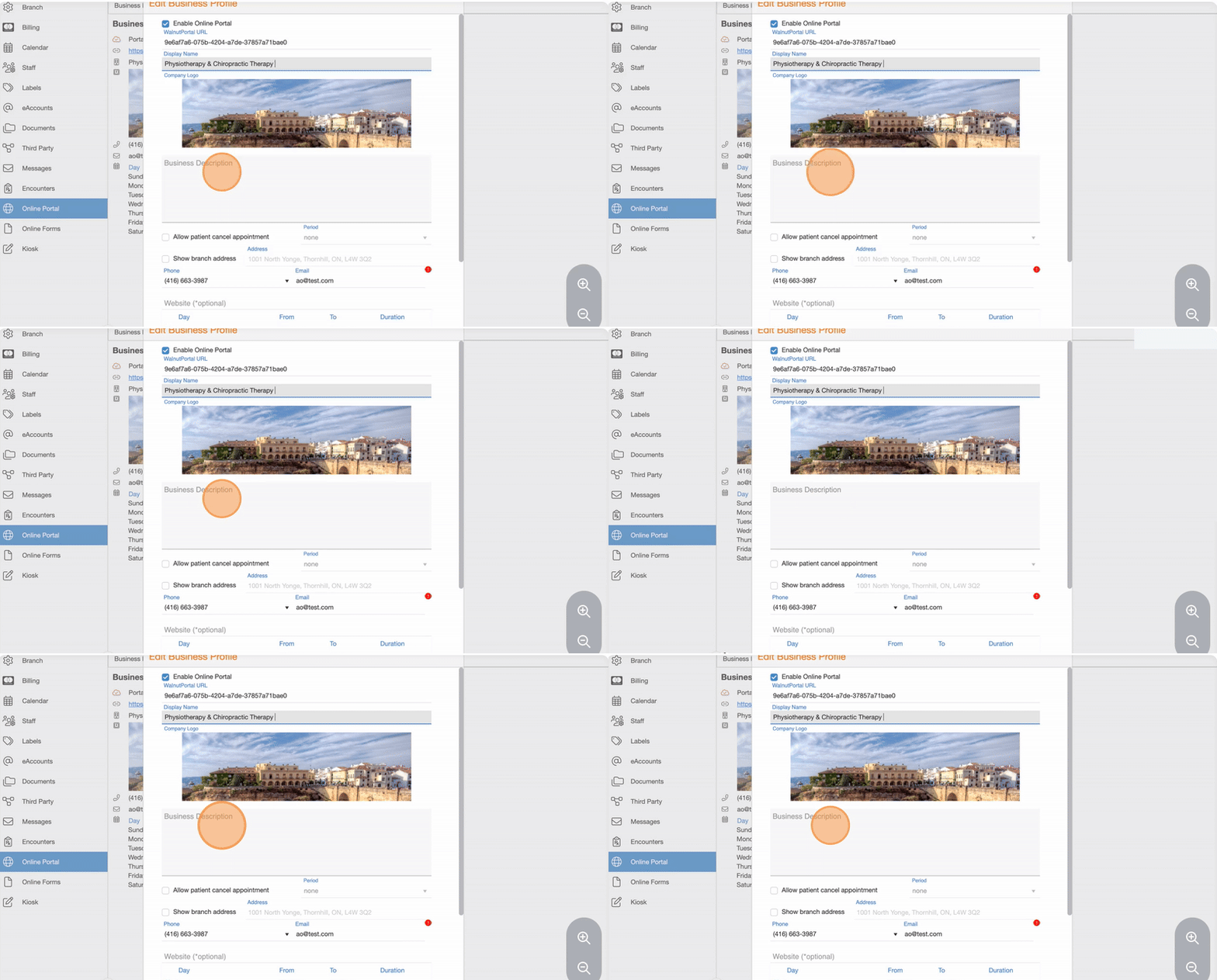
6. (Optional) Add a Business Description
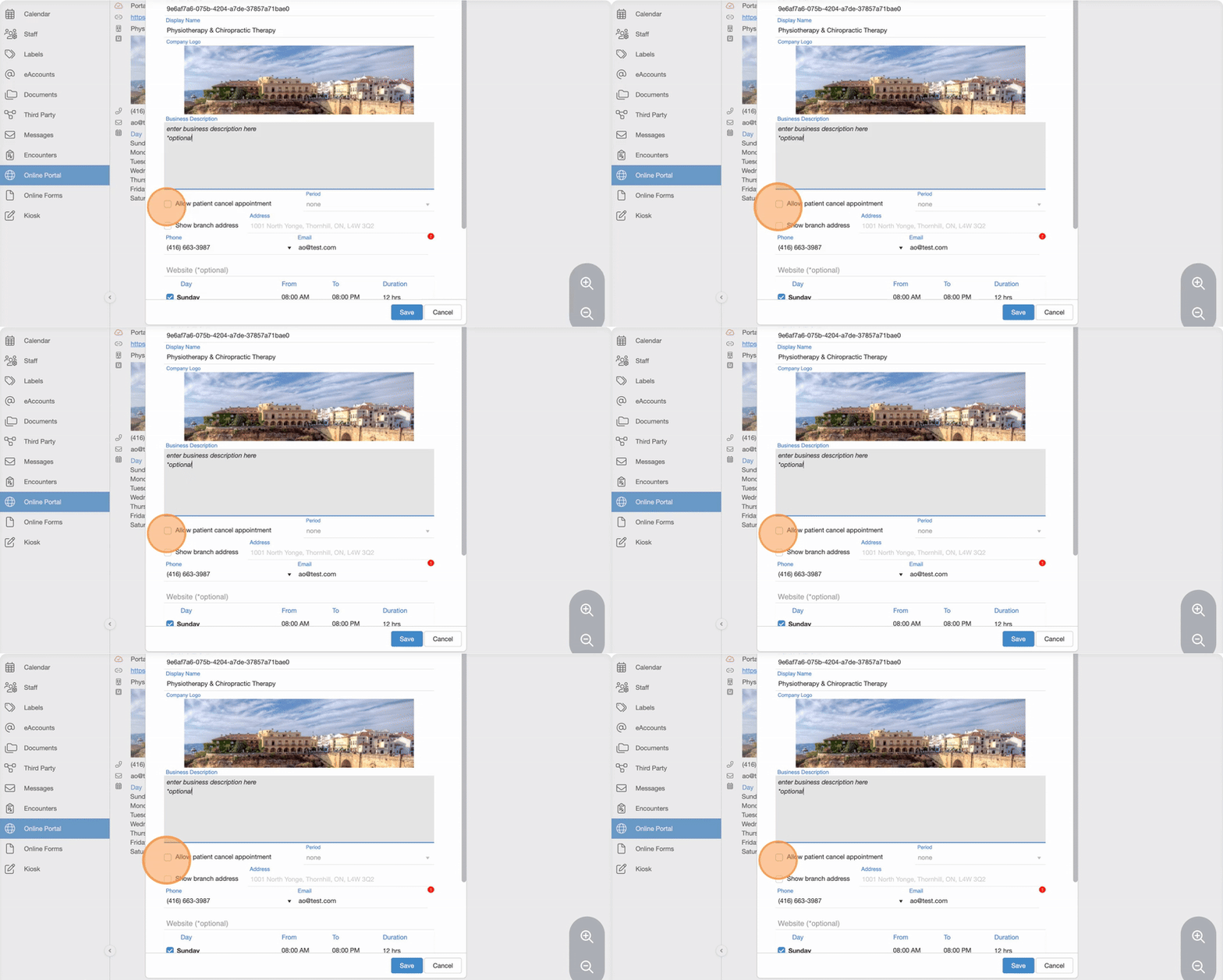
7. (Optional) To allow cancellations:
8. (Optional) Check Show
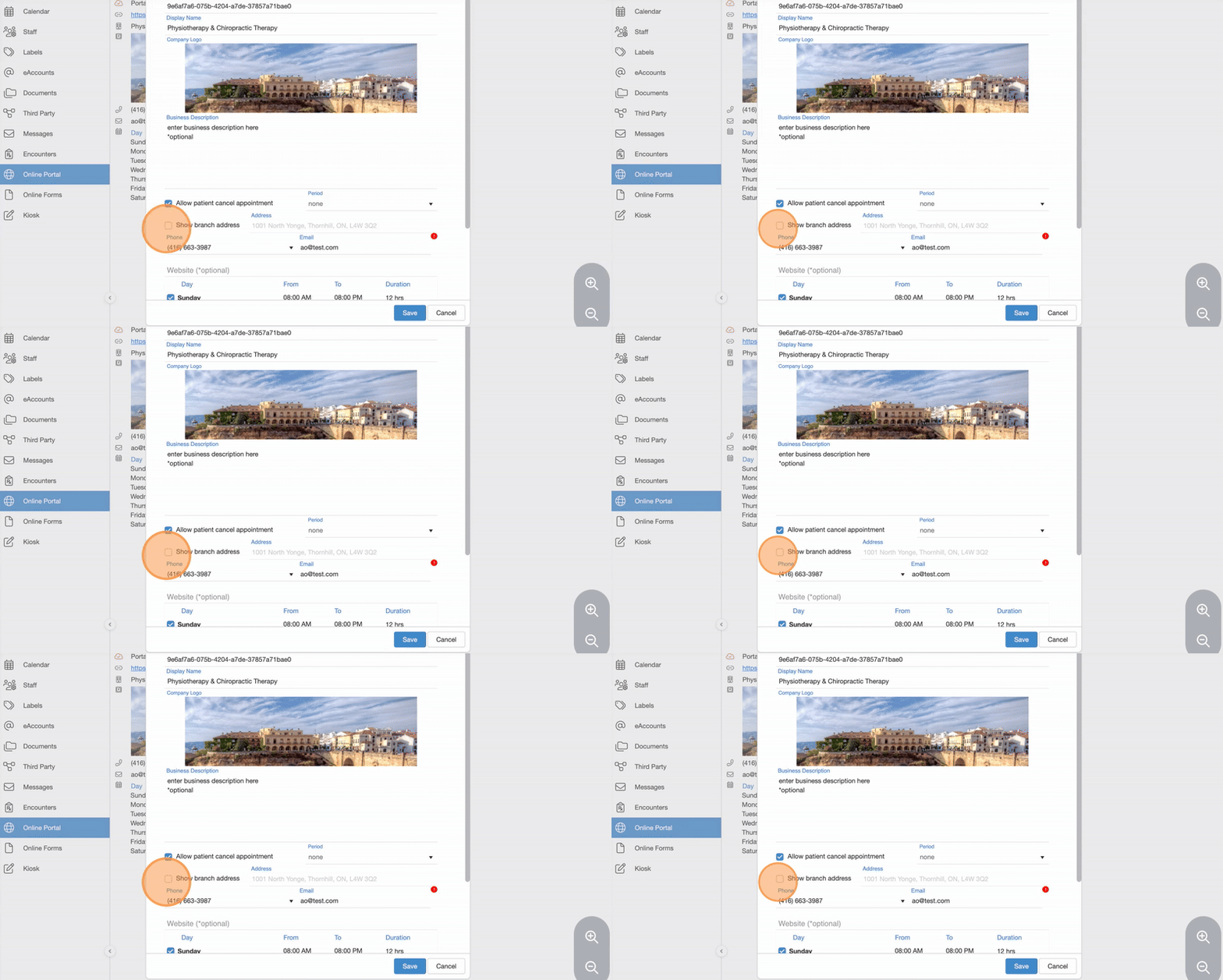
9. (Optional) Enter website address
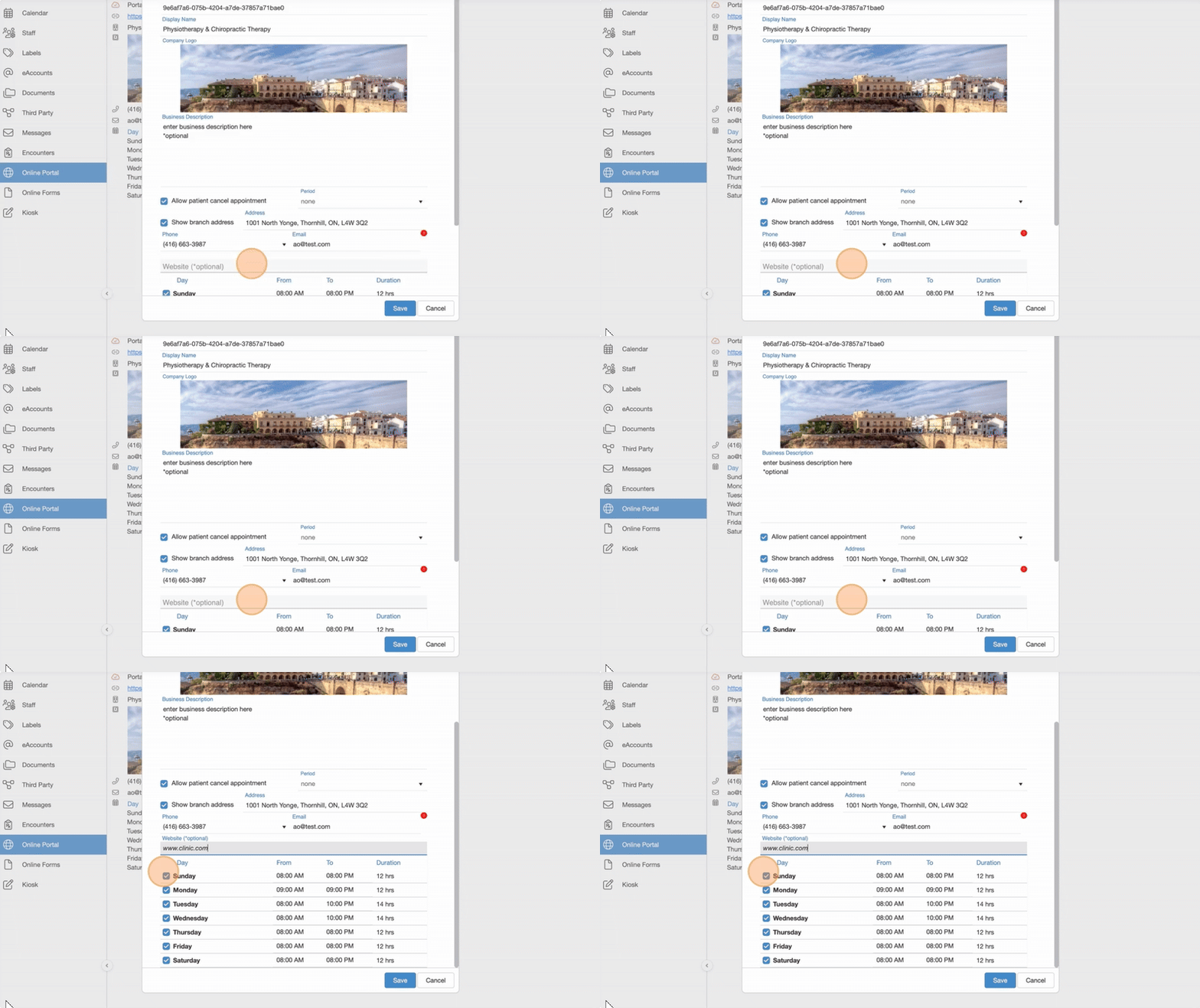
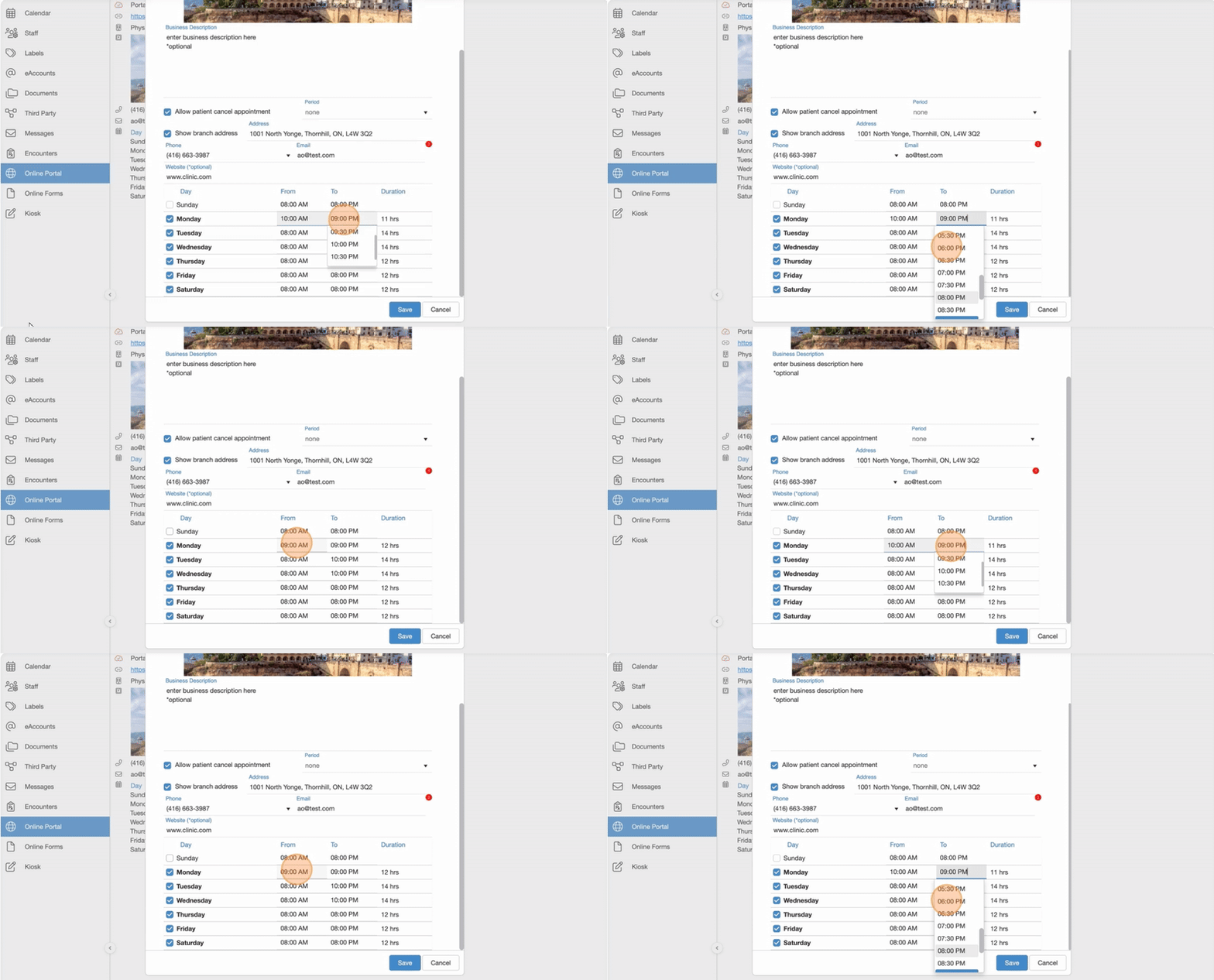
10. Customize online availability for the branch per each weekday
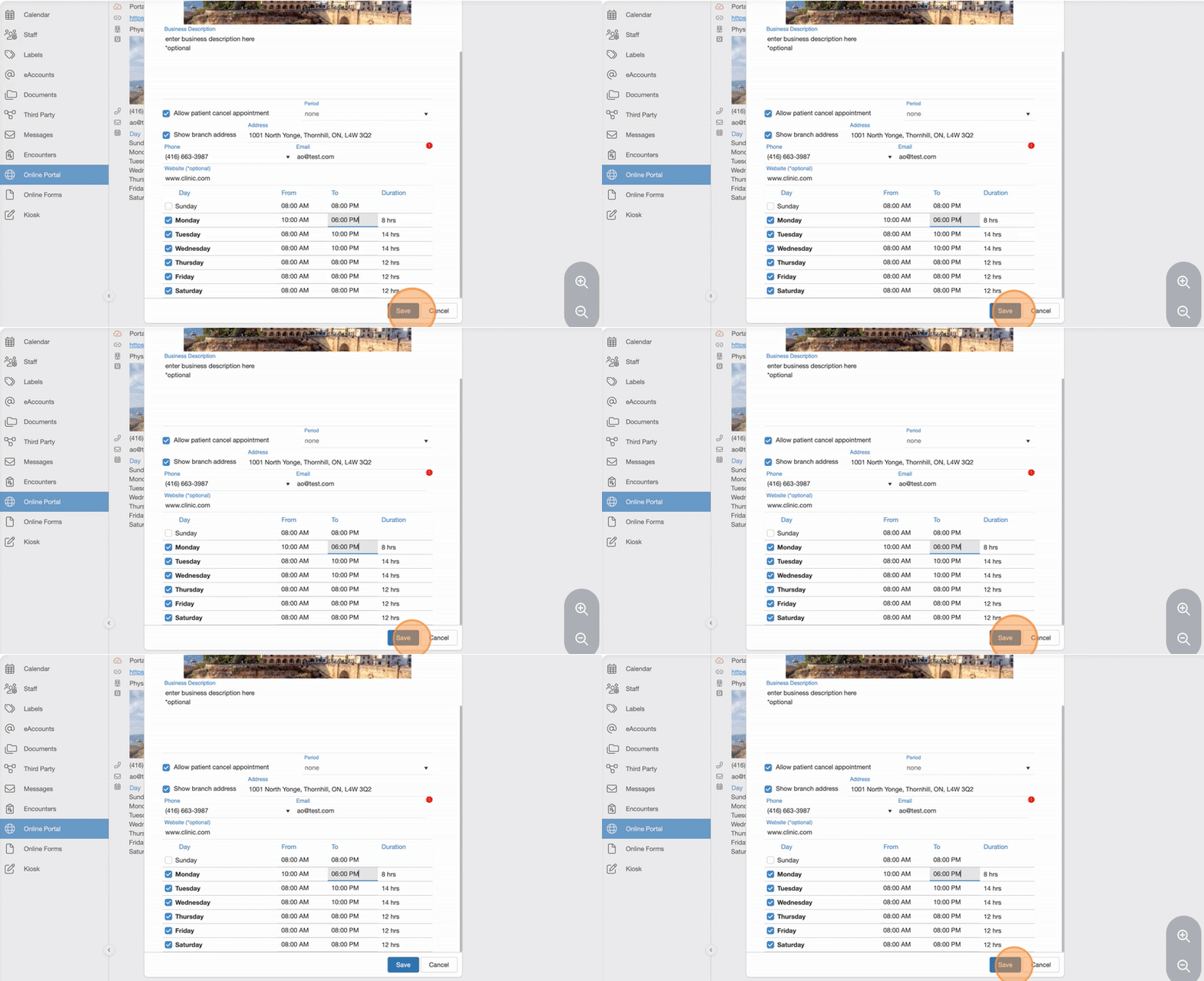
11. Click “Save”
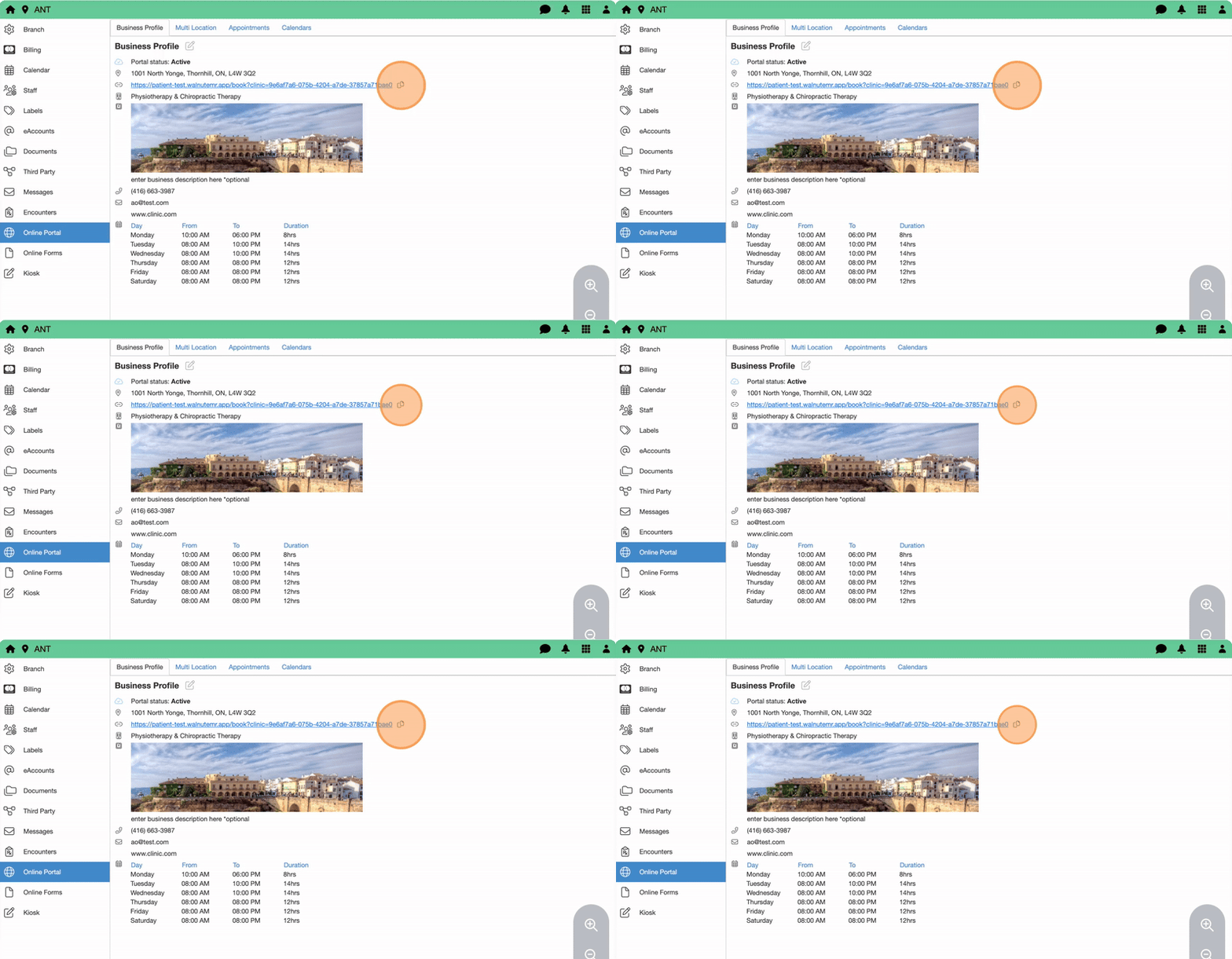
12. Copy the booking link that appears—use for your website’s Book Now button
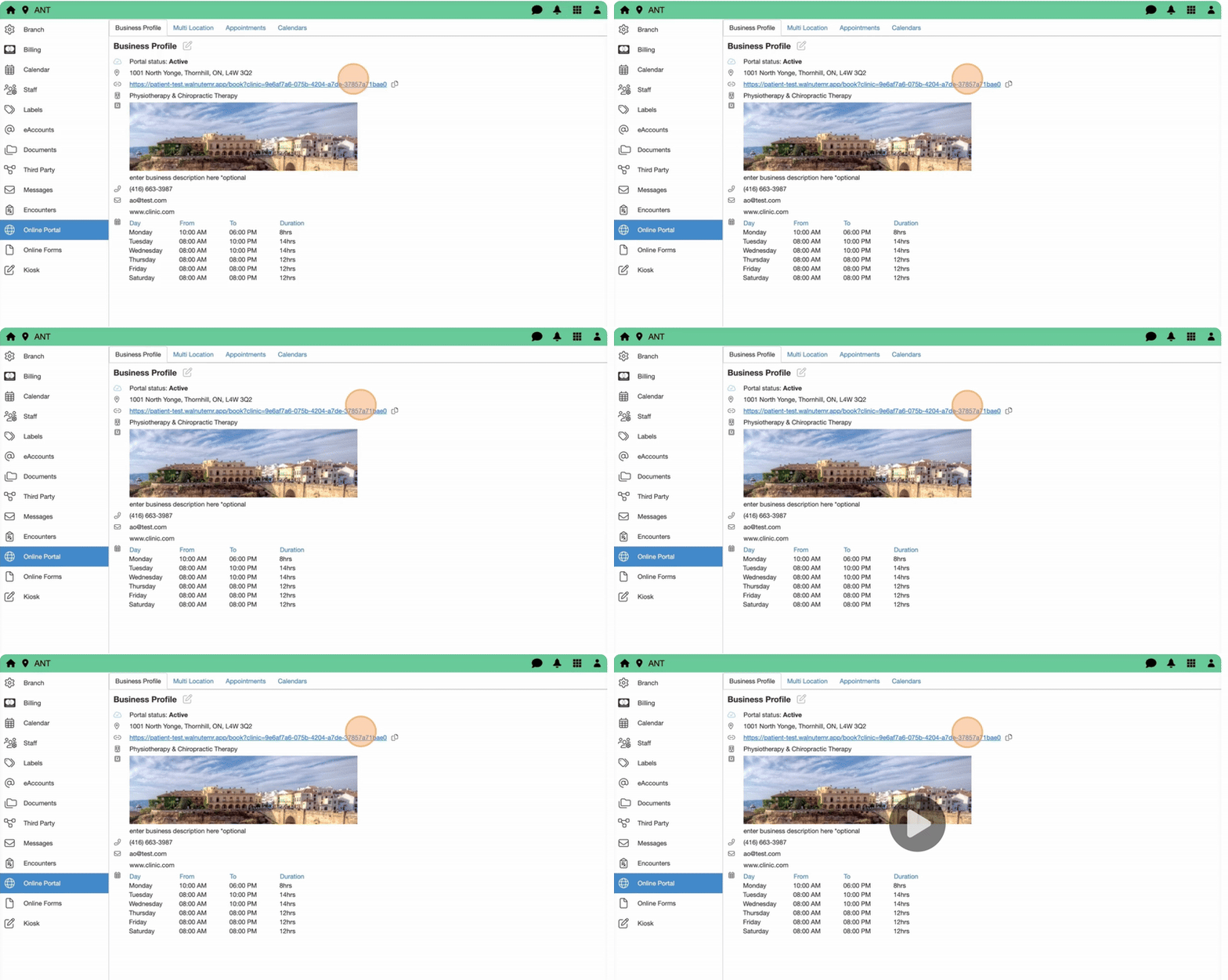
13. Click on the url link to view your activated booking site
Step 2: Configure Appointments for Online Booking
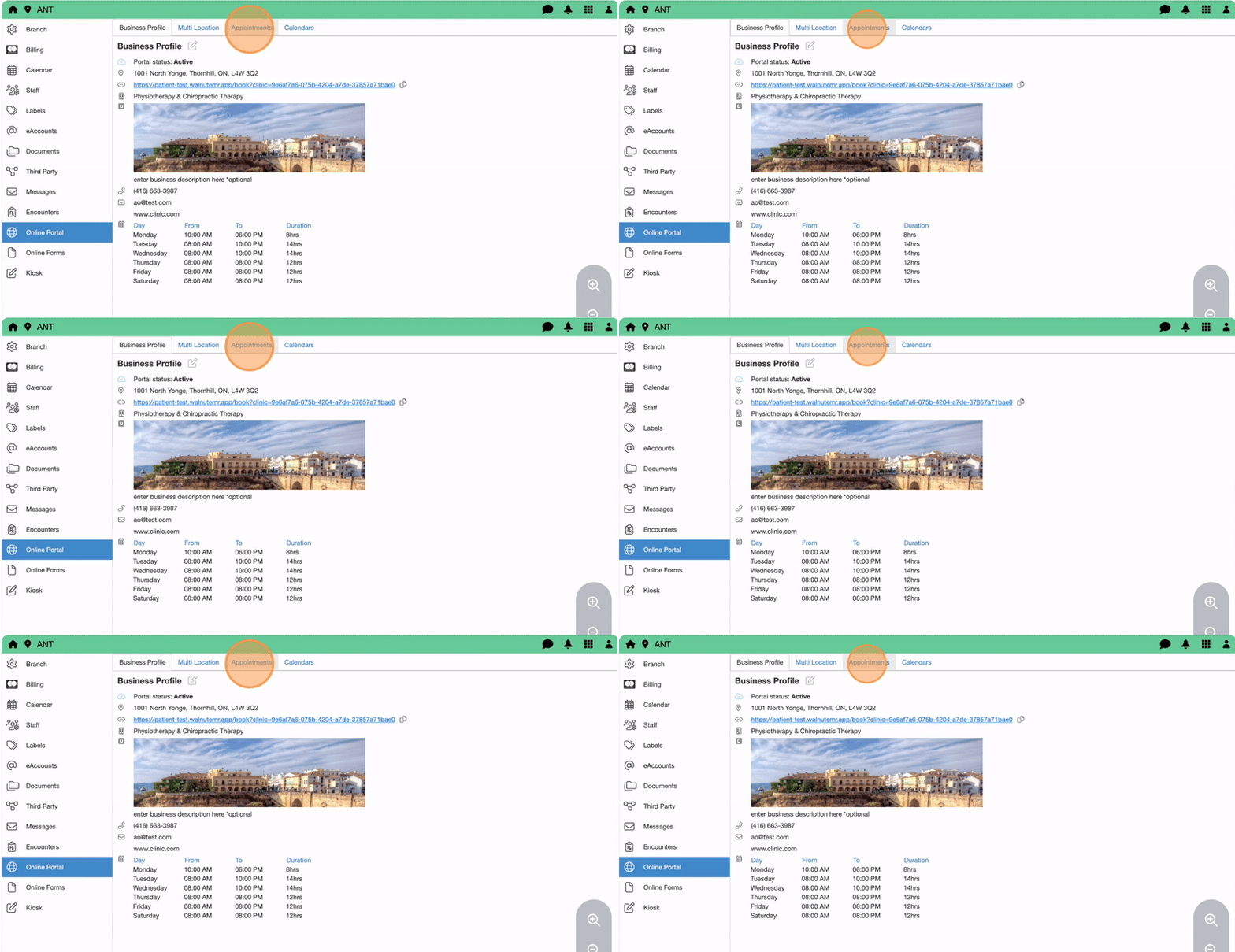
14. Select Appointments tab
15. Select an appointment type and double click Edit
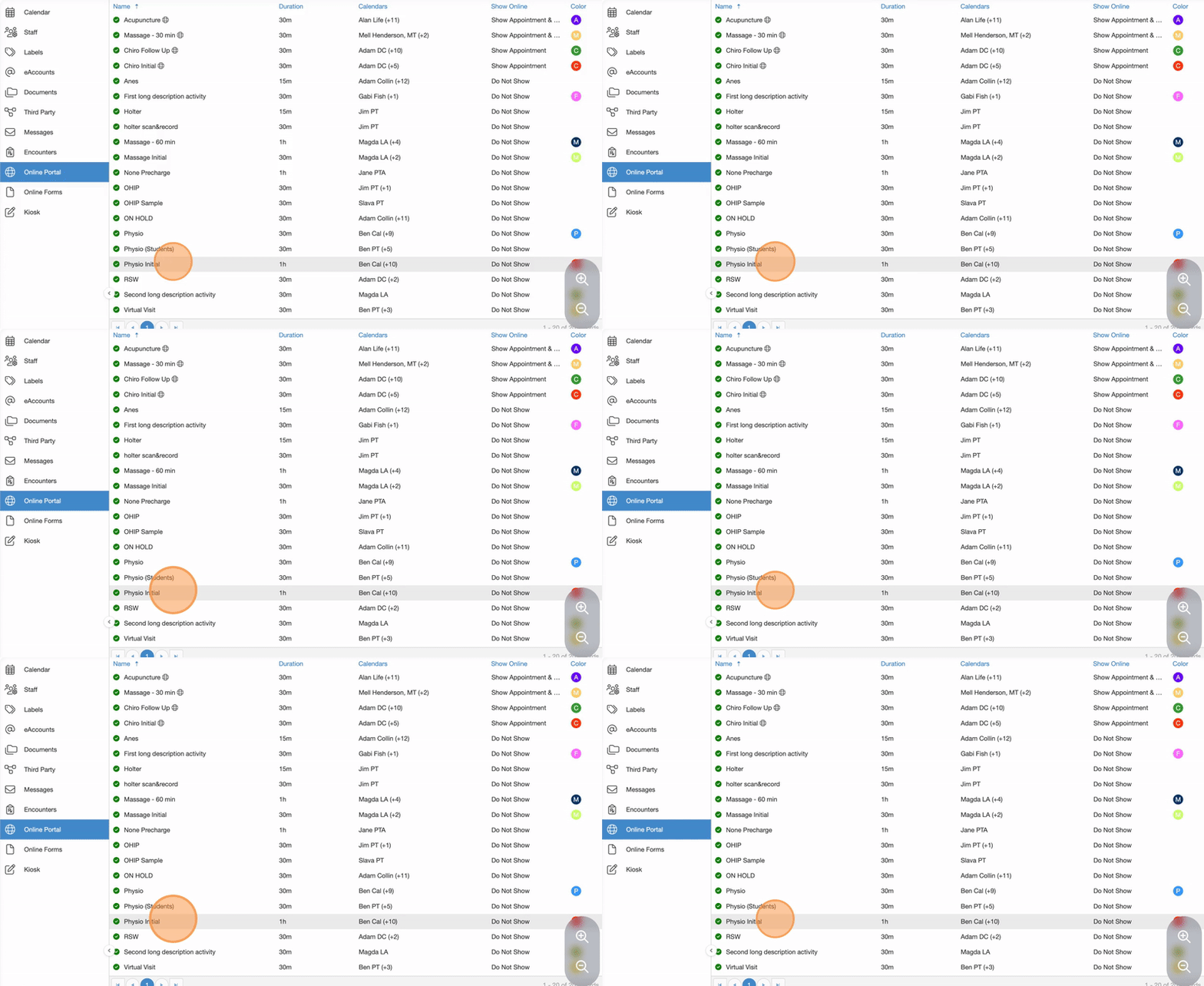
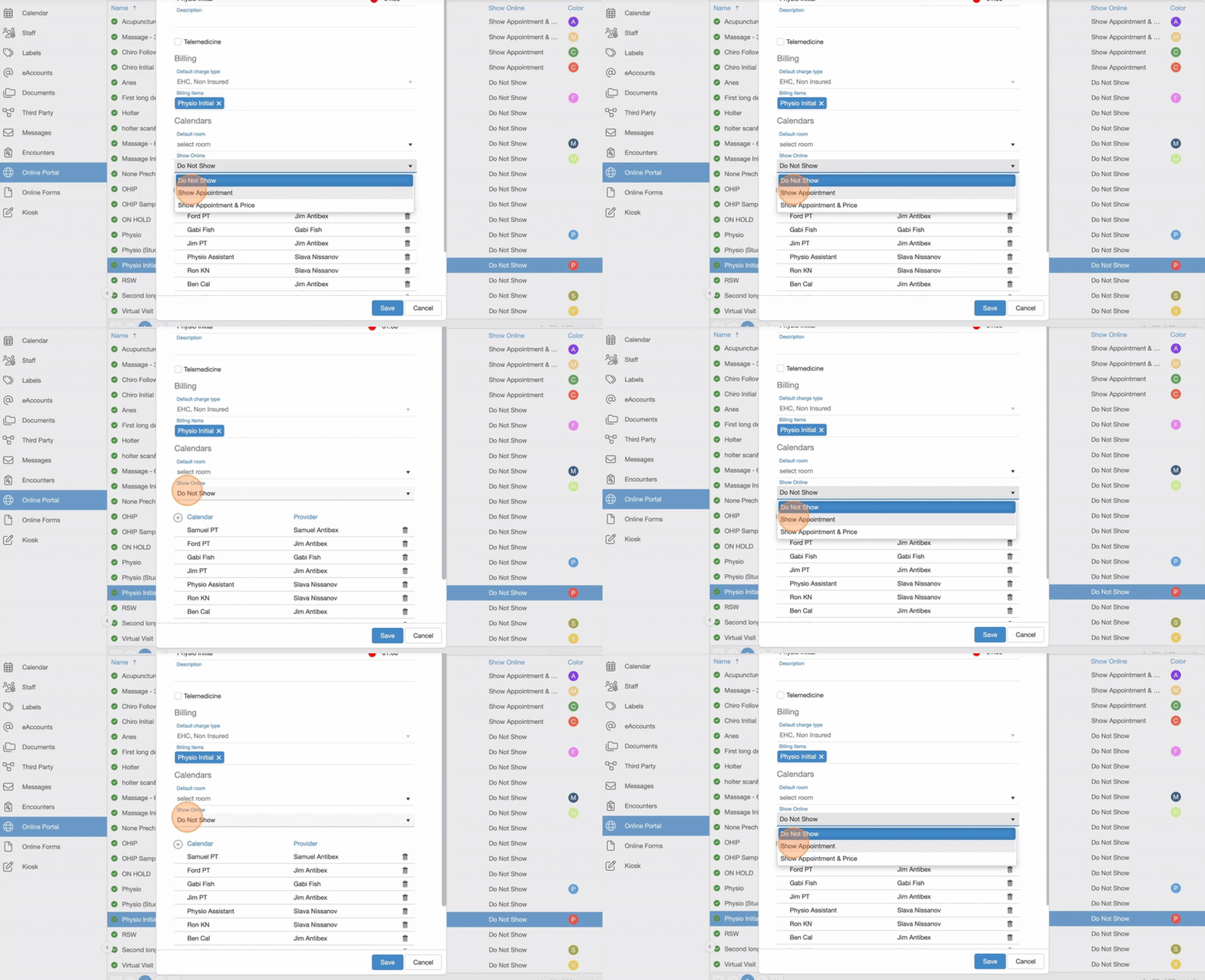
- Under Show Online, choose:
- Do Not Show
- Show Appointment
- Show Appointment & Price
Click “Show Appointment”
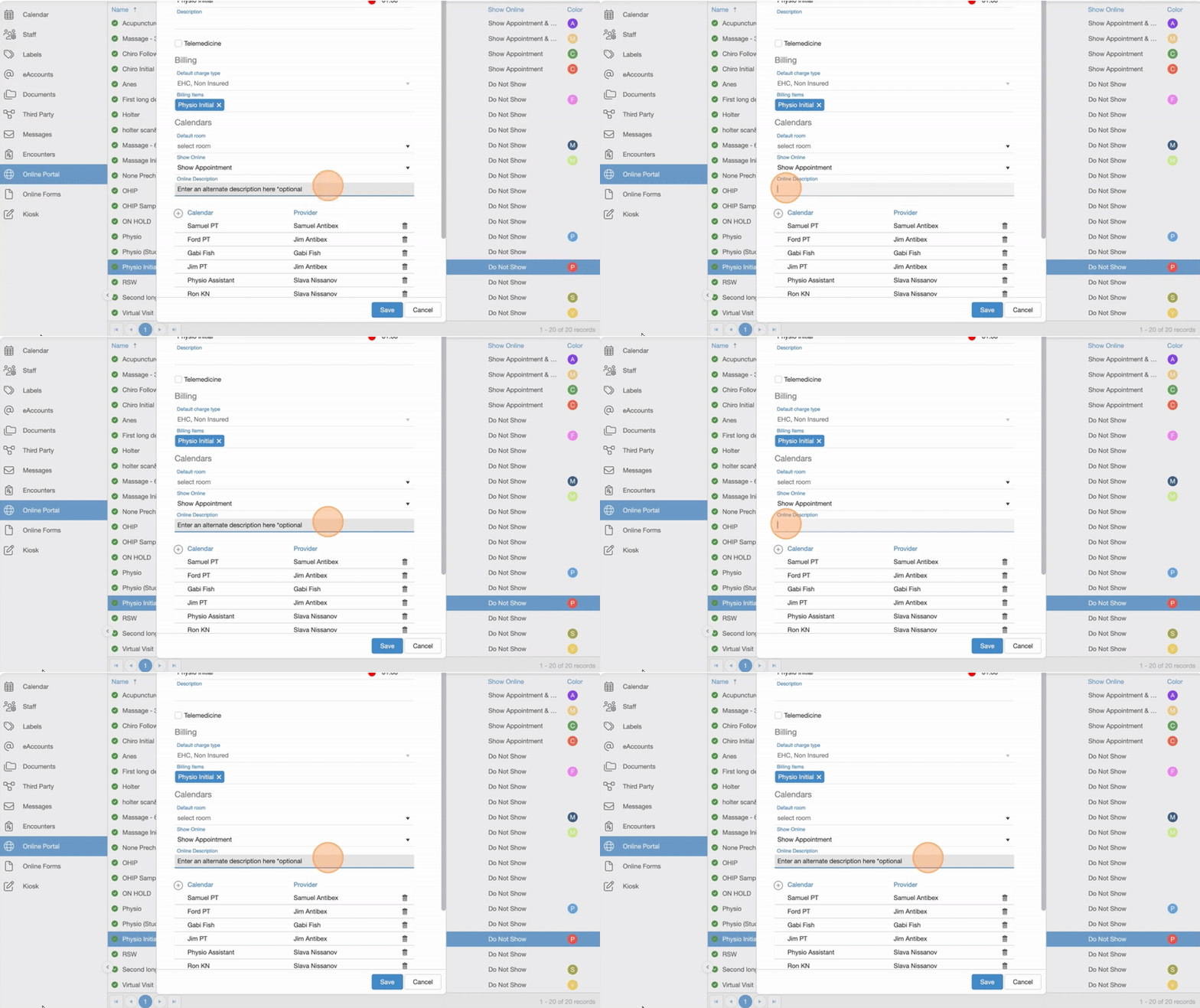
17. Click the “Online Description” field.
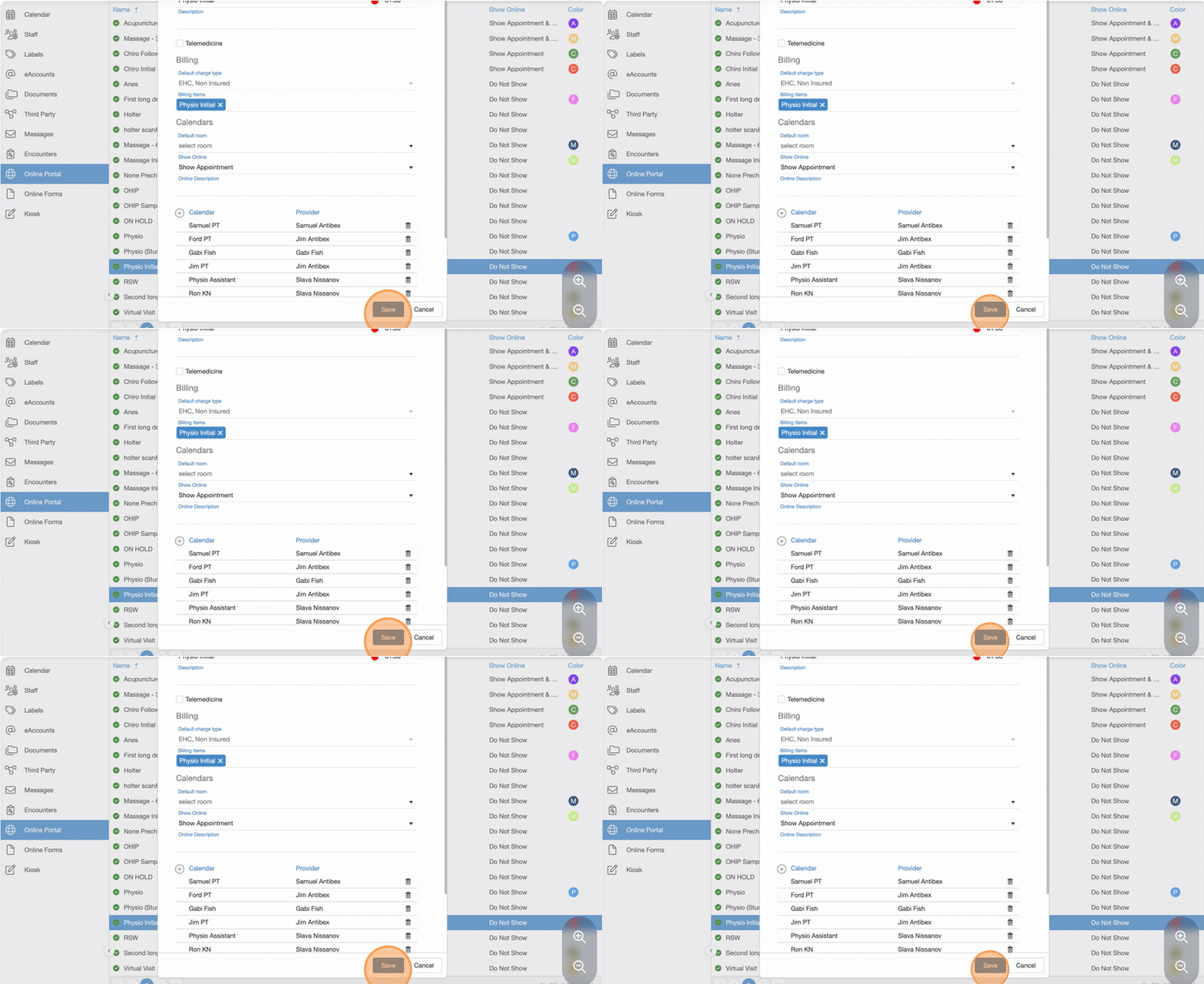
18. Click “Save”
Step 3: Manage Calendar Availability for Online Booking
19. Go to the Calendars tab
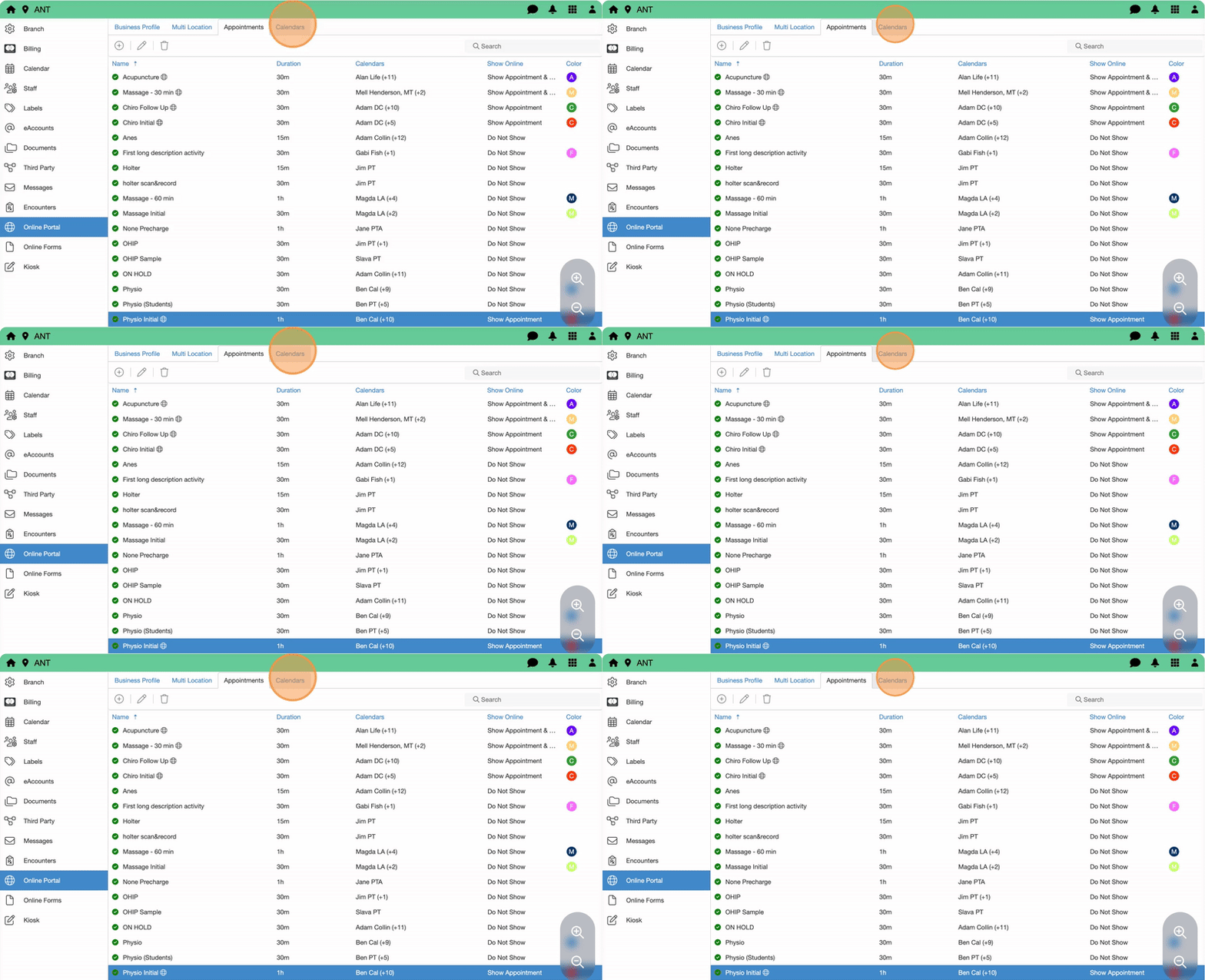
20. Select a calendar and double click Edit
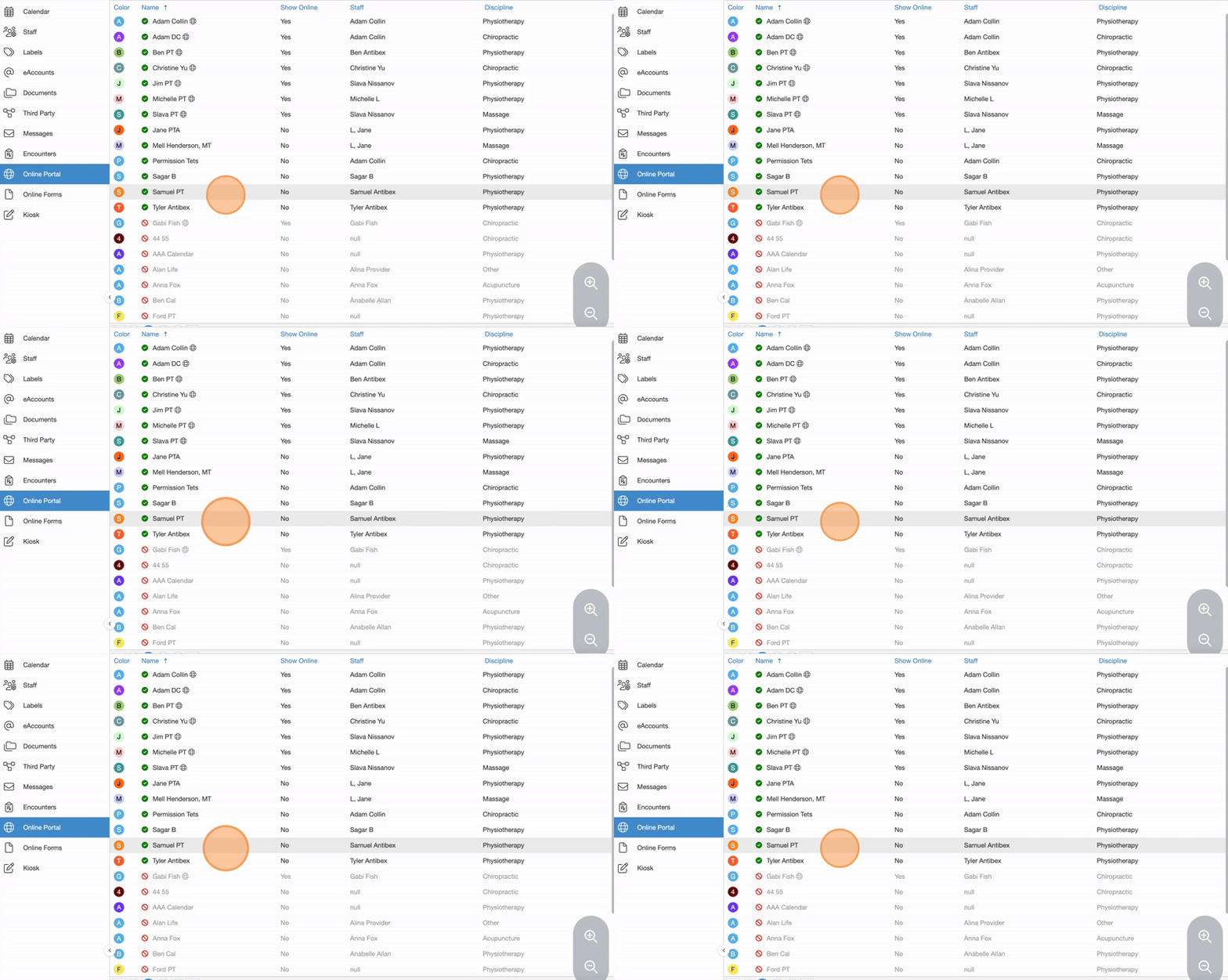
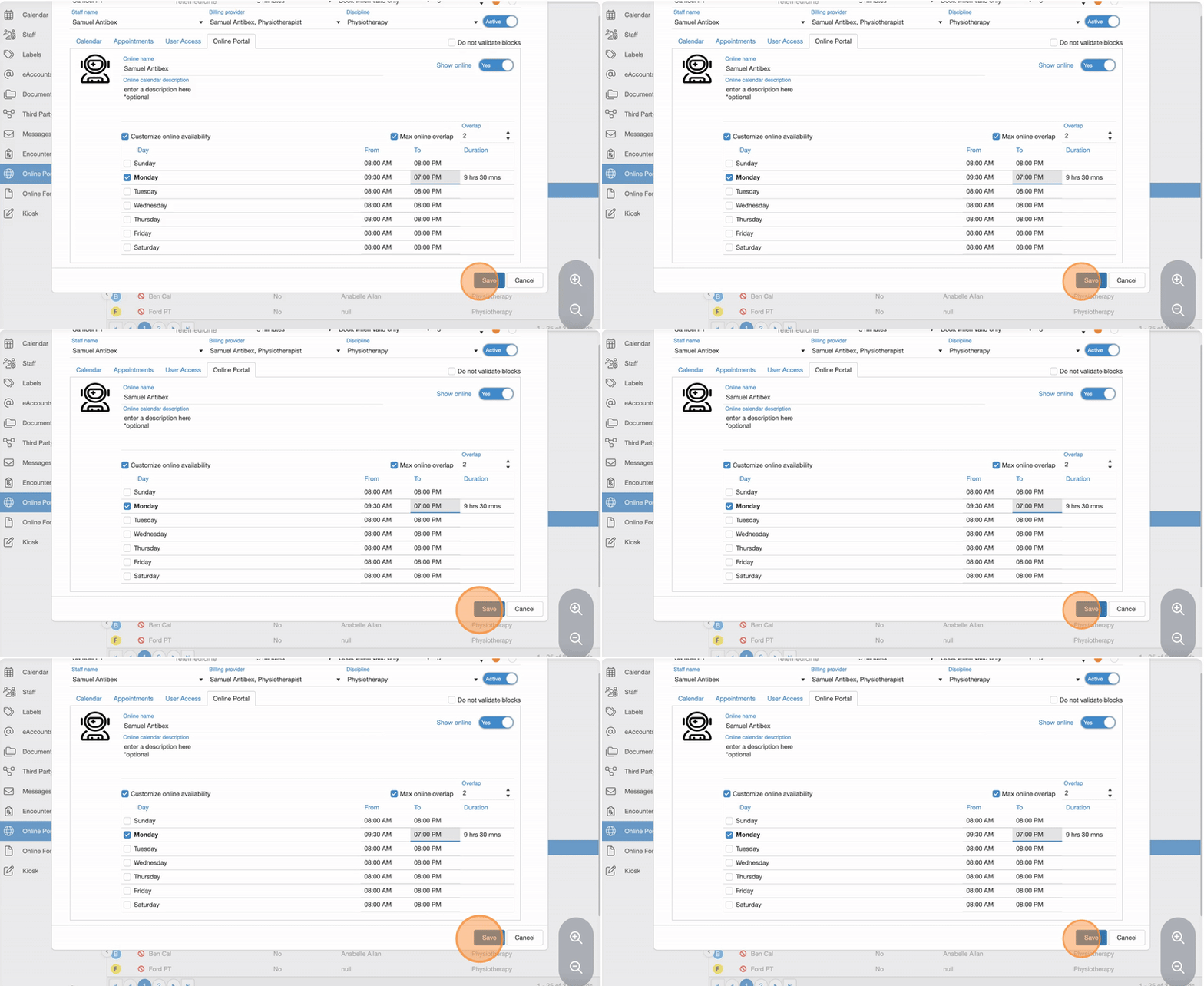
21. Click on the Online Portal tab
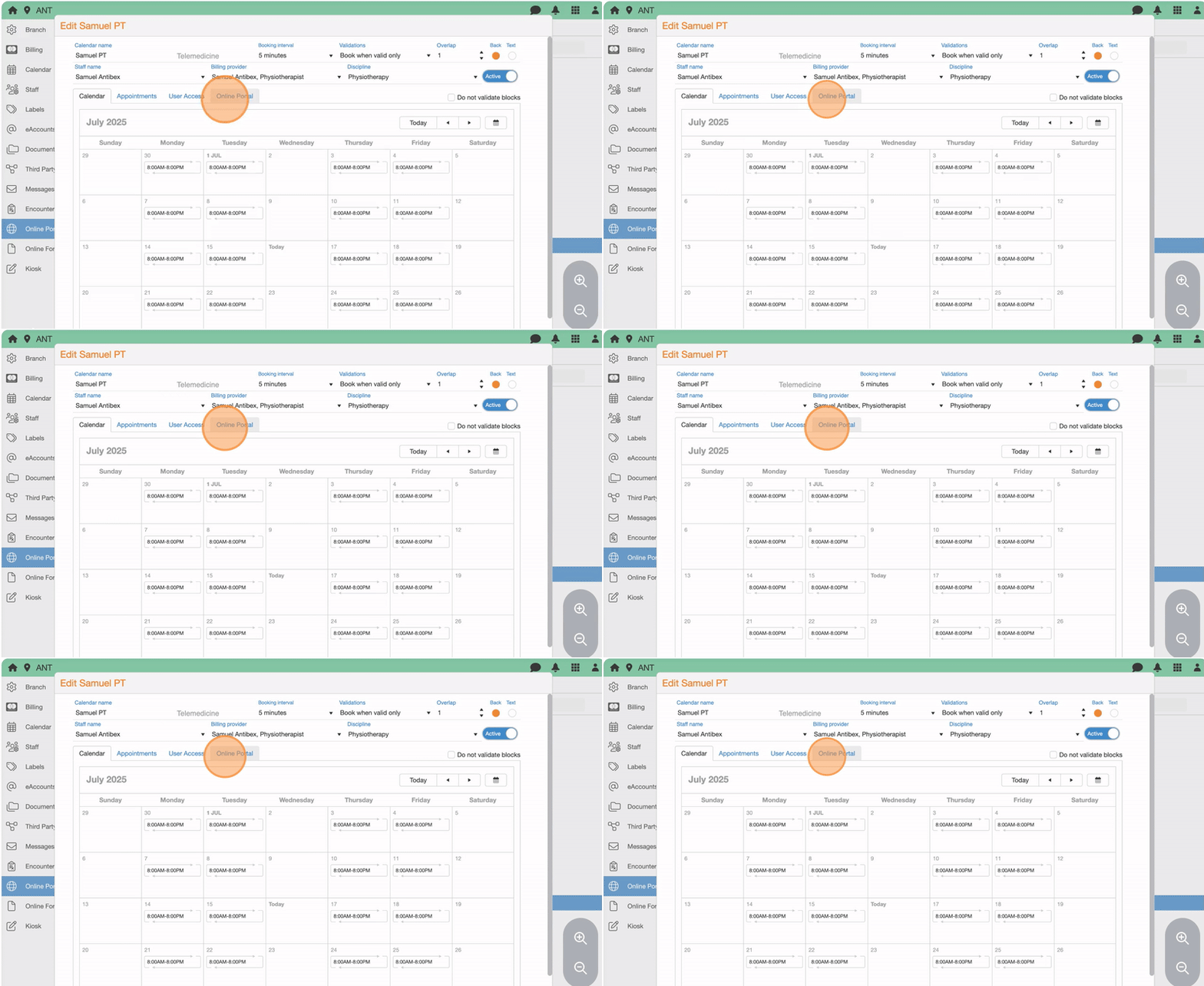
22. Toggle Show Online to “Active”
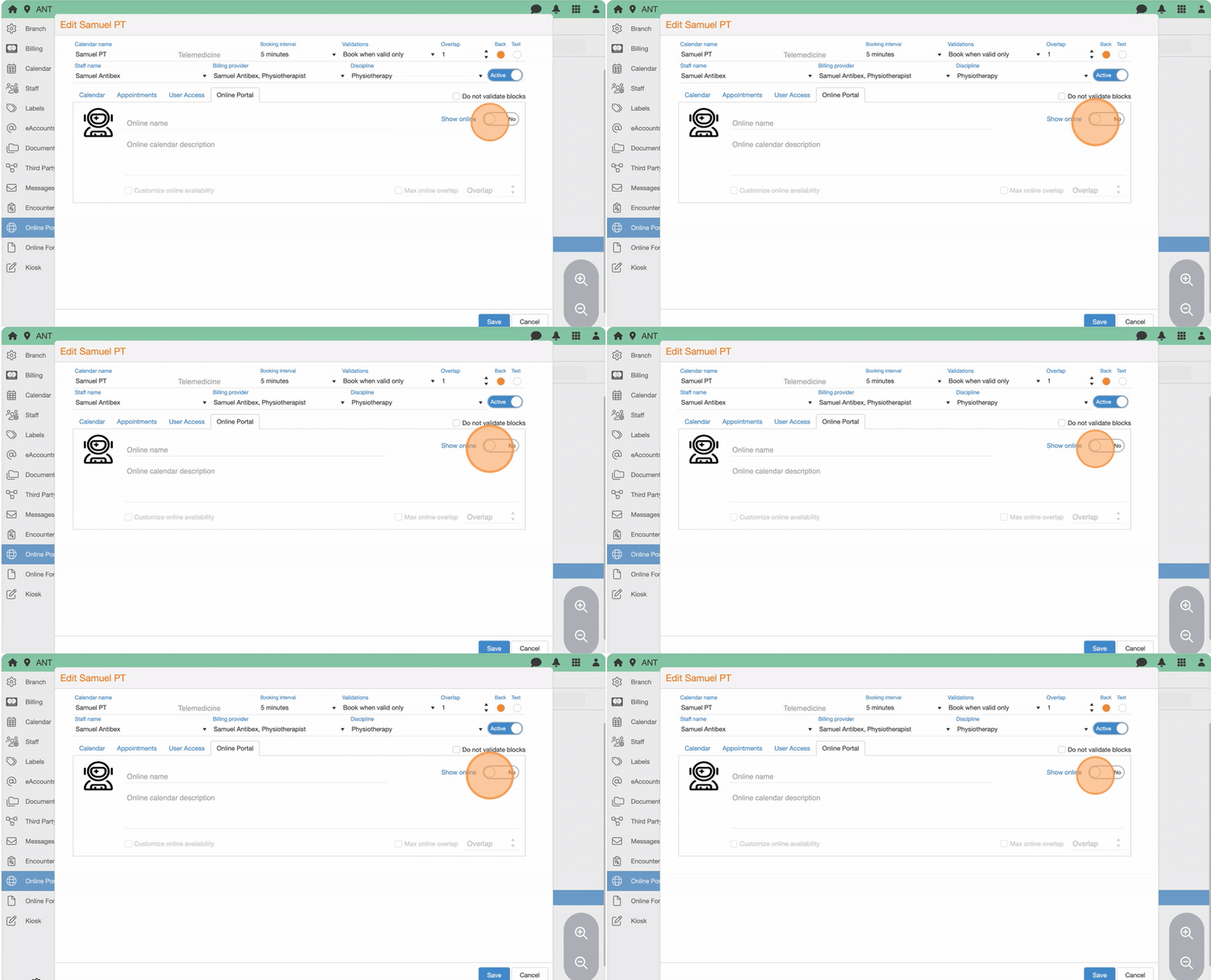
23. (Optional) Upload a provider photo
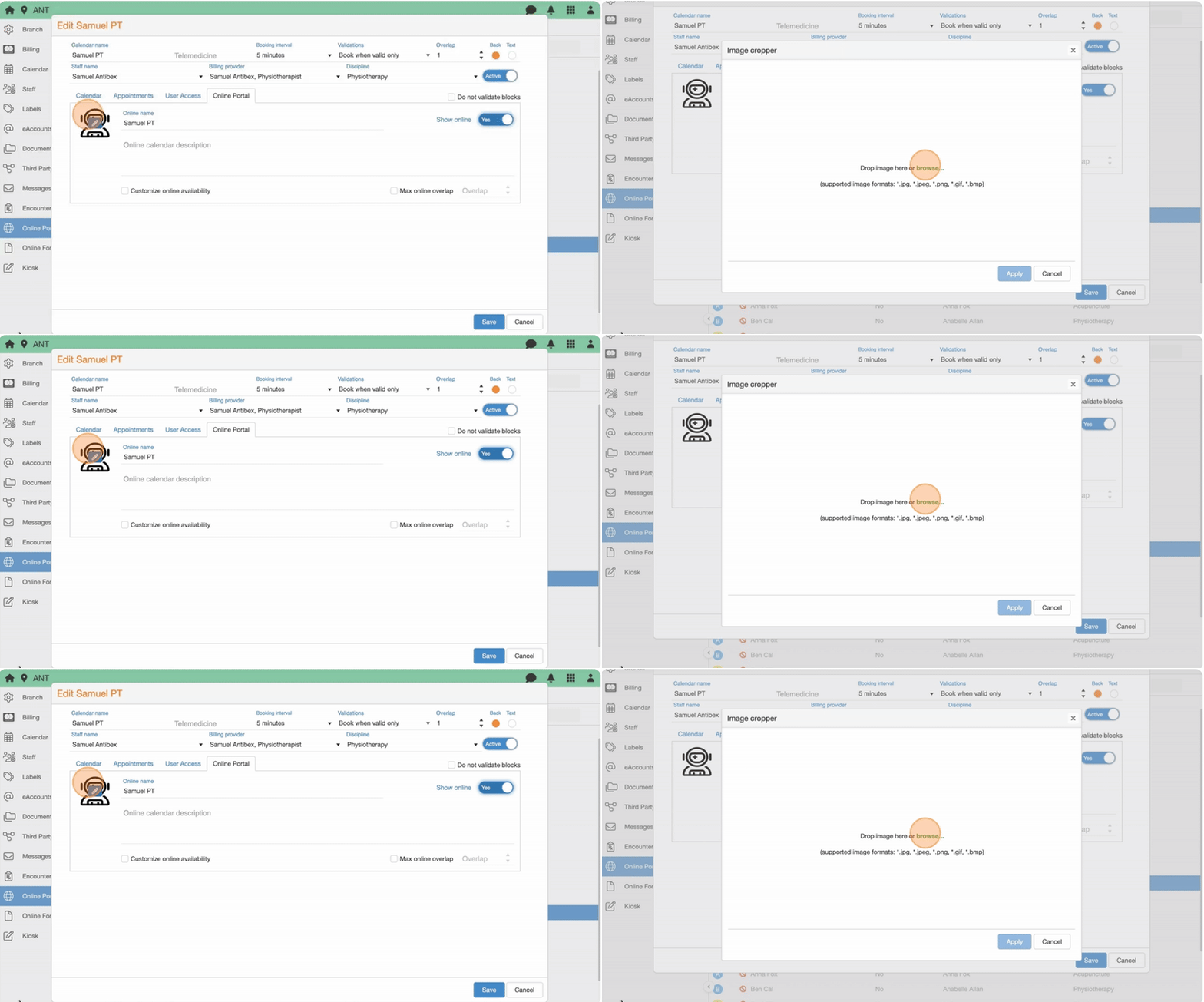
24. (Optional) Edit Online Name
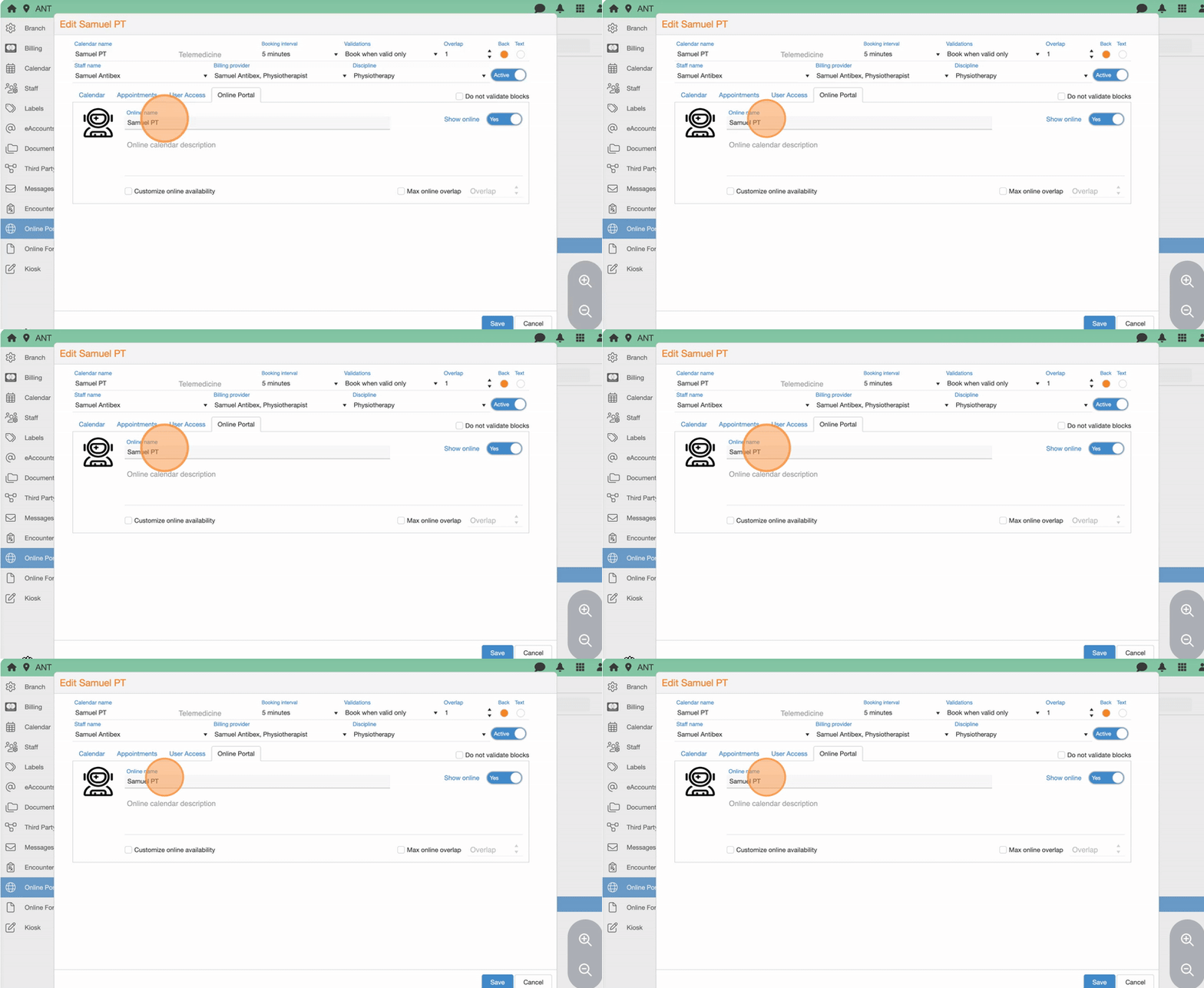
25. (Optional) Edit Online Calendar Description
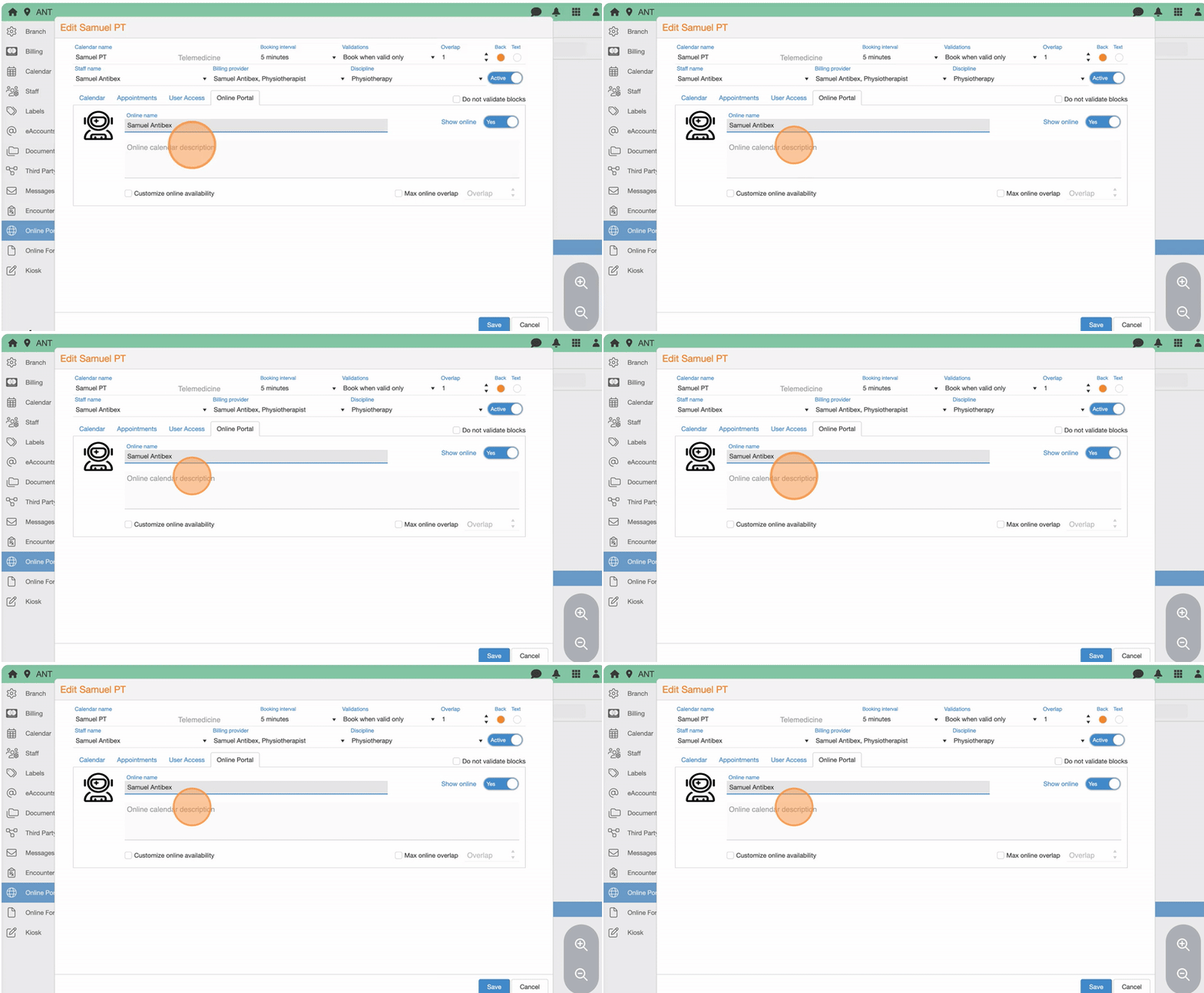
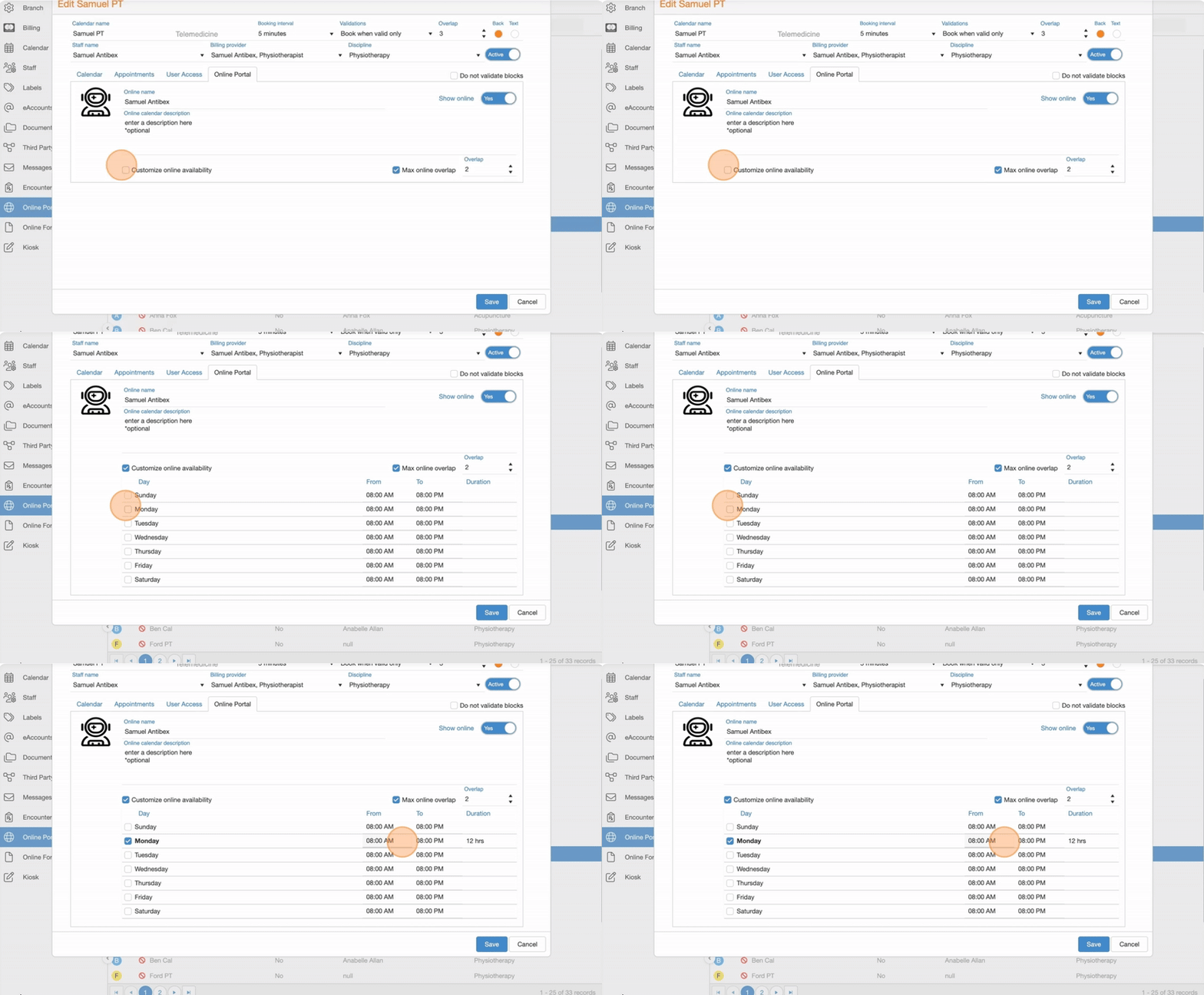
26. (Optional) Check Customize online availability to set specific days and times for this calendar, if they differ from the default availability.
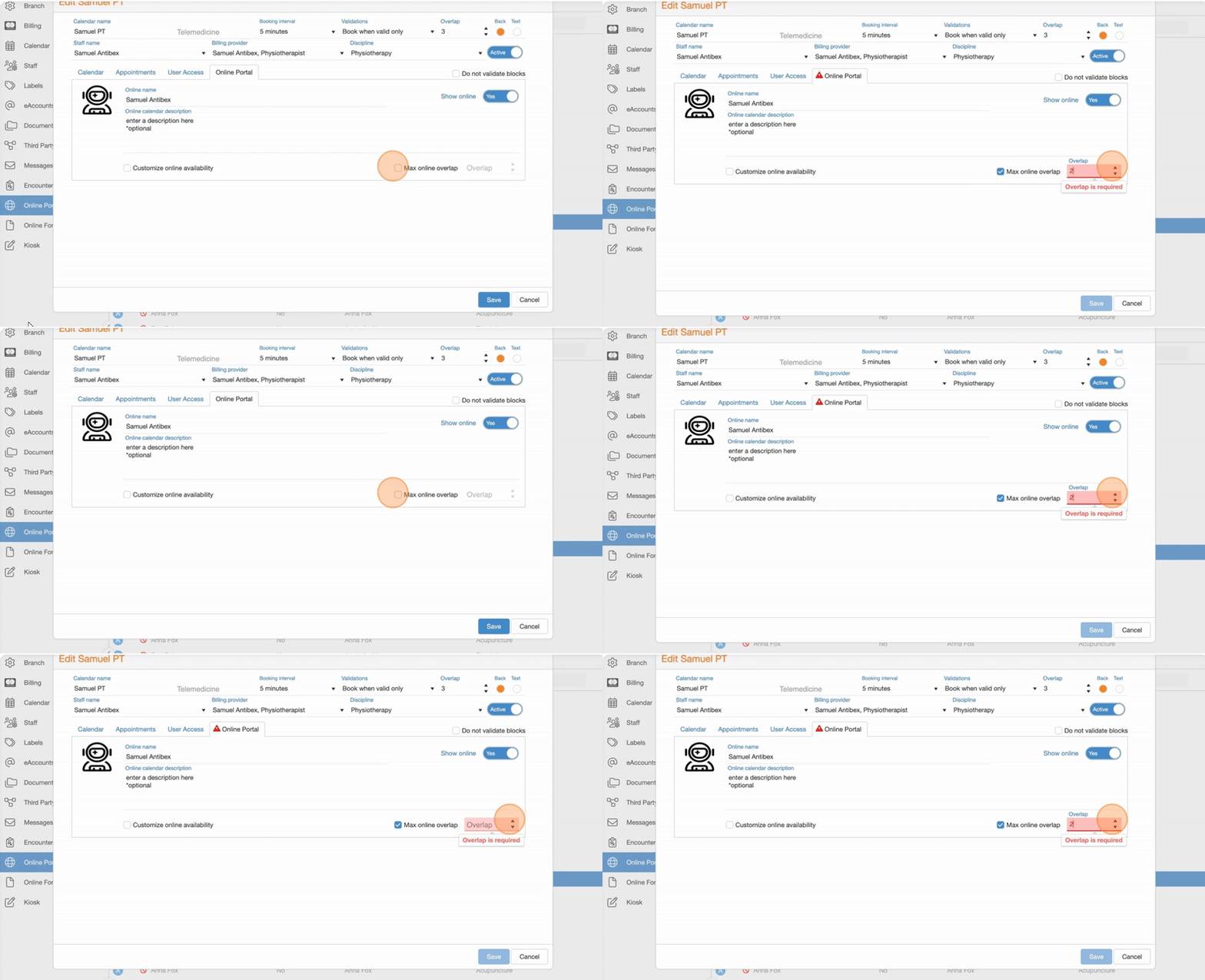
27. Check Max online overlap and adjust the Overlap value (i.e., how many appointments can be booked in the same time slot) to limit concurrent bookings, if different from the default calendar settings.
28. Click “Save”
Step 4: View Online Registered Patients
29. Go to Patients App
Click “Online Patients”
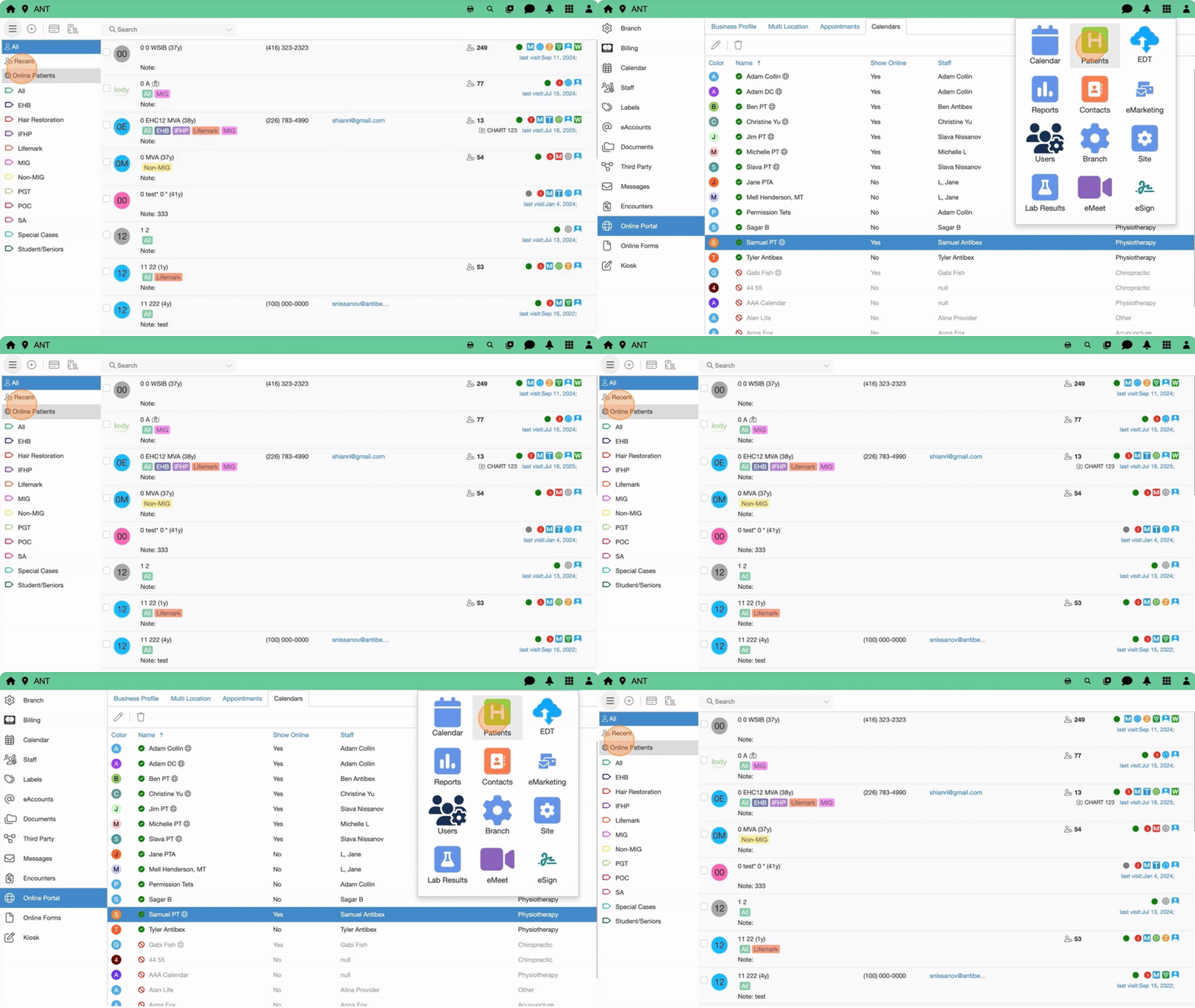
- In Online Patients you will see:
- Patients who booked successfully
- Patients who registered only (marked as Registered Only)
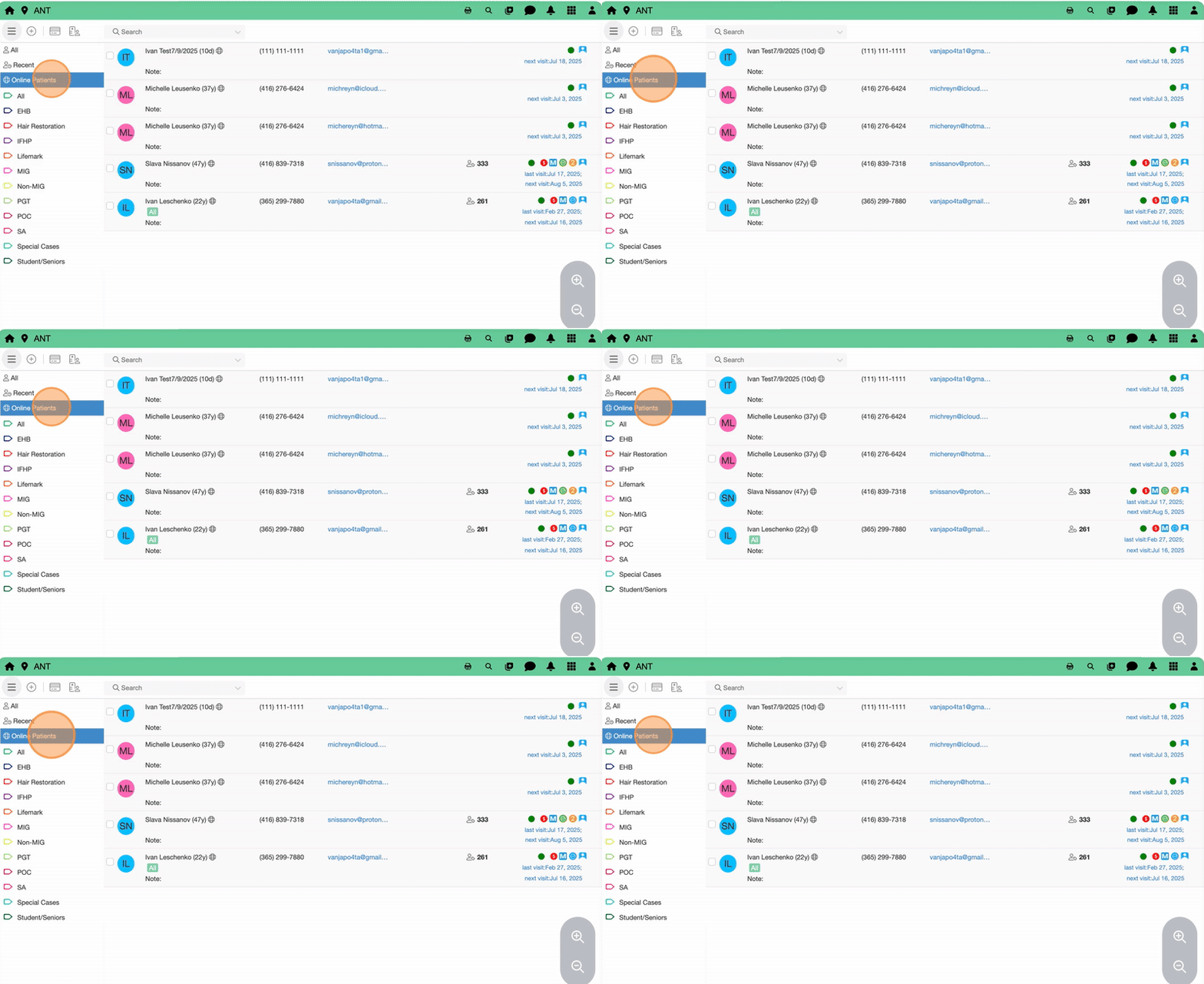
Step 5: Identify Online Appointments in the Calendar
31. Go to Calendar App
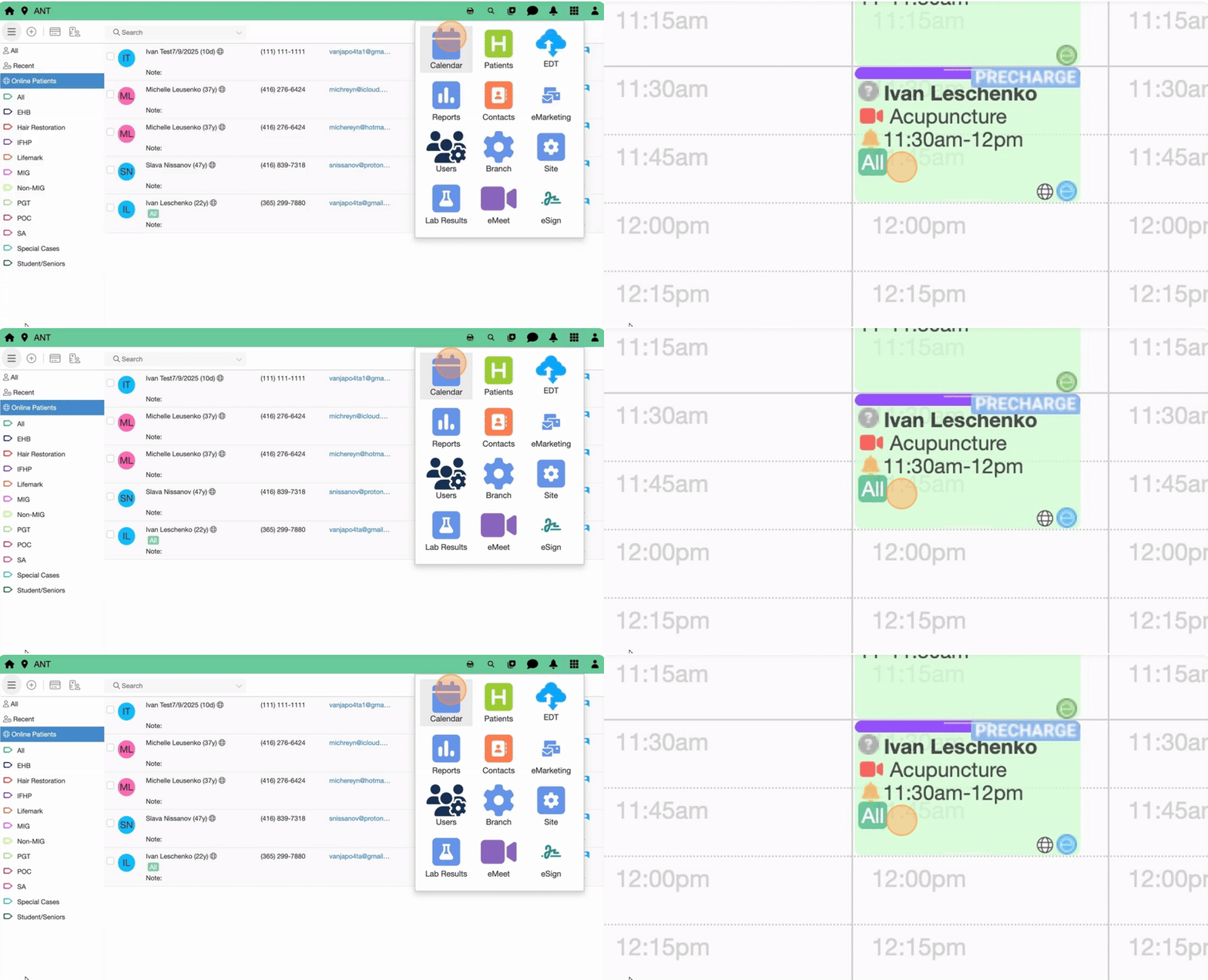
Step 6: See Online Booking in Action
32. Select one or more services, providers, and dates, then click Apply.
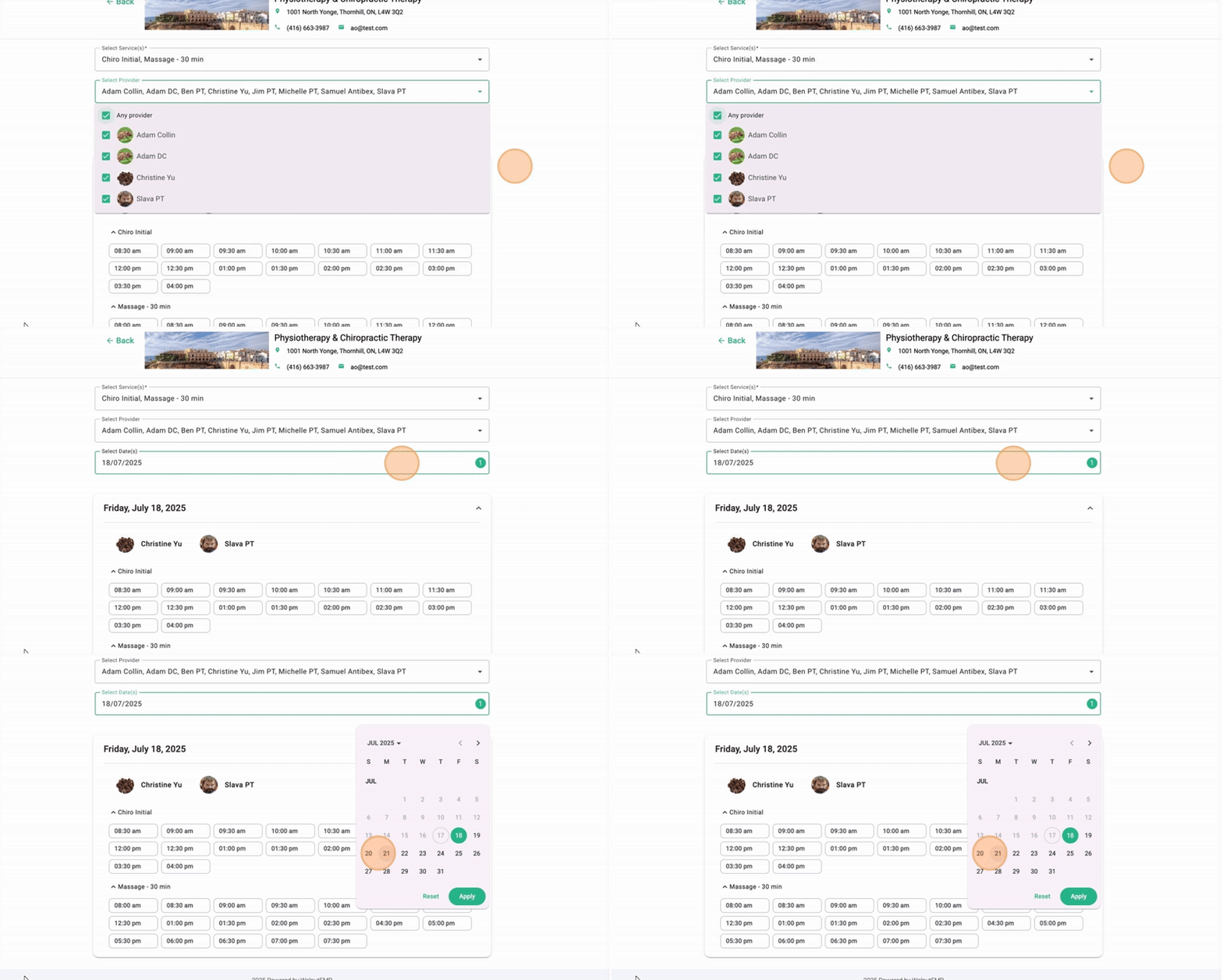
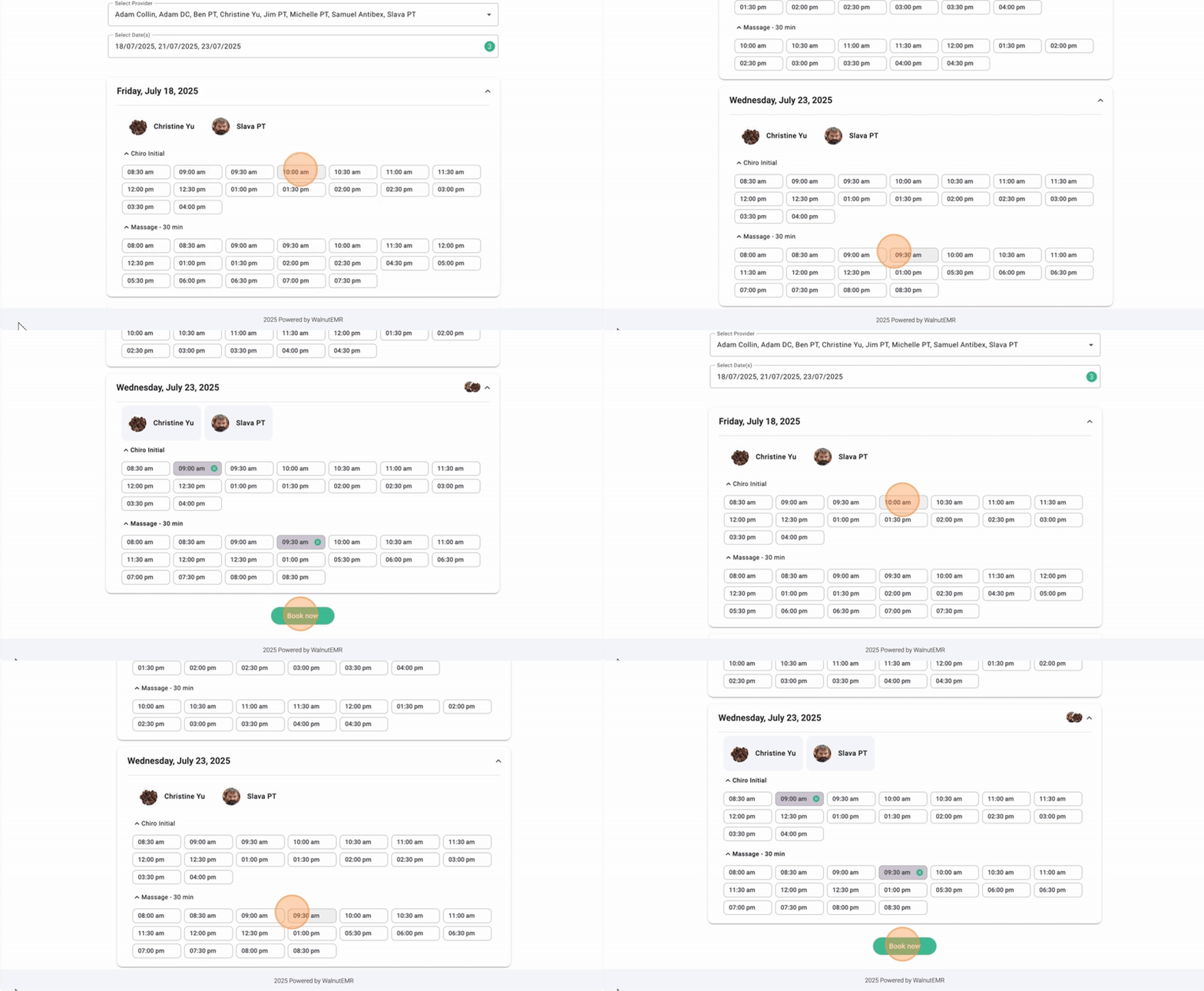
33. Select your preferred date and time, then click ‘Book Now’. You’ll be prompted to log in or sign up to complete the booking.
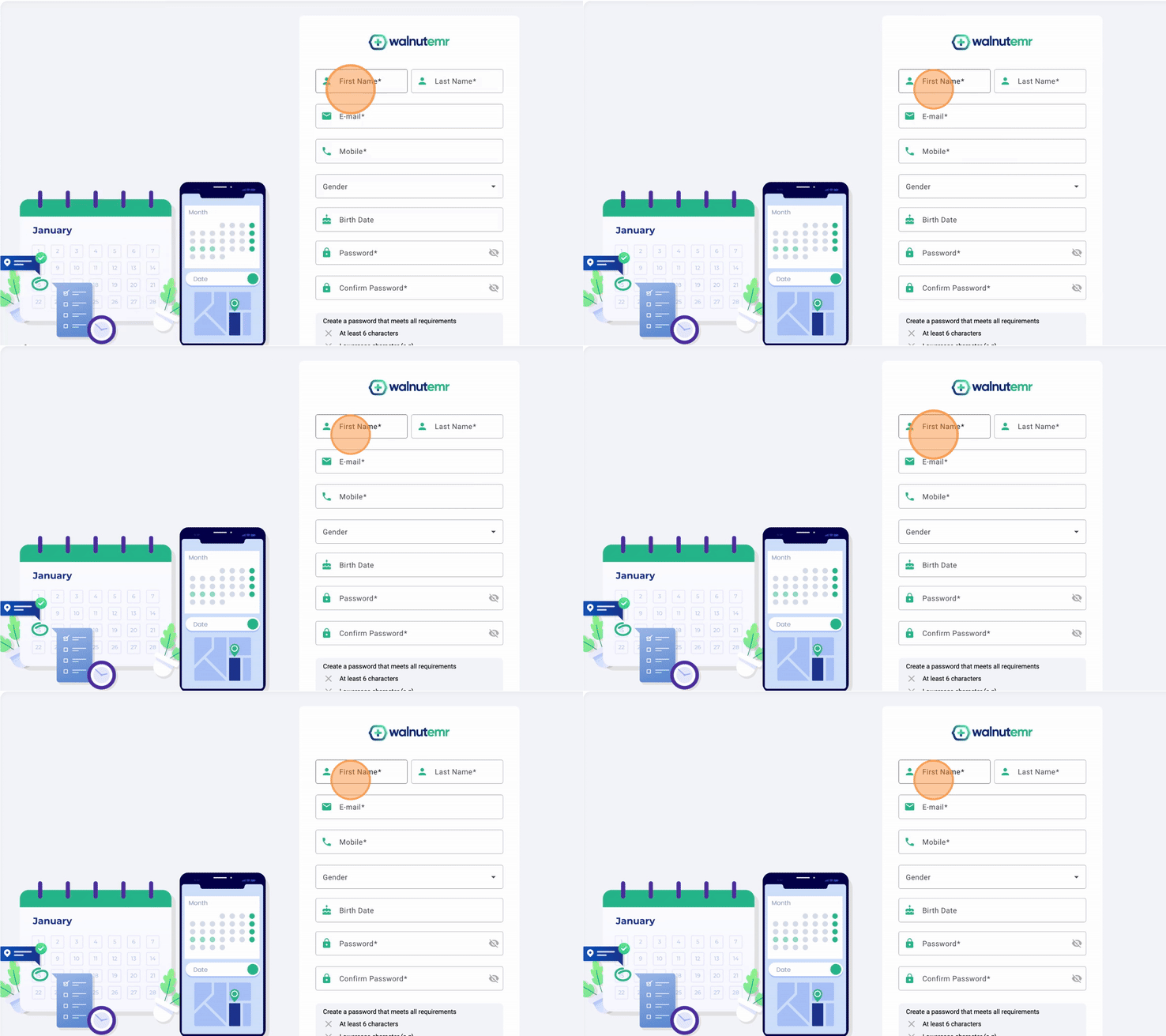
34. Follow the sign-up screen instructions. First name, last name, email, phone number, and password are required. Birthdate and gender are optional.
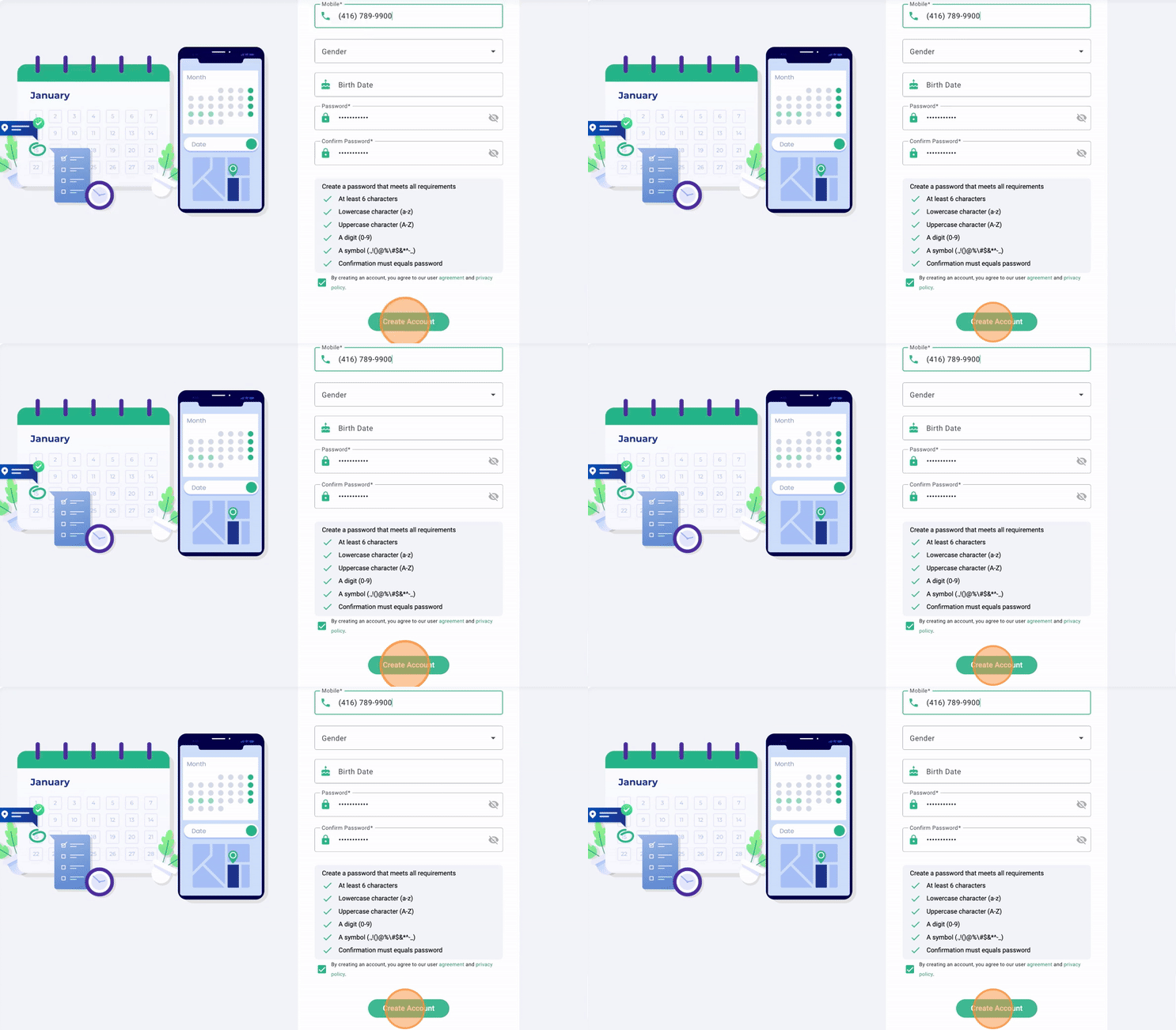
35. Click “Create Account”
36. You’ll receive an email from “noreply@walnutemr.com” containing a 6-digit verification code.
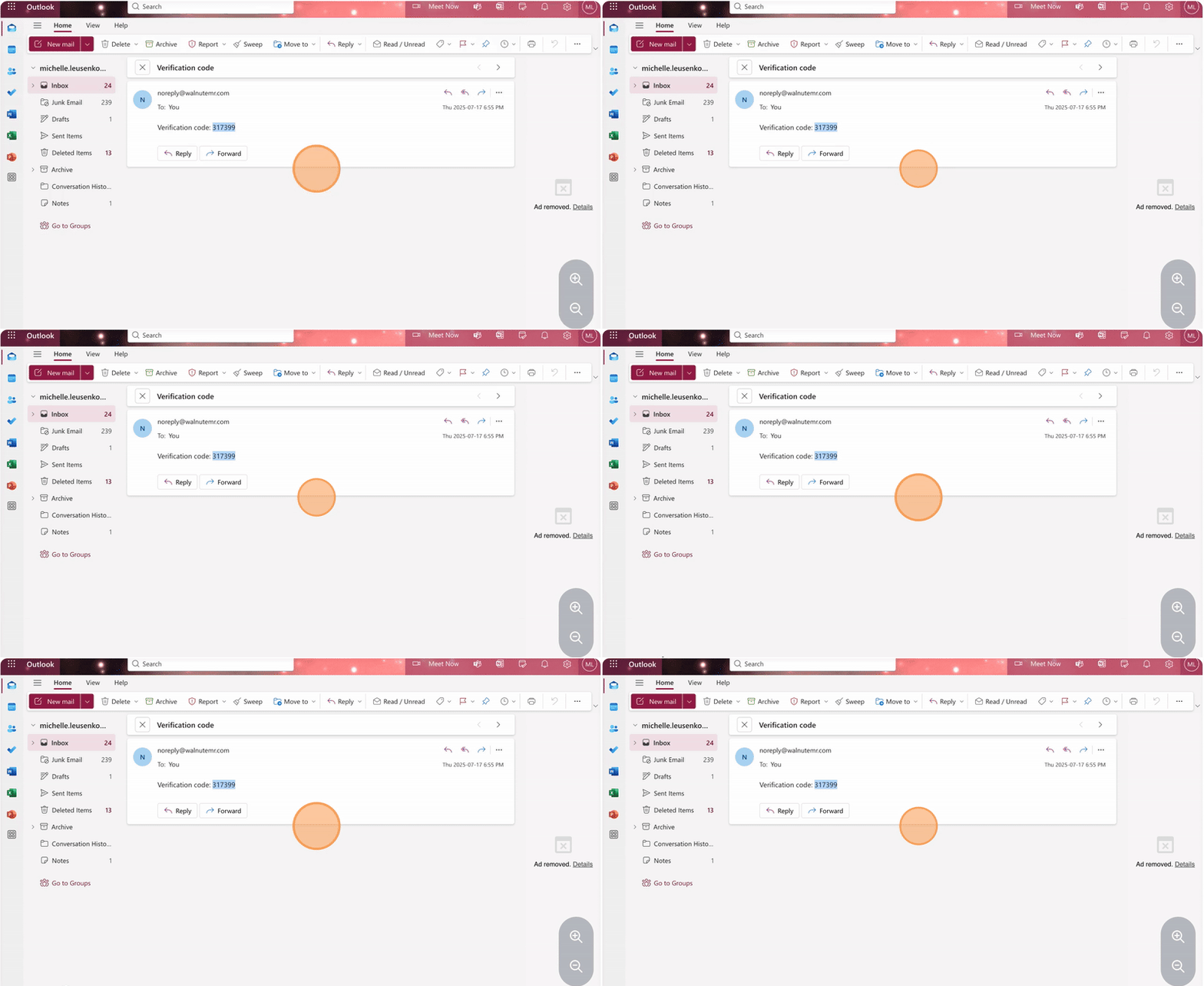
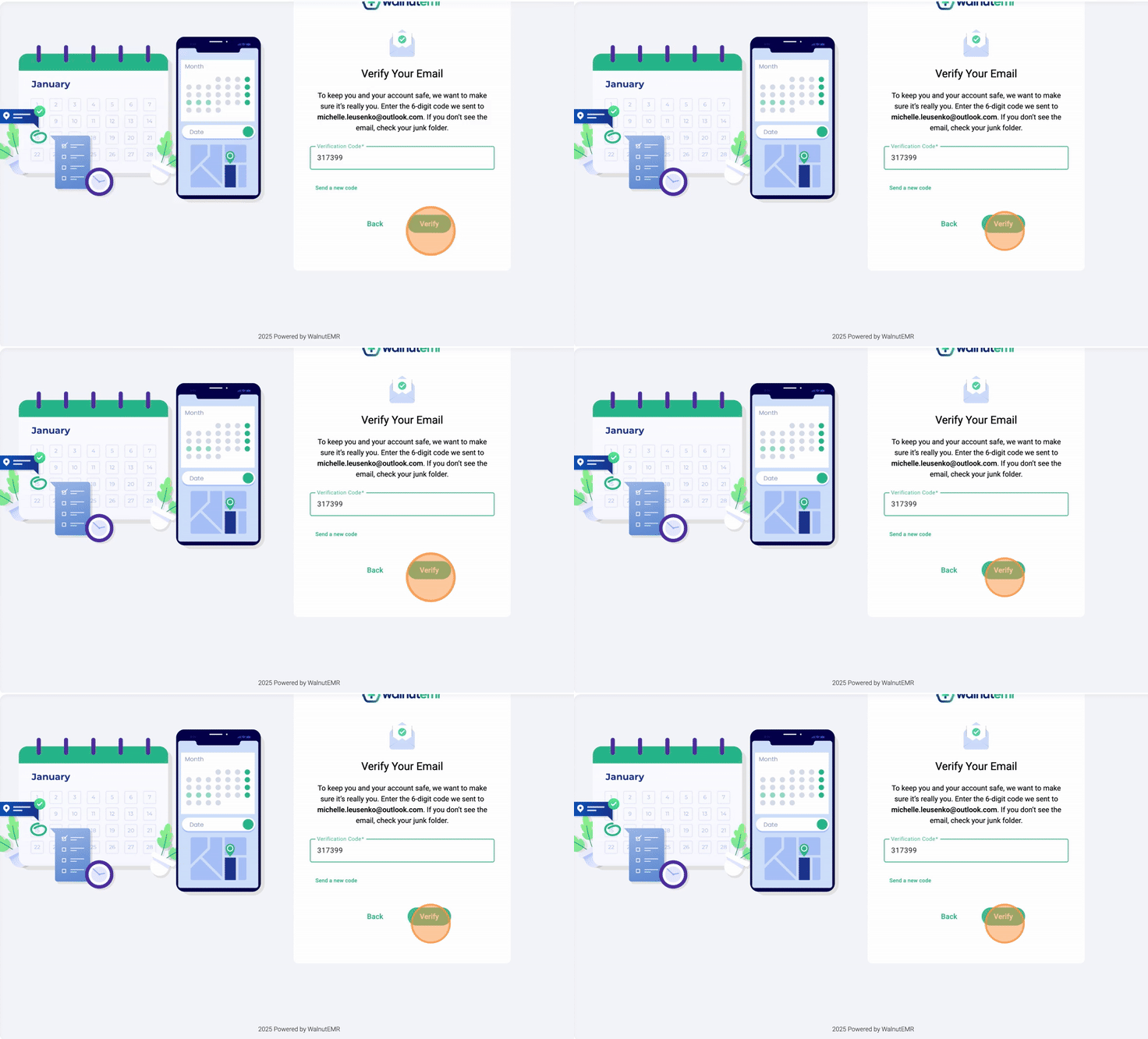
37. Enter the code and click Verify.
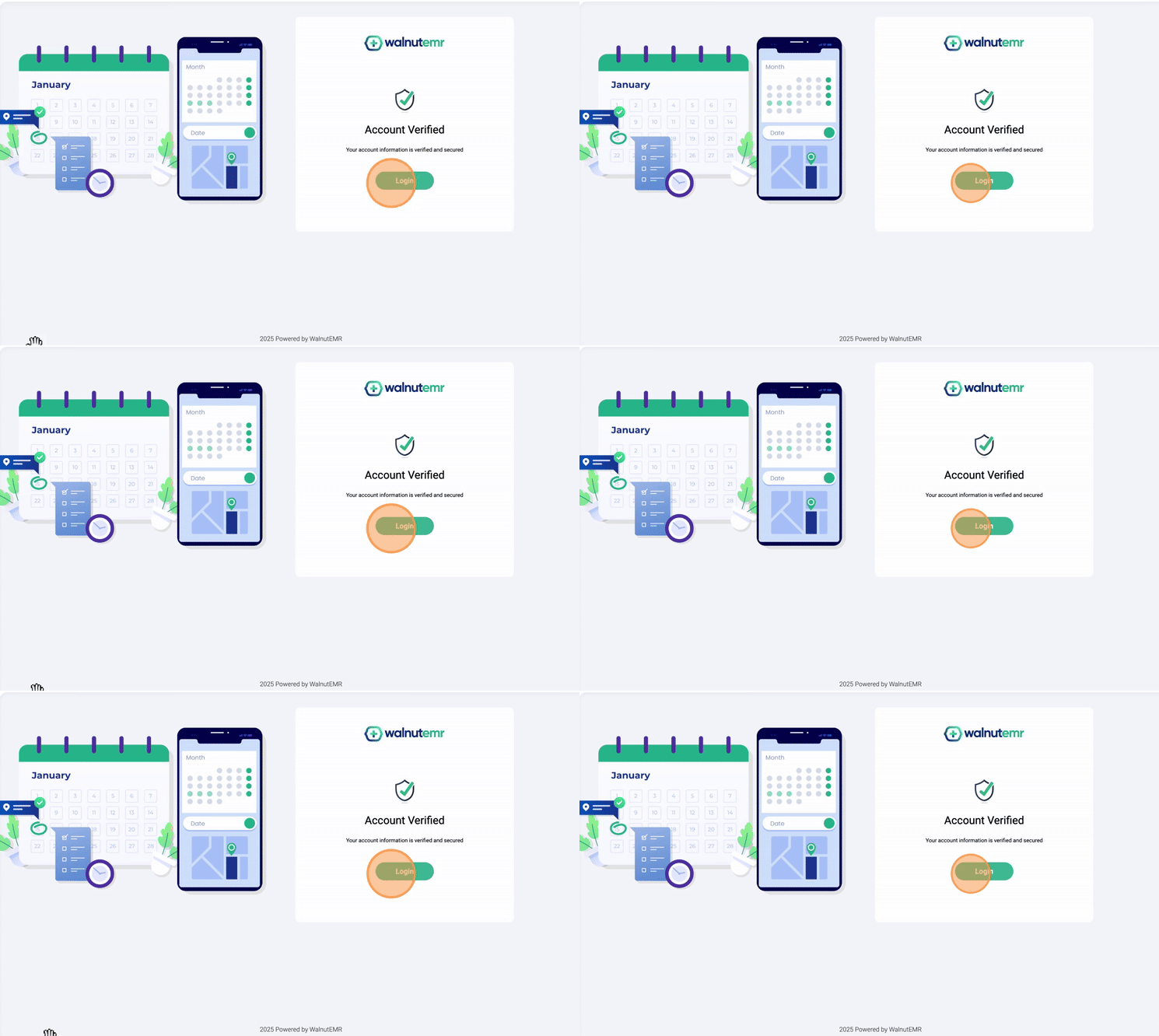
38. Click Login.
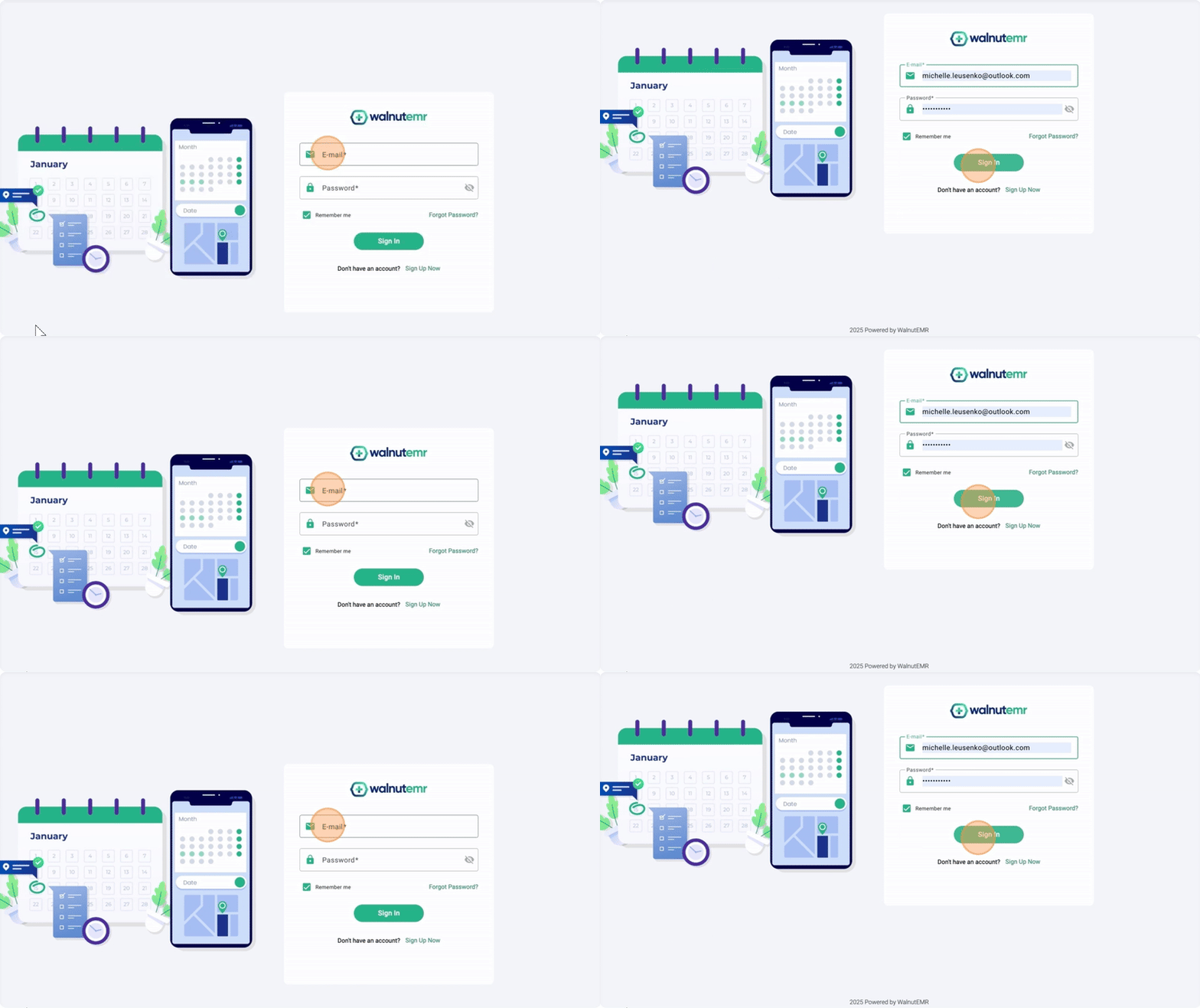
39. Enter your email address and password and click Sign In.
40. Once your booking is confirmed, you’ll be able to view your scheduled appointments and access additional profile settings. Click ‘View My Appointment’ to be taken to your patient profile. Patients can access their account anytime by visiting patient.walnutemr.app/